What Is Docki? A Hands-On Tour of Every Feature
Picture a familiar Sunday evening: you spend three hours reading a dense chapter on cell biology or working through an intermediate Spanish article, highlighting passages and taking notes. When you close your laptop, everything feels clear. Yet seven days later, when a quiz question asks you to explain the proton gradient across the inner mitochondrial membrane—or when you try to use a Spanish verb phrase in conversation—your mind goes blank. You remember where the paragraph sat on the page, but the actual knowledge has vanished.
The problem isn't your memory. The problem is that where you read and understand a lesson and where you review it for long-term retention live in two disconnected tools. You read PDFs and write notes in one app, then switch to a separate flashcard app to manually copy-paste questions and answers. Weeks later, when a card pops up out of context, you have to dig through old folders just to find the original page.
Docki was built to close that gap. In this hands-on tour, we will walk through every core screen of Docki using real screenshots from the live app—from Today, multi-tab Markdown and PDF Documents, and AI flashcard generation, to vocabulary cards with real stock photos and audio, Voice Study, and a 53-week heatmap.
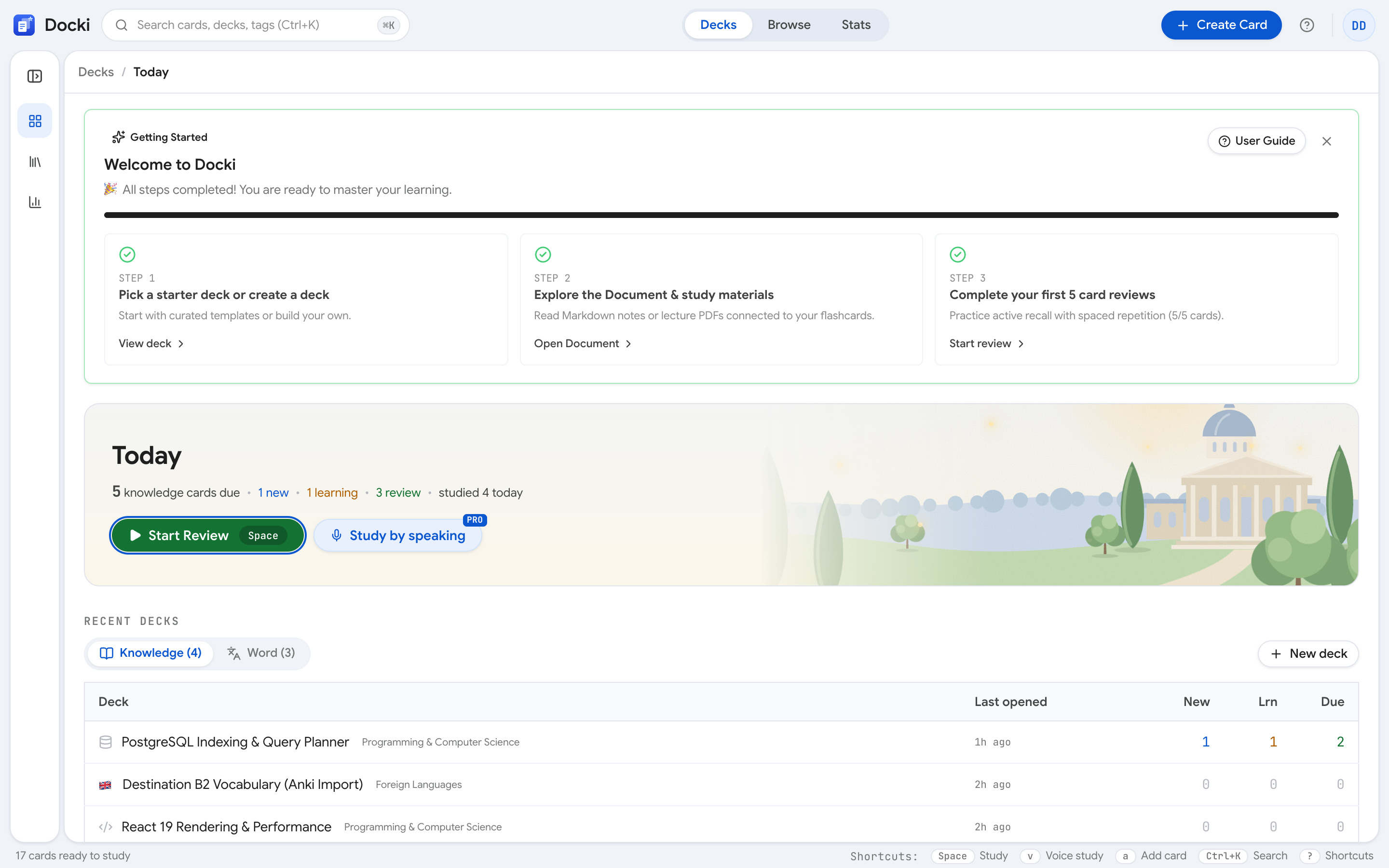 Figure S1: The public landing page of Docki. Notice the headline introducing the unified Document-and-Flashcards workflow and the Get started button.
How Docki Is Different: Every Deck Has a Document and Flashcards
In one sentence: every deck in Docki has both a Document (the lesson, in one or more Markdown or PDF tabs) and Flashcards (to remember it), and AI reads the Document to help you draft cards and quizzes.
In traditional flashcard apps, a deck is just a flat box of isolated Q&A pairs. Once a concept is chopped into twenty tiny cards, it is easy to memorize fragments while losing the big picture. In Docki, your lecture notes, tables, diagrams, and PDFs stay right inside the deck's Document tab. Every generated card keeps a Source link pointing back to the exact section heading or PDF page it came from.
Every study cycle follows four stages:
- Read in the Document: Write Markdown with tables and Mermaid diagrams, upload a PDF (up to 50 MB), or drop in a Word
.docxfile. - Turn passages into Flashcards: Highlight text to make a card on the spot, or open Generate Flashcards to let AI draft Q&A, cloze, or vocabulary cards that you review before adding.
- Review right before you forget: Practice active recall via typed or spoken answers (Voice Study), scheduled by FSRS.
- Measure progress and close gaps: Check your 14-day forecast on Stats and run Analyze → Knowledge Coverage to spot concepts without cards.
Stop 1: The Today Screen and Decks Tree
When you sign in, you land on Today, which gathers every card due across your library into one queue so you never waste time wondering what to study first.
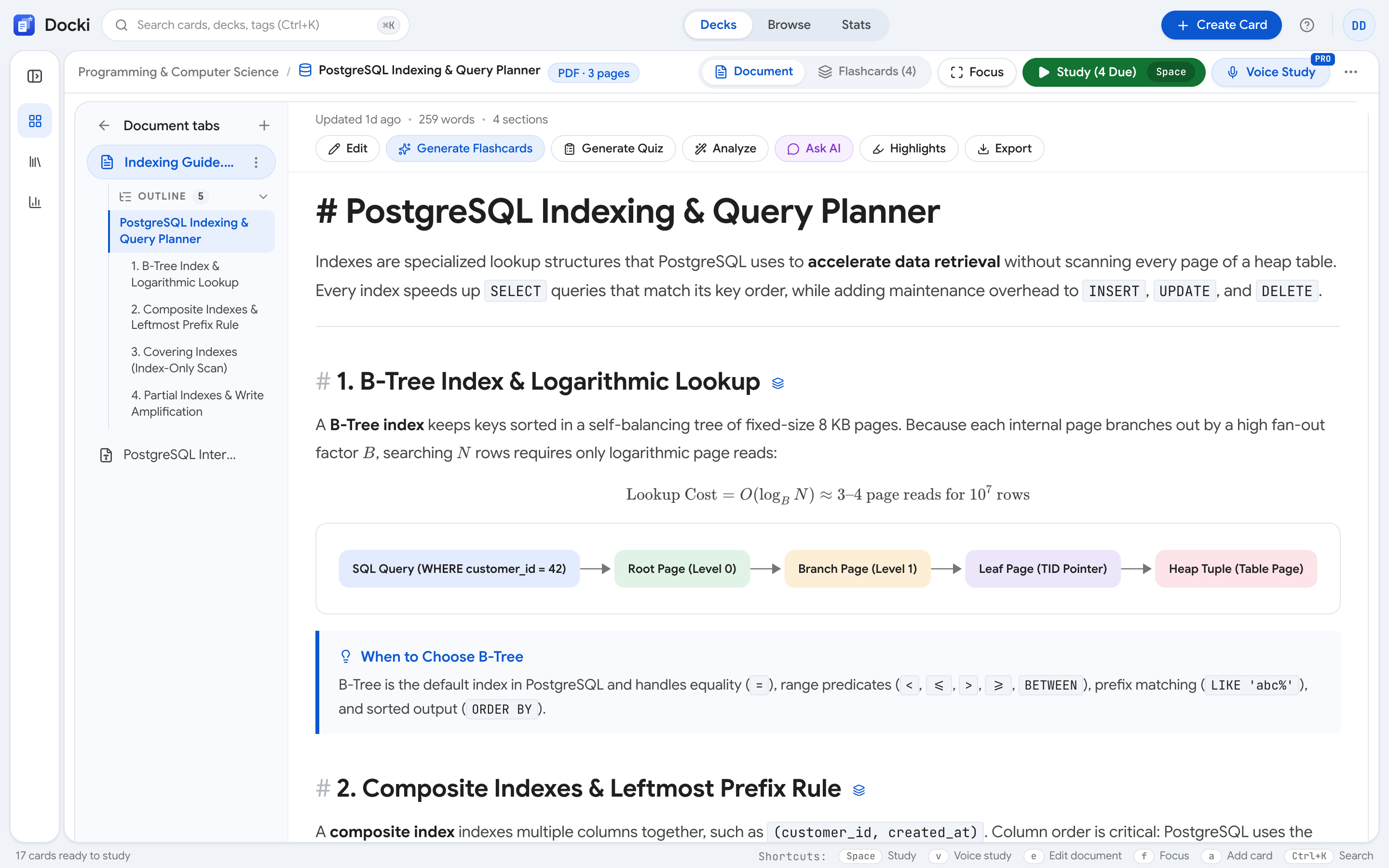 Figure S2: The Today workspace. Look at the Decks Tree sidebar on the left showing folders, decks, and their three status numbers (New, Learning, Due), alongside Start Review.
Along the left edge sits the Decks Tree sidebar. You can organize folders and decks with drag-and-drop, nest sub-decks one level deep, and right-click any item (or click ⋯) to pick Change icon… for a custom emoji, subject icon, or language flag. Next to every deck are three counters:
- New: Cards created or imported that haven't been studied yet.
- Learning: Cards seen for the first time today—or recently missed—stepping through short intraday intervals.
- Due: Long-term cards scheduled by FSRS for review today.
On desktop, the sidebar collapses into a slim icon rail by default; hovering peeks the full tree over the page, or you can click Pin ([) to keep it open. In the center of Today, press Start Review (Space) to study everything due, or filter between Knowledge and Vocab tabs.
Stop 2: The Document Tab — Living Markdown Notes and PDFs with Inline AI
Click any deck—such as Cell Biology—and Docki opens its Document tab. A deck's Document is organized as a list of tabs: you can combine multiple Markdown tabs (with headings, tables, code blocks, math, and Mermaid diagrams) alongside PDF tabs (with multi-color text and area highlights, page jump, and search). The tabs bar and toolbar stay pinned at the top as you scroll.
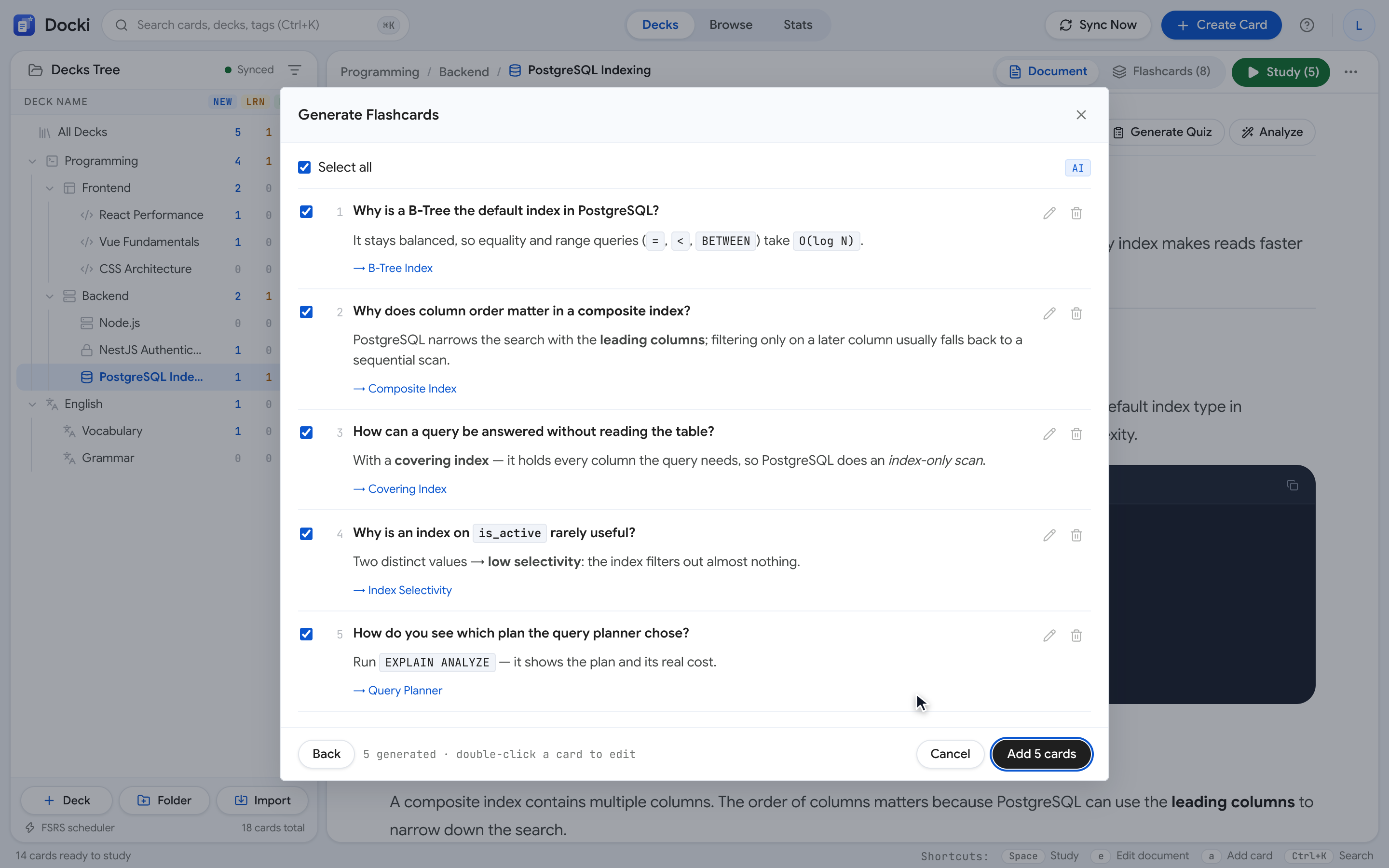 Figure S3: The Document tab inside the Cell Biology deck. Notice the multi-tab bar at the top, the formatted Markdown table comparing cellular structures, and the embedded Mermaid flowchart.
In the Markdown editor (press E), Beautify tidies Markdown syntax and adds paragraph breaks, bold key terms, and italics for technical terms while strictly verifying that none of your words were changed. Try interacting with a Document and its selection tools below:
Why does recalling help you remember?
Rereading a page feels productive, but mostly it just makes the page familiar. Retrieval practice — pulling information back without looking — forces the brain to rebuild the path to the memory, and each rebuild makes the next one easier.
When you try to recall, the brain has to search for and reconnect pieces of information. That effort is the exercise: the connection gets stronger each time, so next time you remember faster and keep it longer.
Whenever you highlight a passage in a Markdown or PDF tab, a floating selection menu appears right beside your cursor:
- Explain in detail, Give illustrative examples, or Simplify: Opens an inline AI popover beside the passage (with an Add to Document button to save the explanation as a callout).
- Ask AI about this…: Starts a focused question thread about the excerpt.
- Create new Flashcard (
Ctrl+N/⌘N): Opens the card editor pre-linked to that exact section or PDF page via its Source field. - Generate quiz and Read aloud: Launches a short quiz on that passage or reads it out loud.
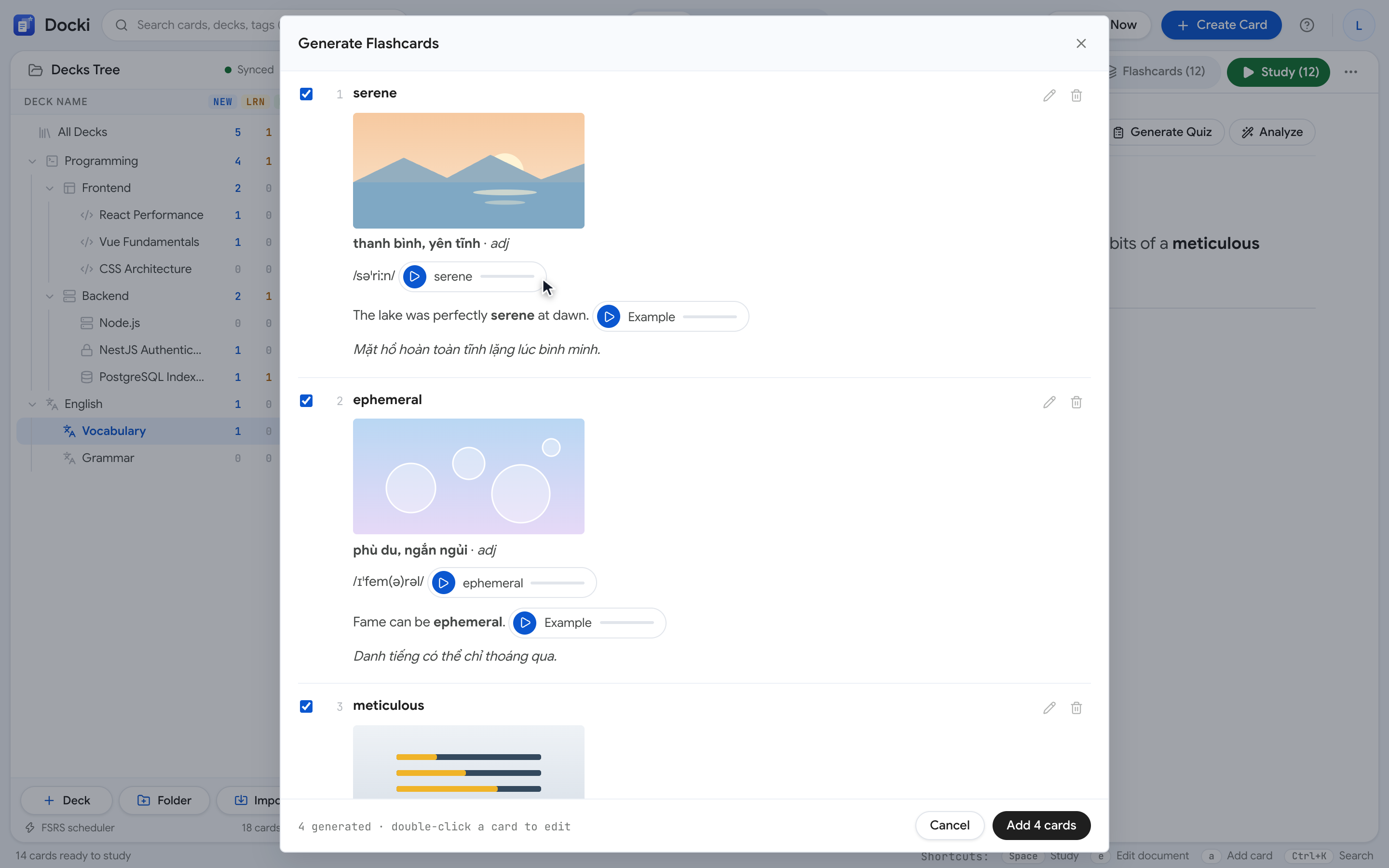 Figure S4: Selecting a passage inside the Document brings up the floating action bar with Explain in detail, Simplify, and Create new Flashcard.
👉 Read deeper: Documents and Flashcards Together: Living Notes and Your AI Study Assistant Inside Every Document.
Stop 3: Generate Flashcards with AI — You Stay in Control of Every Draft
Turning a 3,000-word chapter into thirty cards by hand can take an entire evening. Clicking Generate Flashcards on the Document tab (or Generate with AI on the Flashcards tab) lets AI draft cards from your text while keeping you in full control.
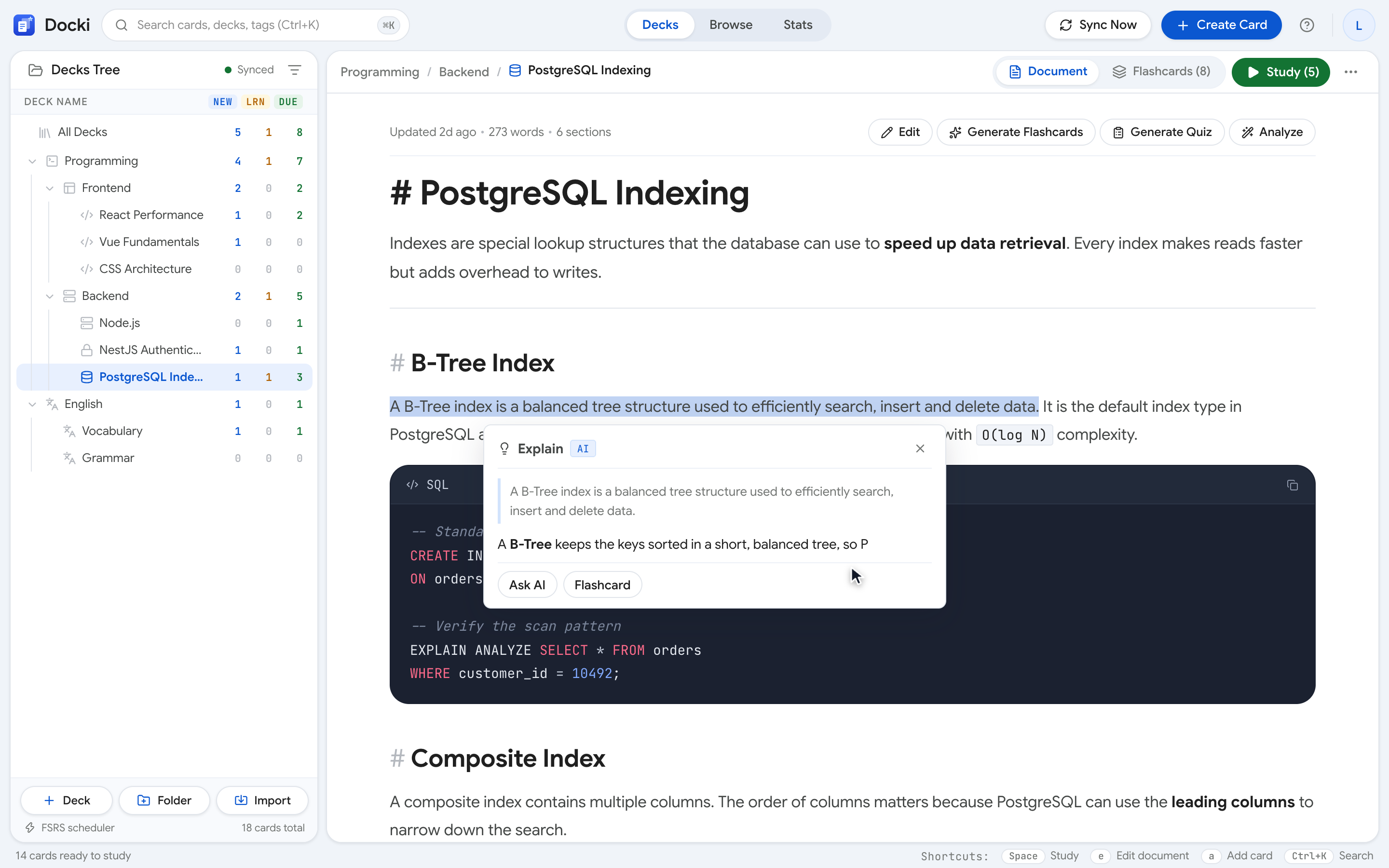 Figure S5: The Generate Flashcards dialog. Notice the style presets (One card per item, Vocabulary, Q&A, Fill in the blank, Reverse), the count and Difficulty controls, and the checklist of draft cards.
You pick the source (the whole Document tab, a PDF page range, or your current selection), choose a style, and set the card count and difficulty. See how Document sections connect to generated cards below:
Docki never dumps unverified AI cards straight into your deck. Every generated card appears in a draft review list first, with automatic duplicate detection. You can edit any draft inline, untick cards you don't want, and add only the rest. Afterward, clicking Analyze → Knowledge Coverage scans your Document to highlight concepts that still have no flashcards and lets you click Generate Missing Flashcards to cover them.
👉 Read deeper: Bulk-Create Vocabulary Flashcards with AI: From One Reading to 30 Cards.
Stop 4: Reviewing with Active Recall and the FSRS Scheduler
During review, each card shows its front side first, prompting you to retrieve the answer from memory (Active Recall). On typed answer cards, you type your response and see a letter-by-letter diff. If a Knowledge card has no manual hint, clicking AI hint (H) gives a subtle nudge without giving the answer away.
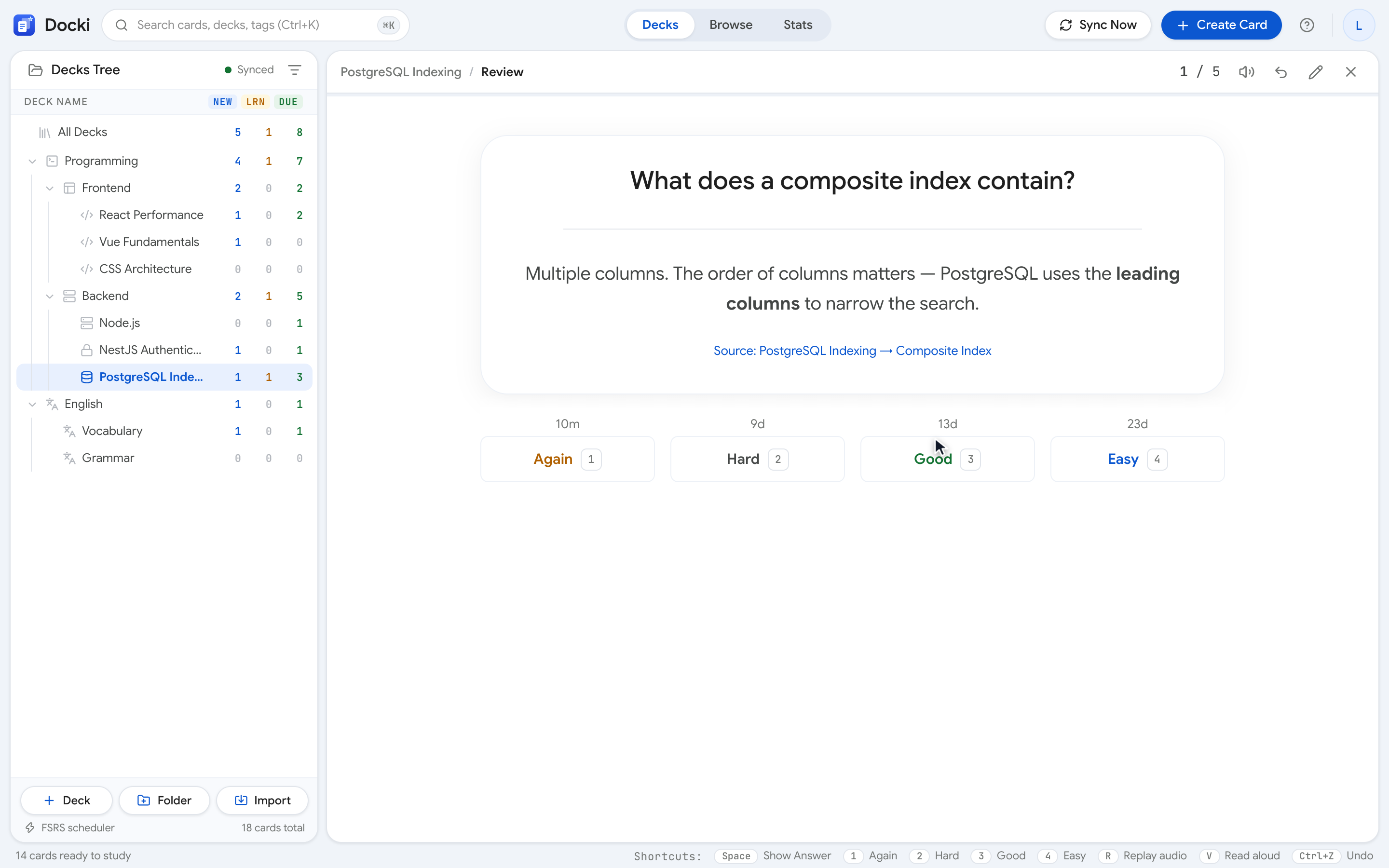 Figure S6: The front of a knowledge card in review. Look at the question prompt, the AI hint button (
H) at the top, and Show Answer (Space) at the bottom.
Try typing an answer and grading a card in the interactive widget below:
Why do nerve impulses travel fast along myelinated fibres?
Press Space (Show Answer) to flip the card and reveal the four grading buttons powered by FSRS (Free Spaced Repetition Scheduler):
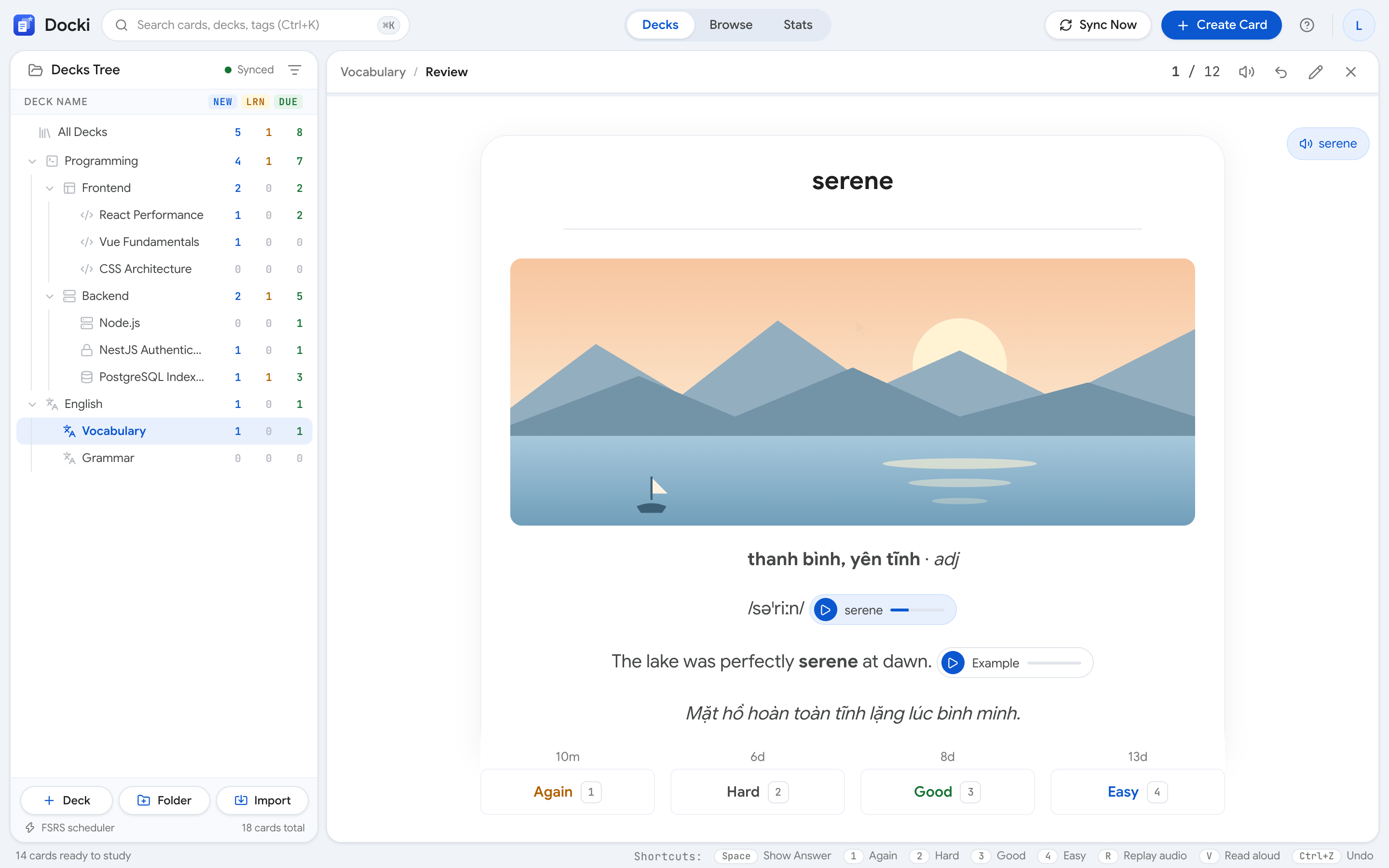 Figure S7: The back of the card after pressing
Space. Notice the Source link back to the Document passage and the four FSRS buttons (Again, Hard, Good, Easy) with their next intervals.
| Grade Button | Shortcut | When to Choose It | What FSRS Does Next |
|---|---|---|---|
| Again | 1 | You forgot the answer or missed the core point | Moves the card into short relearning steps (e.g., 1m) so you see it again today |
| Hard | 2 | You recalled the answer, but with real effort | Schedules a modest interval increase while updating card difficulty |
| Good | 3 | You remembered it normally (the usual choice) | Expands the interval to hit your 90% target retention right before forgetting |
| Easy | 4 | Recall was instant and effortless | Jumps to a much longer interval so easy cards never waste your time |
Explore how FSRS stretches intervals across reviews in the interactive chart below:
Each dot is a review: memory returns to full and then fades more slowly than before. Gaps between reviews widen as you remember well. (Illustration.)
During review, press Ctrl+Z to Undo, E to edit the card, V to read it aloud, or use Focus mode with swipe and double-tap gestures on your phone.
👉 Read deeper: What Is Active Recall and How to Apply It and Spaced Repetition in Practice.
Stop 5: Vocabulary Decks — Real Stock Photos, IPA, Audio, and Context
When you open Deck settings… and tick This deck is for learning a language, you choose the language you are learning and your meaning language. Docki then builds complete Word cards from a word list, from Find words in the Document, or when you select text and click Add as a word:
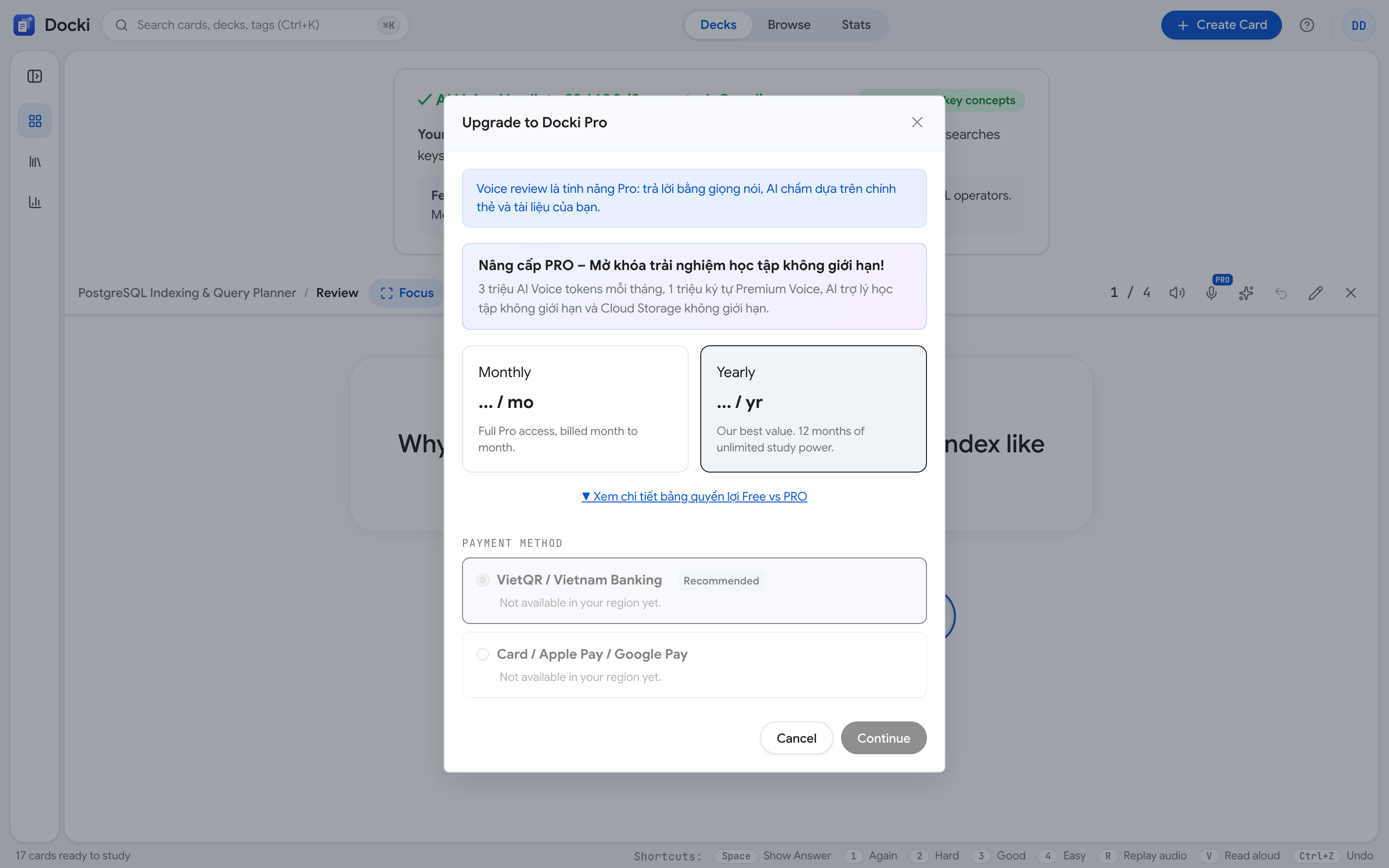 Figure S8: The back of a vocabulary card in Spanish Basics showing a real stock photo, meaning, part of speech, pronunciation with speaker button, and example sentence.
Watch this 48-second screen recording of scanning words from a reading, attaching real photos and audio, and reviewing with active recall:
Every vocabulary card includes:
- Real photos from stock photo libraries: Docki never generates AI-drawn images. Instead, it automatically searches and attaches real photographs from Pexels, Pixabay, and Openverse, shown above the card on both sides during review and swappable in one click.
- Cloze sentence and typed answer: Single-word cards show a blanked example sentence on the front so you type the word from context (with a Hint button).
- Accurate pronunciation: IPA for English and European languages (plus an interactive 44-sound British English IPA chart at
/ipa), Pinyin for Chinese, Hiragana + Romaji for Japanese, and Revised Romanization for Korean. - Word and sentence audio: Click any audio chip below to hear real word and example audio generated in Docki (press
Rin review to replay, andRagain for slow turtle speed):
| Target Word | IPA & Part of Speech | Word Audio | Contextual Example & Sentence Audio |
|---|---|---|---|
| rain | /reɪn/ · noun (n) | rain | "I forgot my umbrella, so I got wet in the rain." rain example sentence |
| cloudy | /ˈklaʊdi/ · adjective (adj) | cloudy | "It is cloudy today, so we should take an umbrella." cloudy example sentence |
| windy | /ˈwɪndi/ · adjective (adj) | windy | "It is very windy today, so hold on to your hat." windy example sentence |
| sunny | /ˈsʌni/ · adjective (adj) | sunny | "It is a sunny day, so let's go to the beach." sunny example sentence |
👉 Read deeper: Learn Vocabulary with Pictures, Pronunciation Audio and IPA on Flashcards, and Learn a Language End-to-End.
Stop 6: Voice Study (Speaking Out Loud) and Ask AI
For conceptual subjects like biology, medicine, or law, explaining an answer out loud is the fastest way to test real understanding. Voice Study lets you speak your answer and get immediate AI feedback.
Voice Study is for knowledge decks and knowledge cards only (not vocabulary decks). Live transcription streams on screen while you speak on Chrome, Edge, and Android, whereas on iPhone / Safari your words are transcribed after each pause so the browser doesn't fight the recorder for the microphone. When you finish or leave the session, Docki shows an in-session Voice Report detailing your accuracy, weak Document sections, and commonly omitted points.
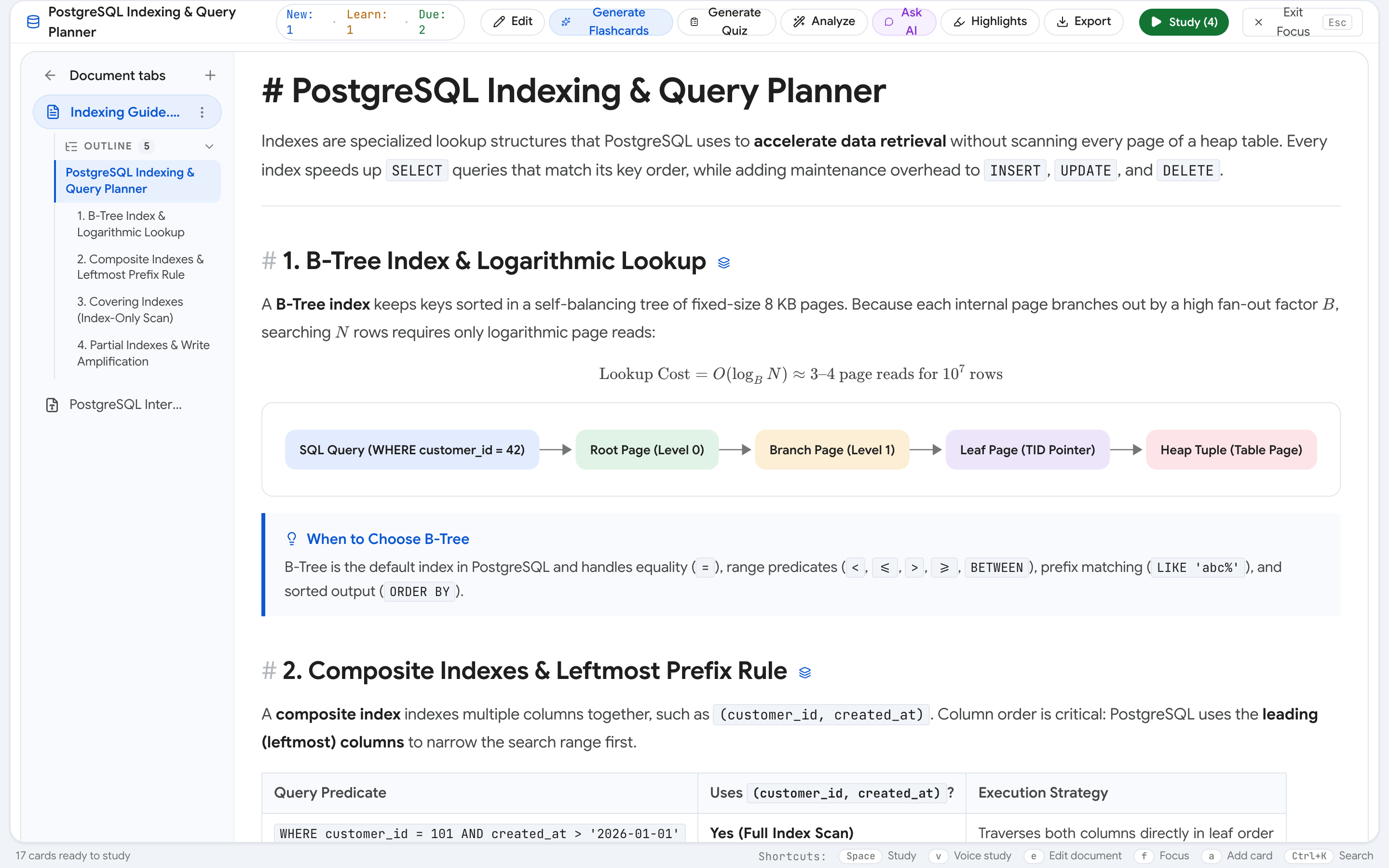 Figure S9: Voice Study inside the Cell Biology knowledge deck showing the waveform ring and live transcript.
Alongside Voice Study, the Ask AI panel is available inside both the Document and Review screens:
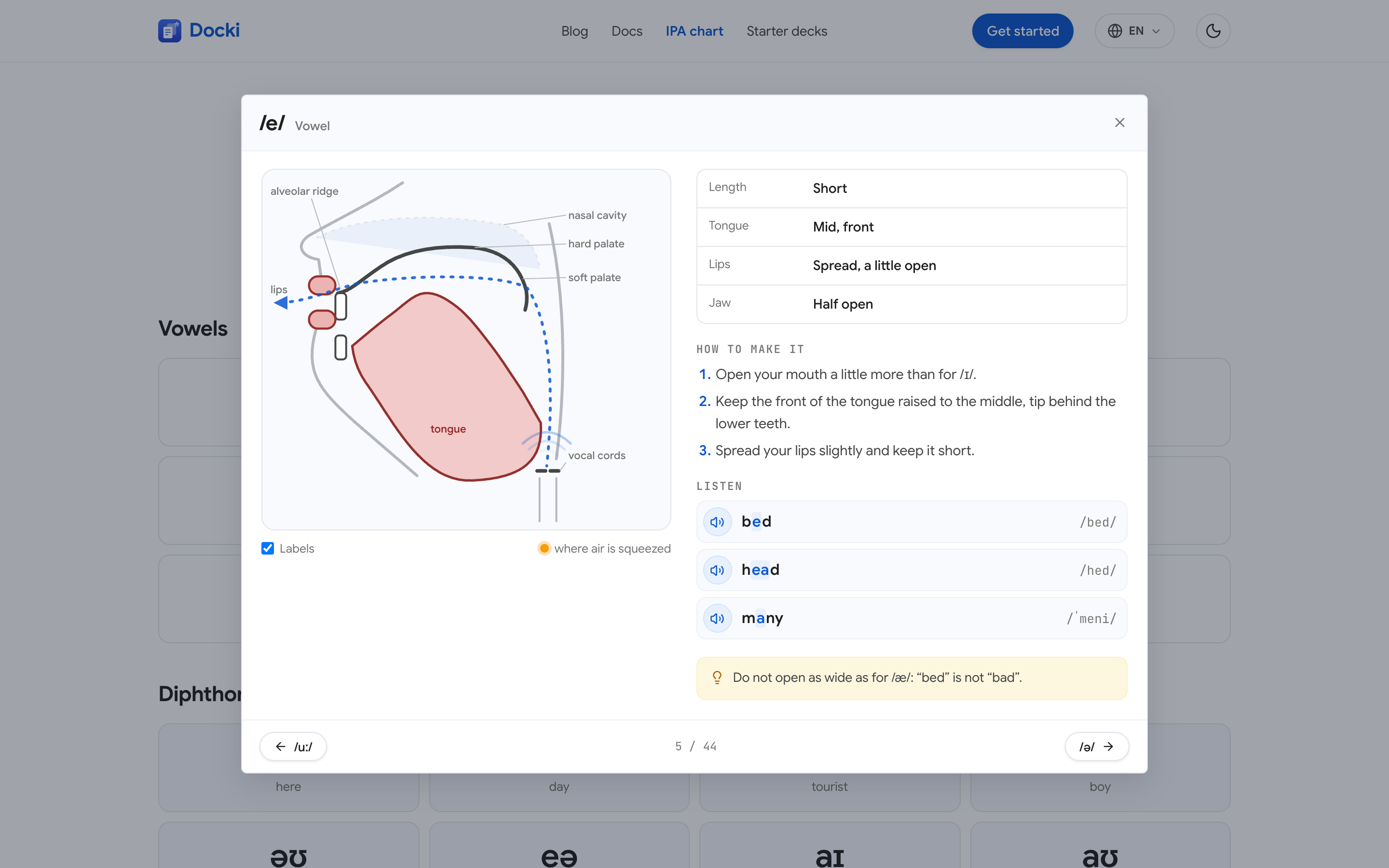 Figure S10: The Ask AI panel answering a question about the Cell Biology Document, with Add to Document and Flashcard buttons.
When opened during review before you reveal the answer, Ask AI gives hints only—never spoiling the card's answer.
👉 Read deeper: Voice Study: Answering Flashcards Out Loud and AI Study Assistant in Your Documents.
Stop 7: Tracking Progress on Stats
Opening Stats in the top bar gives you a clear view of your study habit and upcoming reviews:
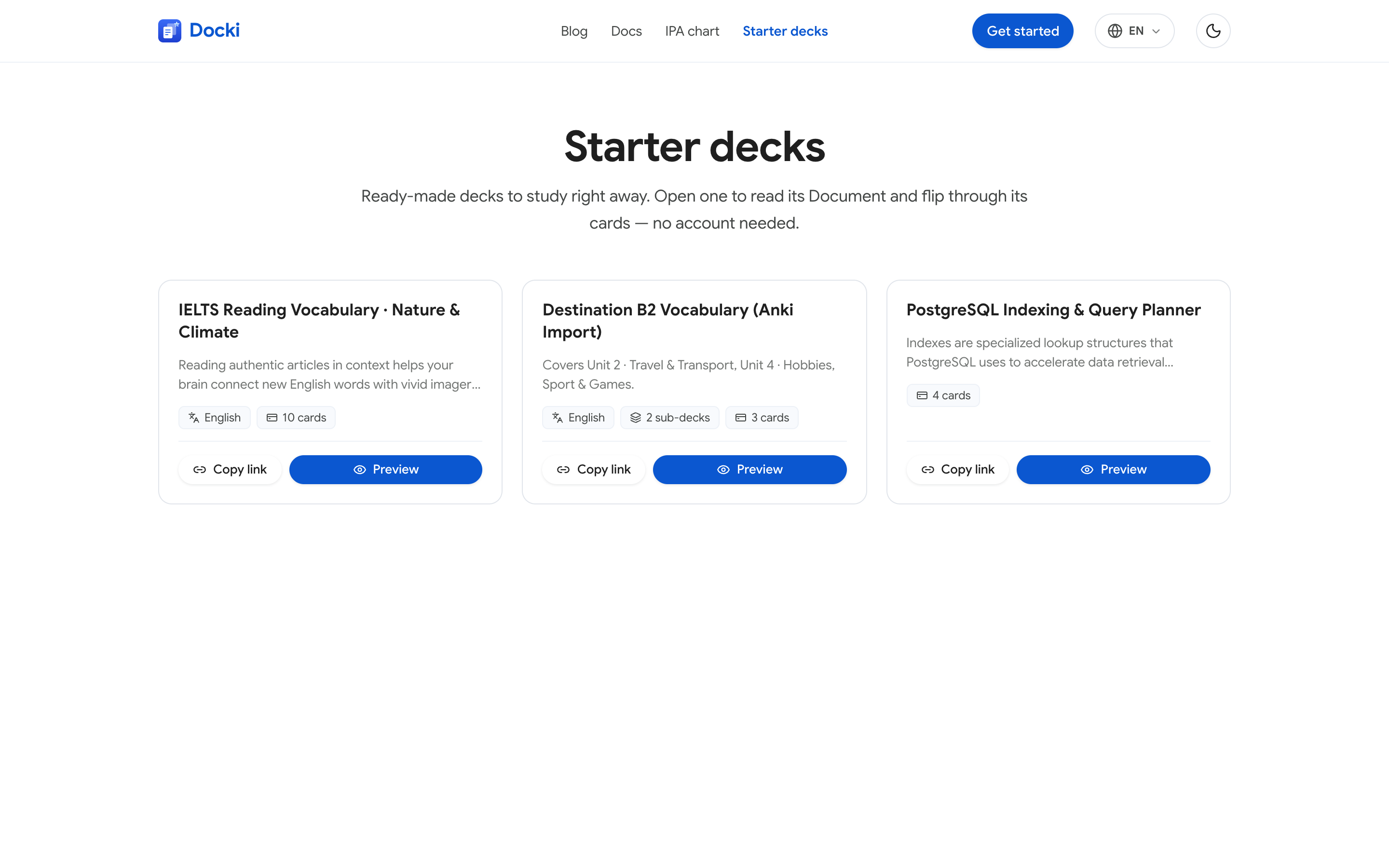 Figure S11: The Stats page (with multi-day sample review logs) showing top summary metrics, the 53-week Activity Heatmap, and the 14-day Due forecast.
You can track cards studied today, your Again rate, active days and streaks across the last 53 weeks, card counts per FSRS state, and a 14-day forecast of upcoming due cards.
Stop 8: Starter Templates (/starter), Anki Import, and Classes
Want to explore a complete deck before creating an account? Visit /starter to browse curated Starter Templates:
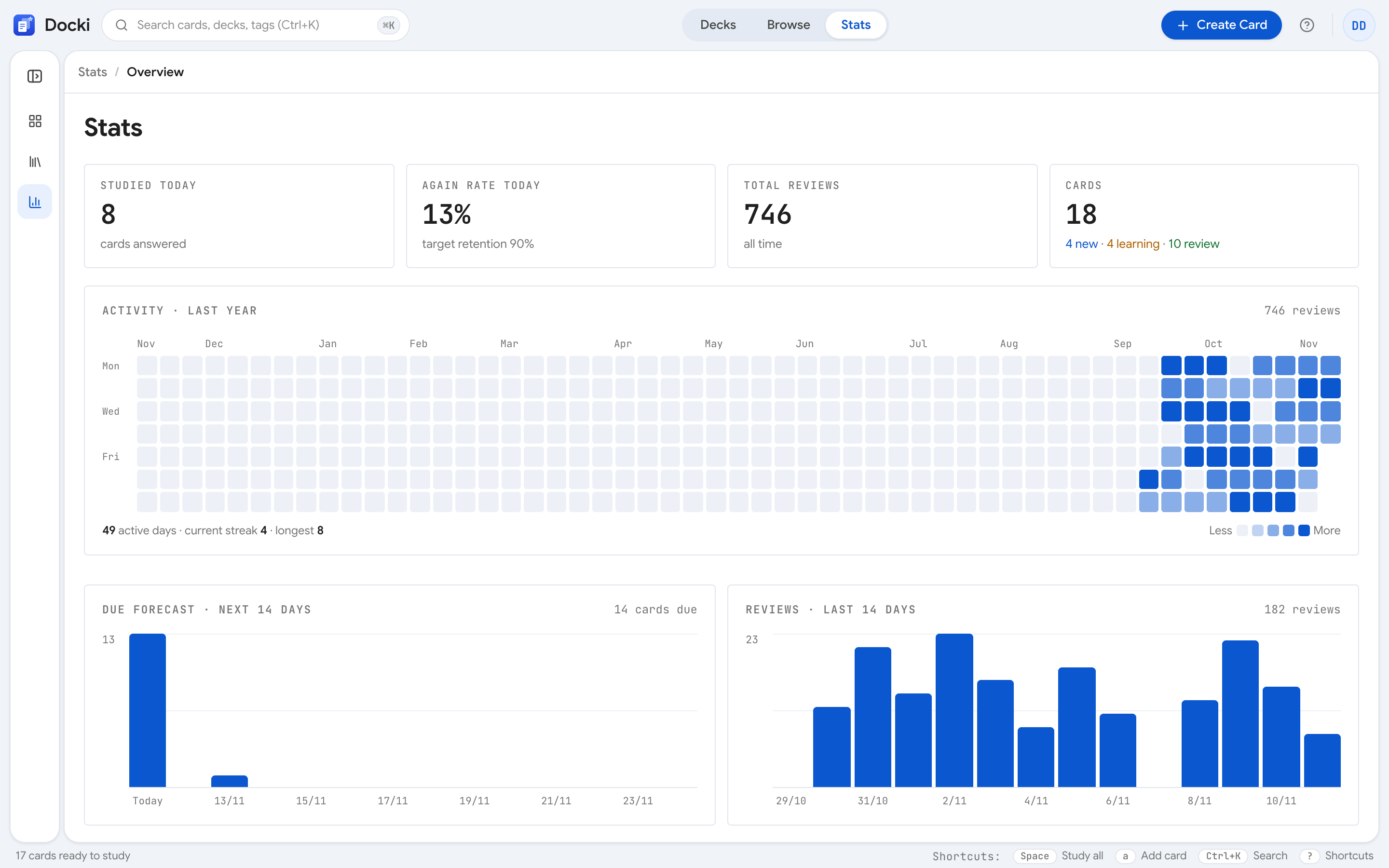 Figure S12: The public
/starter page. Click Preview to read the full Document and flip through every card without signing in, or Copy link to share a direct /starter/<id> URL.
You can also click Import in the sidebar to bring over Anki (.apkg, .colpkg) packages with all media and sub-decks intact, or import Word (.docx) and Google Docs (.zip) files into Markdown tabs. Teachers can create Classes to share decks via invite code and follow student progress.
👉 Read deeper: How to Move from Anki to Docki.
Who Docki Is Built For (and Honest Trade-Offs)
| Who Will Love Docki | When Another Tool Might Fit Better |
|---|---|
| Students & self-learners who want Markdown/PDF notes and FSRS flashcards linked together in one workspace. | Heavy Anki desktop add-on users whose workflow relies on dozens of desktop-only Python plugins. |
| Language learners who want bulk vocabulary cards with real stock photos, IPA, audio, and cloze examples. | Learners wanting Voice Study on word lists: Voice Study is designed for conceptual Knowledge decks, not vocabulary decks. |
Frequently Asked Questions (FAQ)
1. Is Docki free to start?
Yes. You can create a free account, write Markdown and PDF Documents, import Anki decks, and review with FSRS, including a monthly allowance for AI and Google TTS voices (with automatic fallback to your browser's built-in voice if the allowance runs out).
2. Can I export my data at any time?
Yes. On the Sync page, click Export JSON to download all decks, Documents, flashcards, and review logs, or export any Document tab to Markdown, Word, or PDF.
3. Does it work on mobile?
Yes. Docki works in any phone browser with Focus mode, swipe/double-tap review gestures, and instant cloud sync.
4. How is Docki different from Anki?
Anki excels at desktop add-ons and community decks; Docki puts a multi-tab Document (Markdown + PDF) and an AI assistant inside every deck alongside built-in FSRS scheduling.
Try Docki Today
Put this method to work in your own studying
Create study documents, extract flashcards with AI and review with FSRS spaced repetition on Docki, completely free.
Start for free