Learn a Language End to End with Docki: Read, Collect, Listen, Review
Picture Elena, a composite learner whose story mirrors what we hear from self-taught language students every week. For three months, Elena studied Spanish and advanced academic English every evening after work. She downloaded pre-made frequency lists, reviewed 30 isolated word cards a night, and watched her card counter climb past 1,200. Yet the moment she opened a short news article about climate policy or listened to a native speaker read a paragraph at natural speed, she hit a wall. She recognized individual word stems here and there, but she could not parse how the words fit together in a real sentence—nor could she recall the right word when writing a sentence of her own.
Elena did not lack discipline; she suffered from a broken language-learning workflow. Most learners read articles in a browser tab, look up unknown words in a separate dictionary, copy definitions into a spreadsheet or flashcard app by hand, and review bare text cards stripped of their original paragraph, imagery, and sentence rhythm. When your tools are fragmented across four apps, copy-pasting eats up half your study session and context vanishes before the first review begins.
In this guide, we will walk through one complete end-to-end language loop inside Docki: starting with a real reading passage inside a deck's Document, extracting target vocabulary with AI or capturing words inline as you read, attaching real stock photography plus IPA transcription and spoken audio, practicing active production with Cloze type-answer cards scheduled by FSRS, and tracking retention on the Stats dashboard. You can also test-drive a finished deck right away without creating an account in the public Starter Decks library (/starter).
1. The 5-Step Language Loop: Why Reading, Collection, Multimodal Cards, and Spaced Retrieval Belong Together
In Second Language Acquisition research, Stephen Krashen's Comprehensible Input hypothesis highlights that learners acquire vocabulary and grammar most naturally when engaging with meaningful texts slightly beyond their current level (i + 1). At the same time, vocabulary researcher Paul Nation (2001) showed that incidental reading alone requires many encounters before a word sticks; pairing contextual reading with deliberate spaced retrieval turns passive recognition into active command far more reliably.
To combine comprehensible input with deliberate retrieval without friction, your workflow needs five connected stages under one roof:
Watch this real-time capture from Docki showing how a reading passage turns into illustrated, spoken vocabulary flashcards and enters an FSRS active-recall session in seconds:
Keeping all five steps inside the same deck removes the three biggest bottlenecks of self-study:
- Zero loss of context: Every card comes directly from an article you just read in the Document tab, preserving the exact usage you encountered.
- Automatic dual-coding with real photos and dual audio: Docki automatically searches and attaches real-world photographs from Pexels, Pixabay, and Openverse alongside IPA phonetics and separate audio clips for both the headword and the example sentence.
- Production-first review: Instead of passively flipping word translations, you recall and type the missing target word inside its context sentence with character-level spelling feedback.
2. Step 0: Configure Your Language Deck Settings Once
A vocabulary deck in Docki knows which language you are learning and which language you want definitions and translations written in. That setting controls how the Document reads text aloud, how AI generates definitions and example translations, and how cards are formatted. When you create a vocabulary deck (such as Reading: Climate News) or open deck settings via ?deck-settings=<id>, you set three options:
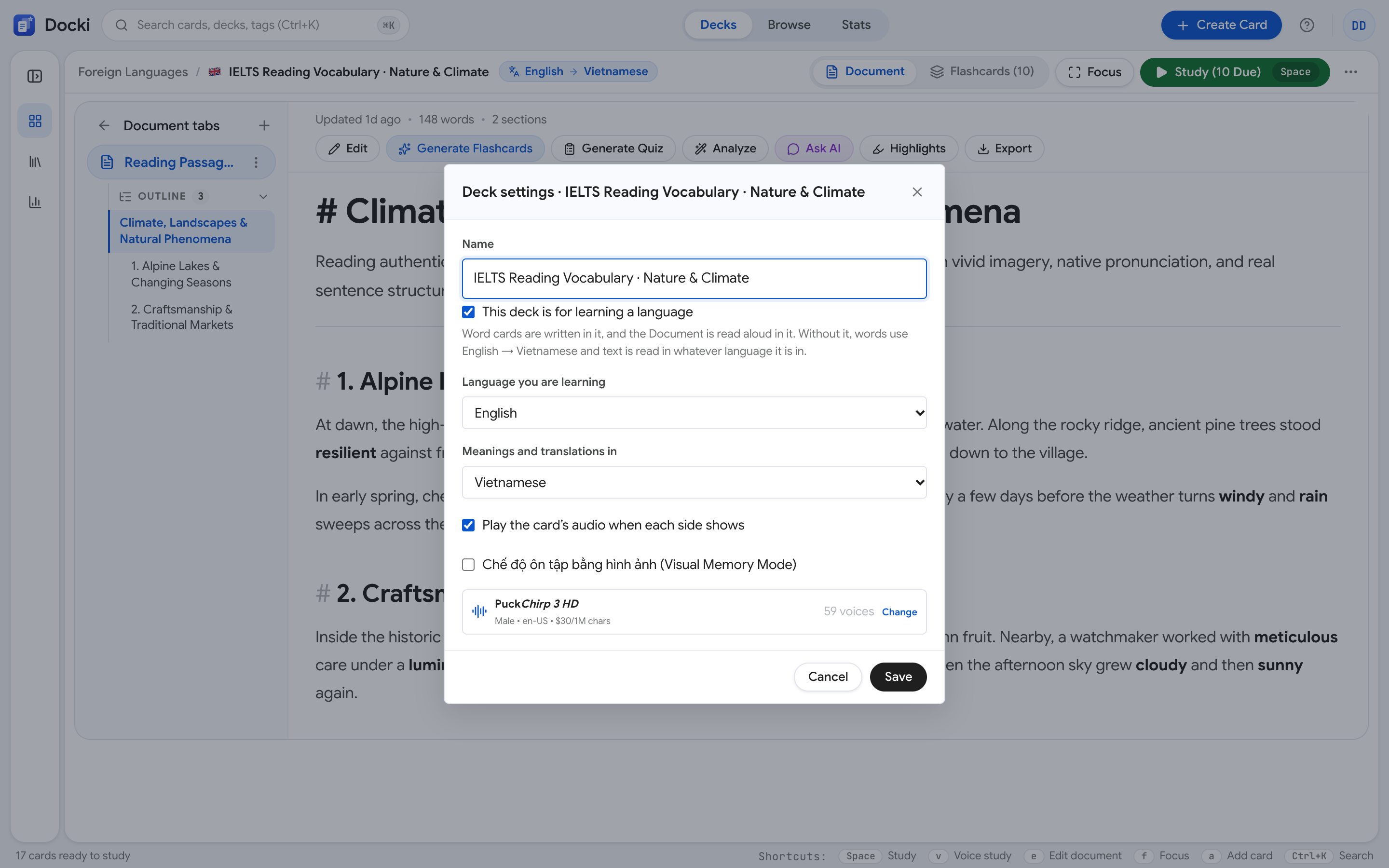 Screenshot S1: Notice the Language you are learning selector, the Meanings and translations in dropdown, the Play the card’s audio when each side shows checkbox, and the voice picker below.
- Language you are learning: Pick your target language from the preset list (English, Spanish, French, German, Japanese, Chinese, Korean, Vietnamese) or choose Other… to enter another language.
- Meanings and translations in: Choose your translation language, or select Same as [Language] (no translation) for a monolingual immersion deck.
- Play the card’s audio when each side shows: Automatically plays word and sentence audio during review so listening practice happens on every flip.
3. Step 1: Read Inside the Document Tab and Clarify Tricky Lines on the Spot
Open the Document tab inside your deck and paste or import an open-source article, story, or transcript:
Why does recalling help you remember?
Rereading a page feels productive, but mostly it just makes the page familiar. Retrieval practice — pulling information back without looking — forces the brain to rebuild the path to the memory, and each rebuild makes the next one easier.
When you try to recall, the brain has to search for and reconnect pieces of information. That effort is the exercise: the connection gets stronger each time, so next time you remember faster and keep it longer.
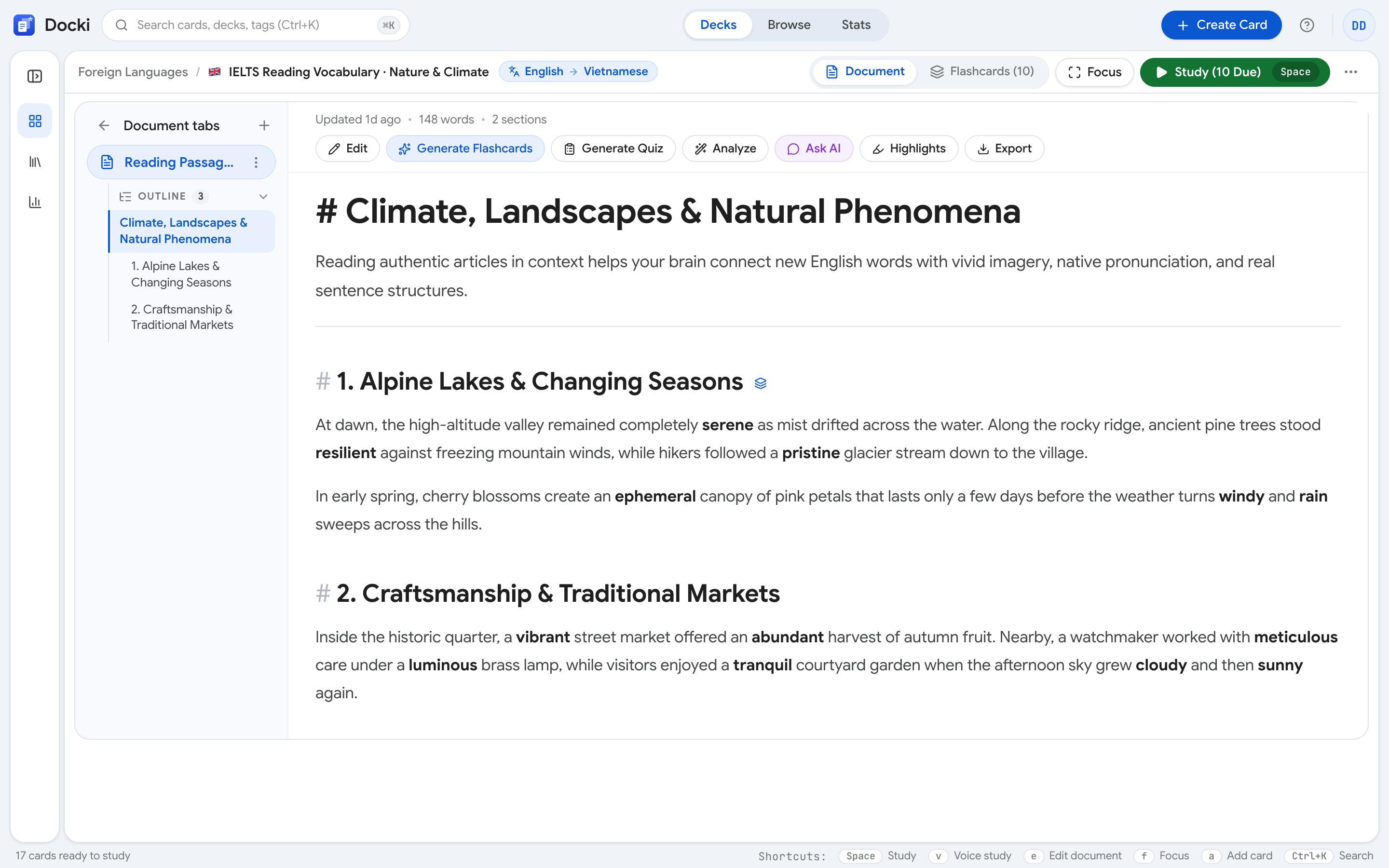 Screenshot S2: The Document tab keeps your source article right next to the flashcards you build from it.
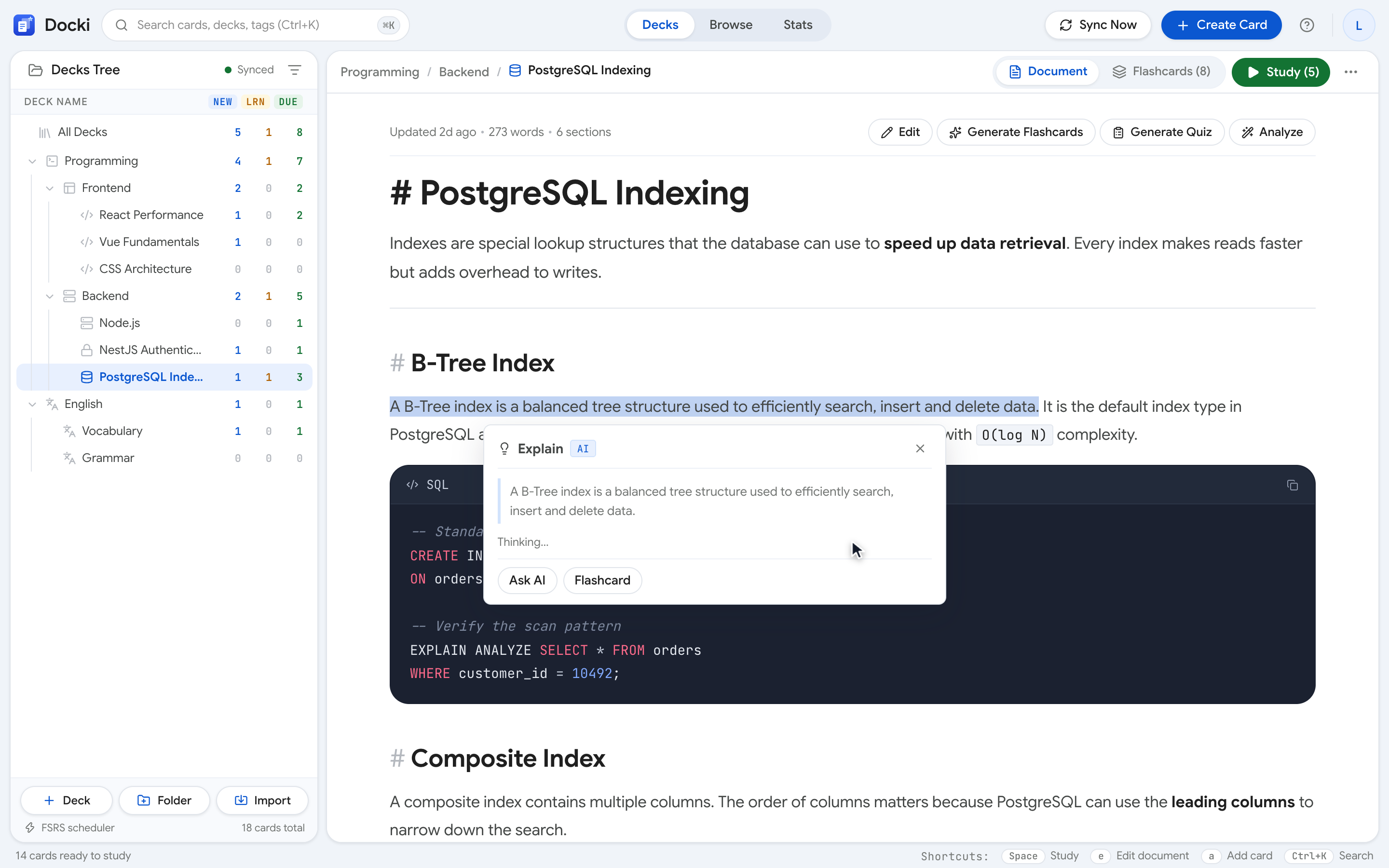
Whenever a sentence feels dense, highlight the text to open the inline AI menu: click Explain to see how a phrase works in context, or Simplify for a plain-language restatement without switching tabs.
4. Step 2: Collect Target Words in Bulk or Inline While Reading
Once you have read a section, Docki offers two complementary ways to capture vocabulary (explored in detail in Bulk AI Vocabulary Flashcards):
- Inline capture with Add as a word: Highlight any unfamiliar word while reading and click Add as a word in the floating toolbar to build a complete card on the spot.
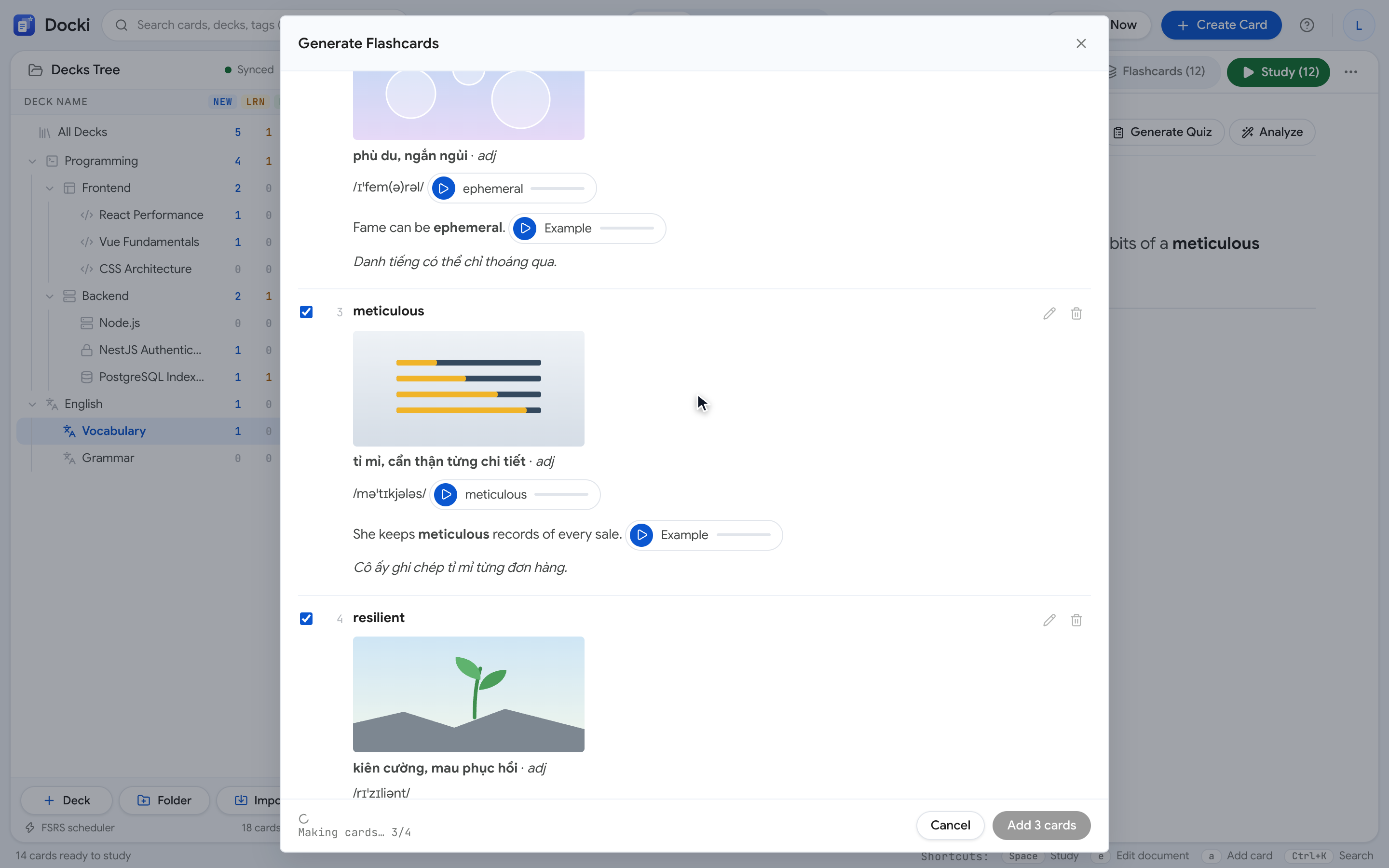
- Full-passage scan with Find words in the Document: Click Generate Flashcards and choose Find words in the Document so AI extracts the most useful vocabulary candidates from the text:
 Screenshot S3: Review the candidate list from Find words in the Document—uncheck words you already know, add extra terms, and pick a voice before generating.
After generating the batch, open the Flashcards tab to see all newly added cards in a structured table:
 Screenshot S4: Every row in the Flashcards tab is ready with a blanked context sentence on the front and full multimodal details on the back.
5. Step 3: Combine Real Photos, IPA Phonetics, and Sentence Audio on Every Card
When you flip a vocabulary card in Docki, visual and auditory cues reinforce the word together:
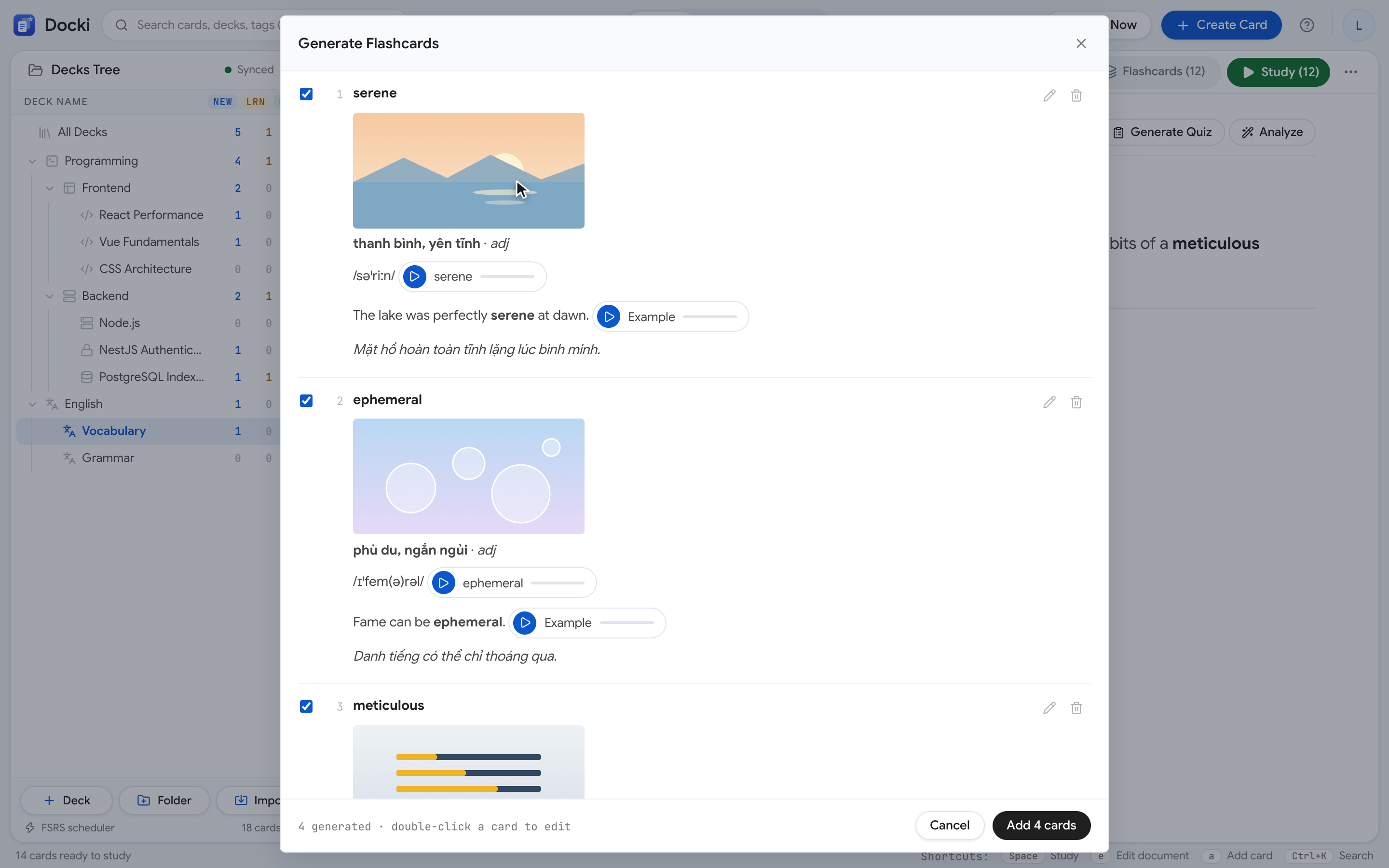 Screenshot S5: The back of the card pairs a real stock photo with the bold meaning, part of speech, headword, IPA transcription, speaker button, and bilingual example sentence.
- Authentic stock photos from Pexels, Pixabay, and Openverse: Docki automatically finds and attaches real photographs—never AI-drawn cartoons (see Picture Flashcards & Vocabulary Images). To swap a photo, open the Change photo picker right on the card:
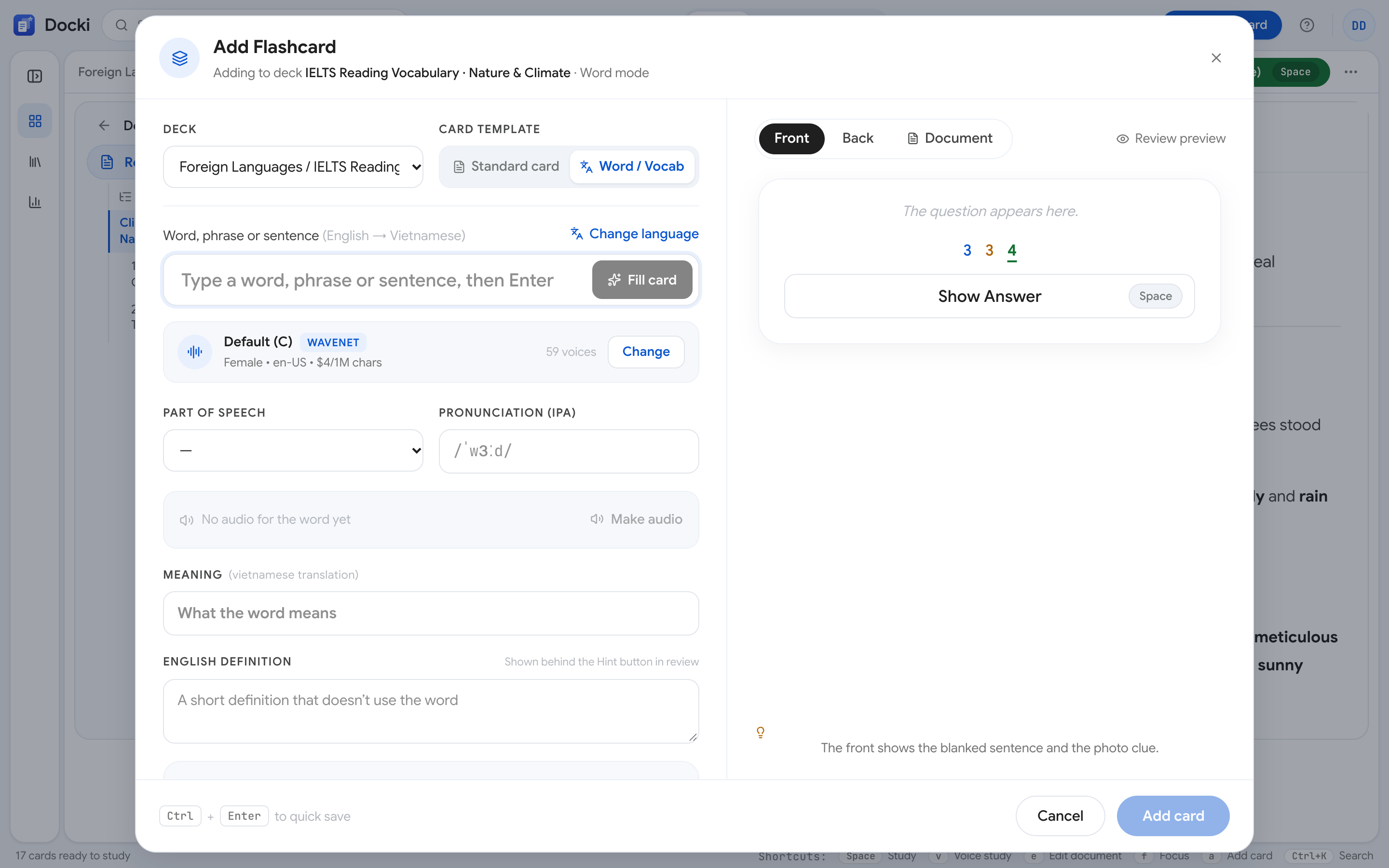 Screenshot S6: Search by keyword in Change photo and click any stock photograph to replace the current image.
- Two-tier audio (isolated word + full sentence): Hearing both the isolated word and the complete sentence trains your ear for natural rhythm and linking (see Pronunciation Audio & IPA on Flashcards). Try the audio samples below:
| Word | IPA & Part of Speech | Word Audio | Contextual Example & Sentence Audio |
|---|---|---|---|
| rain | /reɪn/ · noun (n) | rain | "I forgot my umbrella, so I got wet in the rain." Câu ví dụ rain |
| cloudy | /ˈklaʊdi/ · adjective (adj) | cloudy | "It is cloudy today, so we should take an umbrella." Câu ví dụ cloudy |
| windy | /ˈwɪndi/ · adjective (adj) | windy | "It is very windy today, so hold on to your hat." Câu ví dụ windy |
| sunny | /ˈsʌni/ · adjective (adj) | sunny | "It is a sunny day, so let's go to the beach." Câu ví dụ sunny |
6. Step 4: Active Recall via Cloze Typing, Character Diffs, and FSRS Grading
During Study, vocabulary cards test active production (definition and context → target word):
Why do nerve impulses travel fast along myelinated fibres?
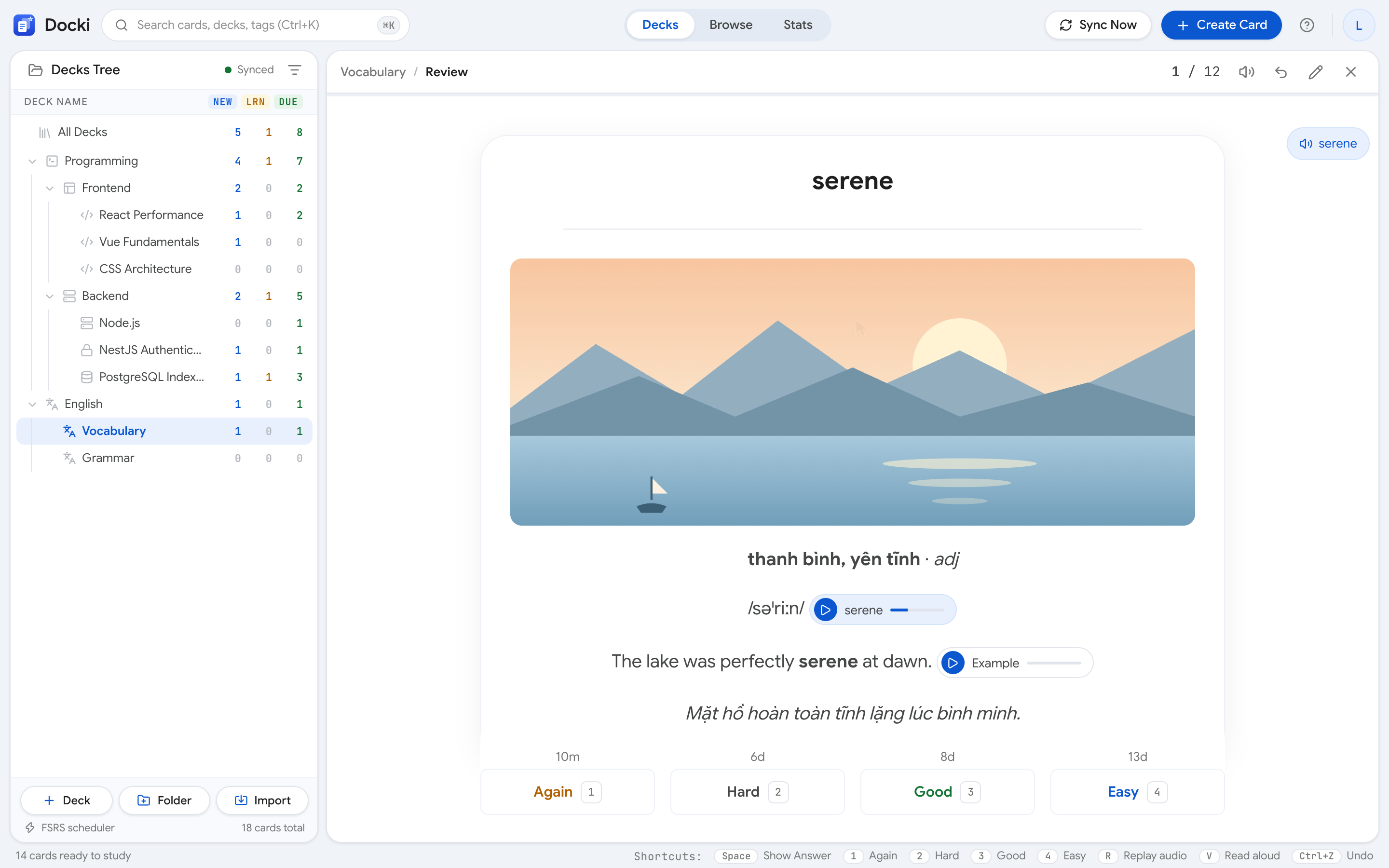 Screenshot S7: The front shows the part of speech, the blanked example sentence, and the photo. Click Hint to reveal the definition and first-letter clue before typing.
When you type your answer and press Enter, Docki displays a character-by-character diff highlighting any missing or swapped letters before you grade your recall with Again, Hard, Good, or Easy (see Spaced Repetition in Practice):
 Screenshot S8: The inline character diff pinpoints spelling errors above the answer, while the four FSRS buttons show the next scheduled intervals.
Spoken microphone grading (Voice Study) is designed exclusively for Knowledge Decks. Vocabulary Decks omit Voice Study and instead rely on Autoplay pronunciation audio, Cloze context sentences, and character-diff typing for precise listening and spelling practice.
7. Step 5: Track Retention on /stats and Preview Templates at /starter
Open Stats (/stats) after a few days of study to check your Study Heatmap, card maturity stages, and upcoming review forecast:
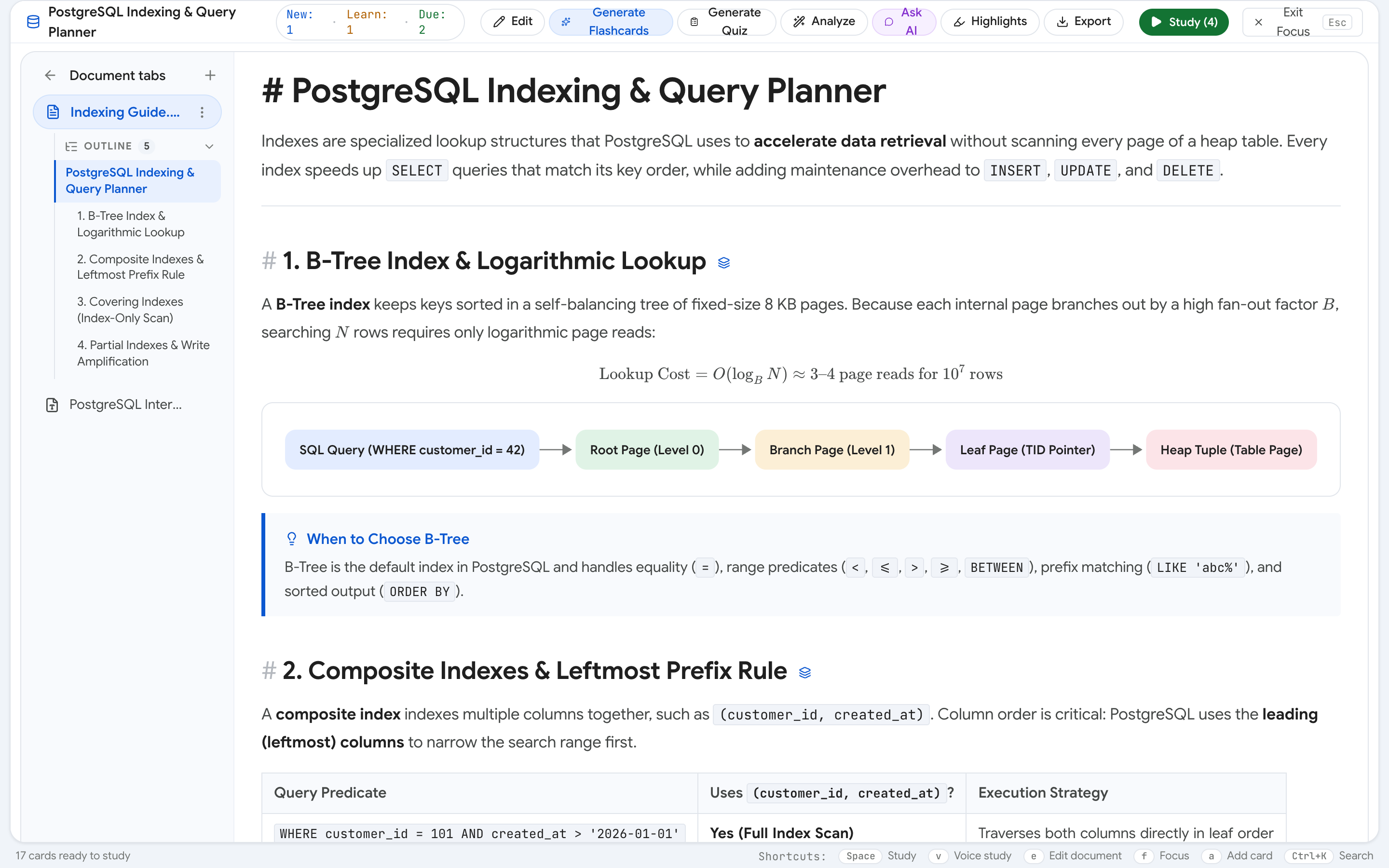 Screenshot S9: The /stats page tracks your daily streak and forecasts upcoming due reviews.
Want to try a complete vocabulary deck before creating an account? Visit the public Starter Decks library (/starter):
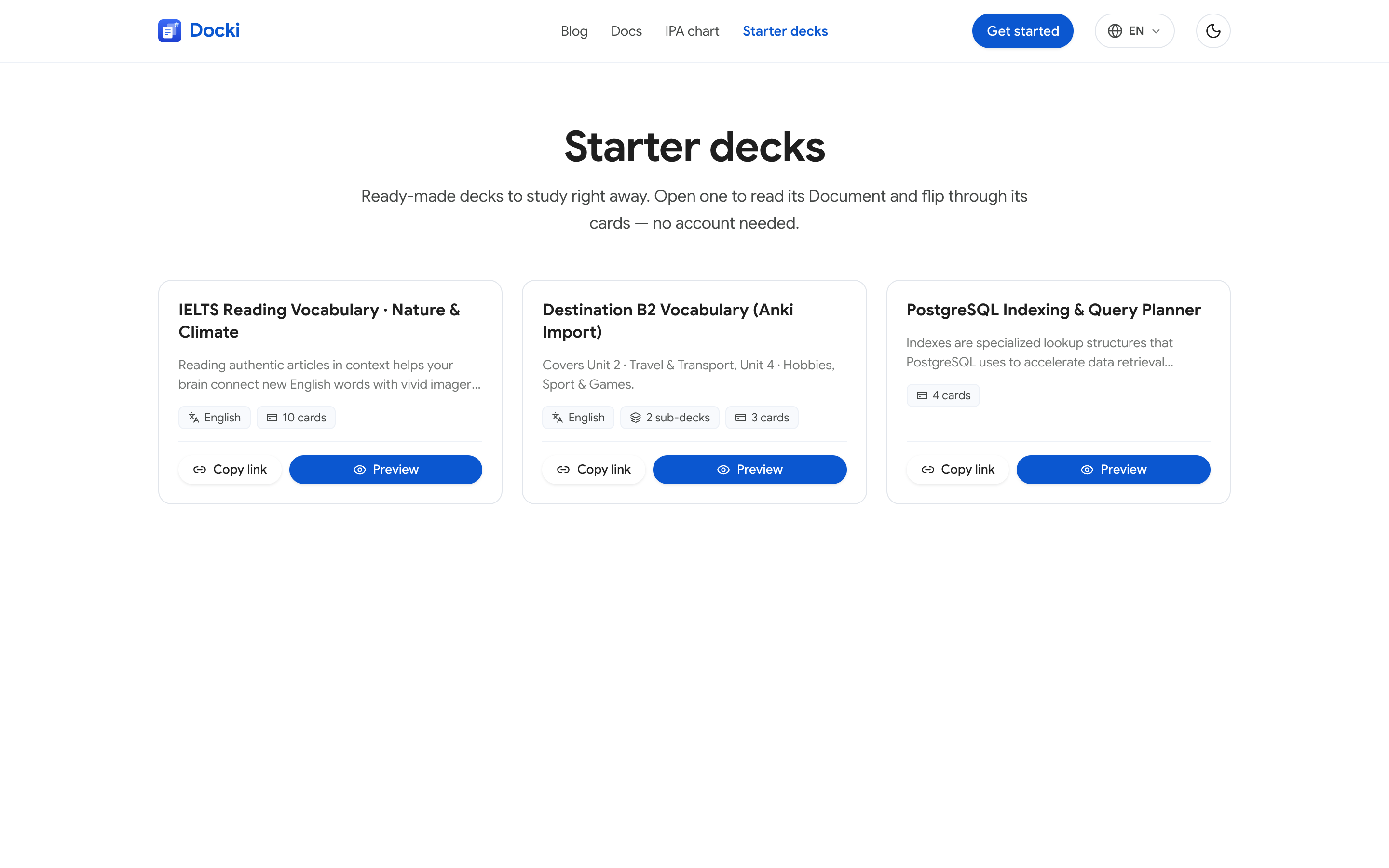 Screenshot S10: Click Preview on /starter to inspect cards and documents without logging in, or click Copy link to share a direct
/starter/<id> URL.
8. Real-World Scenario: A 14-Day Plan at 10 Words per Day
Here is what a sustainable 10-word-per-day reading and review routine looks like over 14 days:
Each dot is a review: memory returns to full and then fades more slowly than before. Gaps between reviews widen as you remember well. (Illustration.)
| Phase | Daily Activity in Docki | New Cards | Due Reviews (FSRS) | Real Daily Time |
|---|---|---|---|---|
| Days 1–3 | Read a 250-word passage in Document, run Find words in the Document, keep 10 words, study | 10/day (30 total) | 5–12 due/day | 9–11 min/day |
| Days 4–7 | Read next passage, add 10 words, type answers for due cards | 10/day (70 total) | 18–28 due/day | 12–15 min/day |
| Days 8–14 | Add 10 words/day while Week 1 cards stretch to 6–14 day intervals | 10/day (140 total) | 25–38 due/day | 14–17 min/day |
9. Practical Tips and Common Mistakes
- Cap new words at 10–15 per day: Keeping daily new additions steady prevents review backlogs next week.
- Read the passage before extracting words: Three minutes of reading in Document gives every card a memorable narrative anchor.
- Swap photos for abstract words: Use Change photo whenever a more personal visual cue helps you recall faster.
- Use Hint before flipping: Checking the definition and first letter via Hint preserves active retrieval effort.
10. Frequently Asked Questions (FAQ)
Which languages are supported in Docki vocabulary decks?
Preset options include English, Spanish, French, German, Japanese, Chinese, Korean, and Vietnamese, plus Other… for any additional language. You can pair any target and translation languages or run monolingual decks.
Does Docki support non-Latin scripts like Japanese, Chinese, or Korean?
Yes. The editor, Cloze blanking, and character-diff input support full Unicode text across Kanji/Hanzi, Kana, and Hangul, and the voice picker filters voices by your deck's language.
Do vocabulary cards test recognition or production?
Cards with a definition and example sentence use a definition and blanked context → target word layout (definition → word), training active recall and exact spelling.
Start Your End-to-End Language Loop Today
- Preview ready-made vocabulary decks without signing up at Starter Decks (
/starter). - Create your free Docki account and turn your next reading passage into a multimodal vocabulary deck.
- Read the companion guides in this series:
Put this method to work in your own studying
Create study documents, extract flashcards with AI and review with FSRS spaced repetition on Docki, completely free.
Start for free