Move Your Anki Decks to Docki in 3 Minutes: Images, Audio and Structure Kept
If you have used Anki seriously for a year or two, you probably have 2,000 to 5,000 cards that represent hundreds of hours of work: language decks packed with native audio clips, medical or computer science sub-decks organized in deep hierarchies, and carefully tuned Cloze deletions. Even when you want a cleaner, web-native workspace—one where your source Document lives right next to your flashcards, AI can explain dense passages inline, and FSRS runs out of the box—switching feels risky. Nobody wants to lose embedded images, break [sound:...] audio tags, flatten sub-deck trees, or reset years of review intervals back to day zero.
You do not have to start over. Docki's native Anki importer reads .apkg and .colpkg packages directly, extracts and deduplicates your images and audio files in batches, reconstructs A::B::C sub-deck hierarchies as folders and decks, preserves Cloze deletions and {{type:...}} prompts, keeps semantic field styling, and translates each card's active Anki scheduling state into an initial FSRS state. Even better, you can also import your Word documents (.docx) or zipped Google Drive folders (.zip) so the lecture notes and textbooks behind your cards finally live inside the same deck.
In this step-by-step guide with real product screenshots, we will walk through moving an Anki deck to Docki in under three minutes—and give you a transparent engineering breakdown of what carries over intact and what works differently.
1. Where Anki Shines—and What Docki Adds to Your Workflow
Let us start with a fair comparison: Anki is a landmark piece of software. Its open-source desktop ecosystem, community shared decks, and Python add-on architecture have served millions of learners for nearly two decades. If your workflow depends on custom desktop Python add-ons or complex JavaScript card templates, classic desktop Anki remains unmatched for raw scriptability.
Where many learners hit friction in Anki is the separation between source reading material and flashcards. In Anki, cards exist as isolated database notes; when you miss a card three months later and need to re-read the surrounding textbook section or lecture outline, you have to leave the app and hunt through Google Docs, Word files, or PDFs.
Docki bridges that gap by pairing a multi-tab Document (Markdown and PDF) with your Flashcards inside every deck (see Documents and Flashcards: Living Notes):
| Dimension | Classic Anki | Docki (Document + AI + FSRS) |
|---|---|---|
| Source documents & notes | Cards only; source outlines and PDFs live in separate apps | Every deck includes a multi-tab Document workspace right beside the Flashcards tab |
| Card editing model | Multi-field database forms and HTML/CSS card templates | Clean, direct Markdown editor with rich semantic blocks, Cloze, and tables |
| Card creation & media tooling | Manual entry or third-party desktop add-ons | Built-in AI document vocabulary scanning, real stock photo search, neural TTS audio, and inline AI explanations |
| Spaced repetition scheduler | Legacy SM-2 by default (or manual FSRS toggle in deck options) | Native FSRS out of the box with zero setup |
| File import support | .apkg / .colpkg packages and plain CSV | .apkg / .colpkg packages plus .docx and .zip Word / Google Docs imports |
2. Before You Import: Exporting a Clean .apkg from Anki
To carry your media and active review intervals into Docki, check two checkboxes when exporting from Anki desktop:
- In Anki, click the gear icon next to your deck and choose Export (or File → Export).
- Set Export format to Anki Deck Package (.apkg) (or Anki Collection Package (.colpkg)).
- Check both boxes: enable Include scheduling information (so Docki can map your current intervals and ease into FSRS) and Include media (so all images and audio files are bundled inside the package).
- Click Export and save the file locally.
3. Step-by-Step: Importing Your .apkg or .colpkg into Docki
Step 1: Click Add Decks & Files in the Sidebar
Open Docki and click the Add Decks & Files button in the left sidebar:
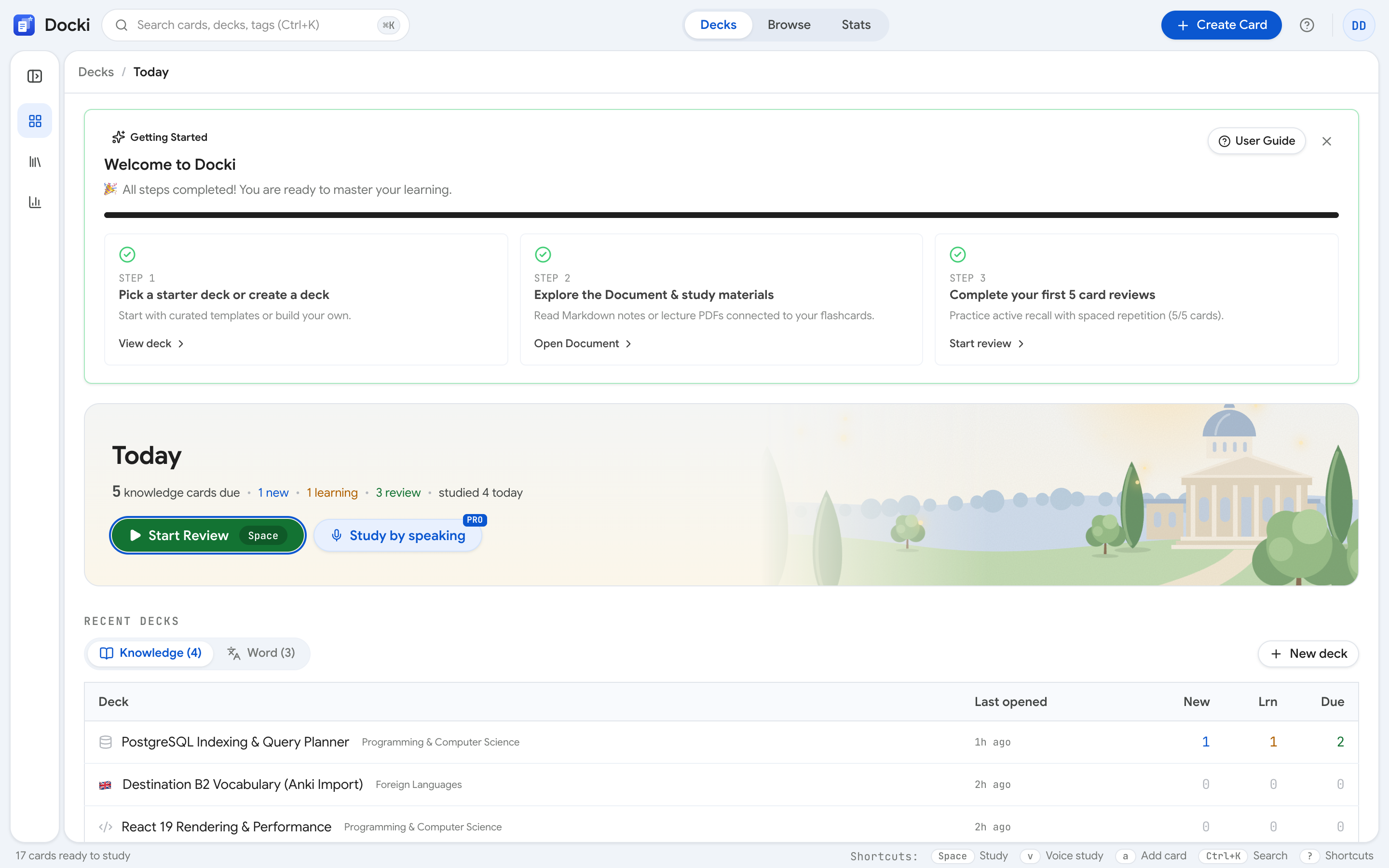 Screenshot S1: Locate Add Decks & Files in the left navigation bar—this single menu handles new decks, Anki packages, and Word document imports.
Step 2: Select Your .apkg or .colpkg File
Choose the import option from the menu and select your exported .apkg or .colpkg file in the system file picker:
 Screenshot S2: Pick the
.apkg or .colpkg file you exported from Anki with media and scheduling included.
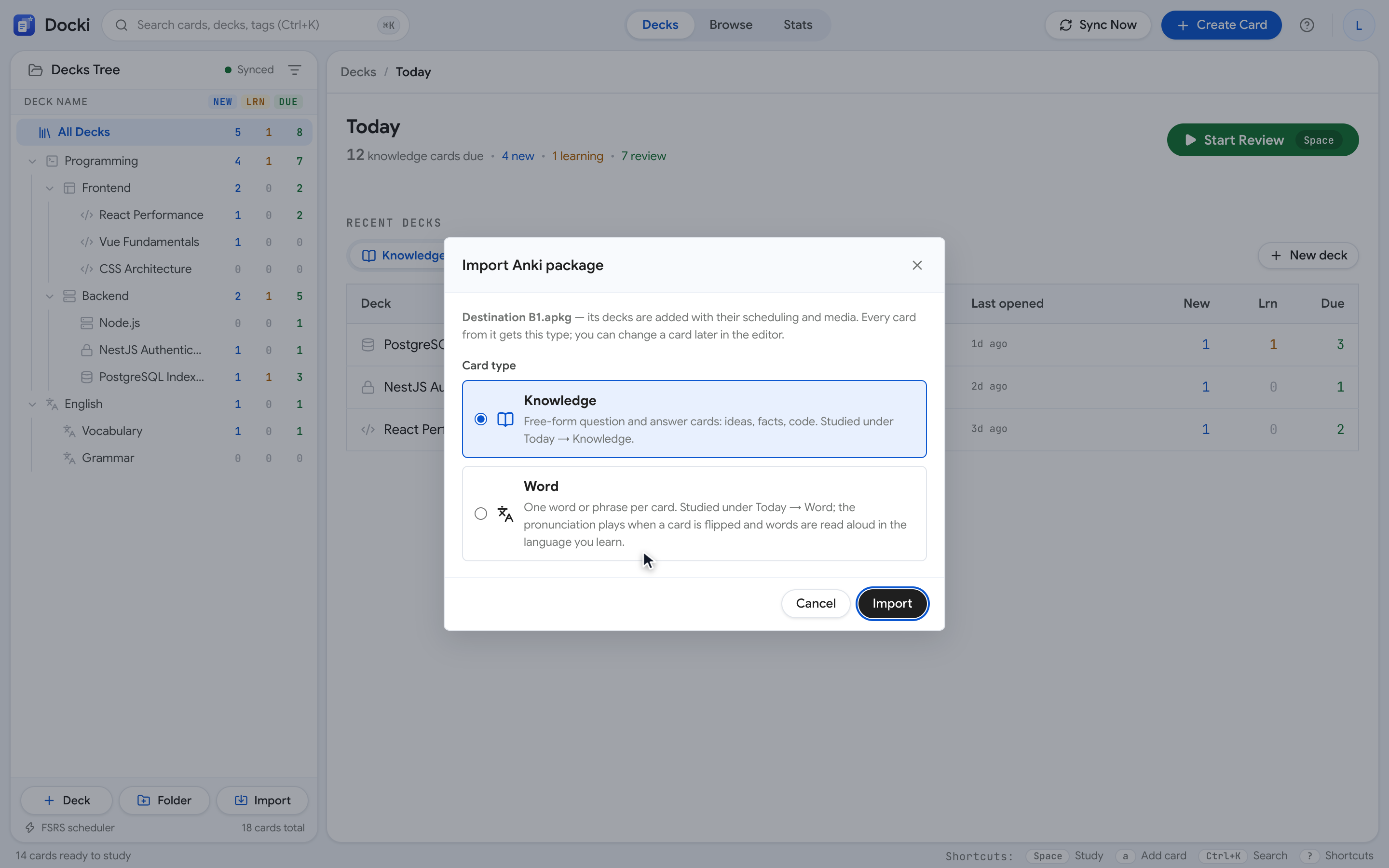
Step 3: Choose Knowledge or Word in the Import Anki package Dialog
Before unpacking begins, Docki opens the Import Anki package modal so you can tell it how the imported cards should behave during study:
 Screenshot S3: In Import Anki package, choose between Knowledge and Word. Selecting Word reveals Language you are learning, Meanings and translations in, and audio autoplay options.
Here is how to choose between the two modes:
- Knowledge: Best for conceptual Q&A, medicine, STEM, law, or coding decks. Cards appear under Today → Knowledge and support spoken microphone grading (Voice Study).
- Word: Best for language and vocabulary decks where each card represents a word or phrase. You also pick the Language you are learning and Meanings and translations in, and cards appear under Today → Word with automatic pronunciation playback on card flips. (You can always change an individual card's type later in the editor.)
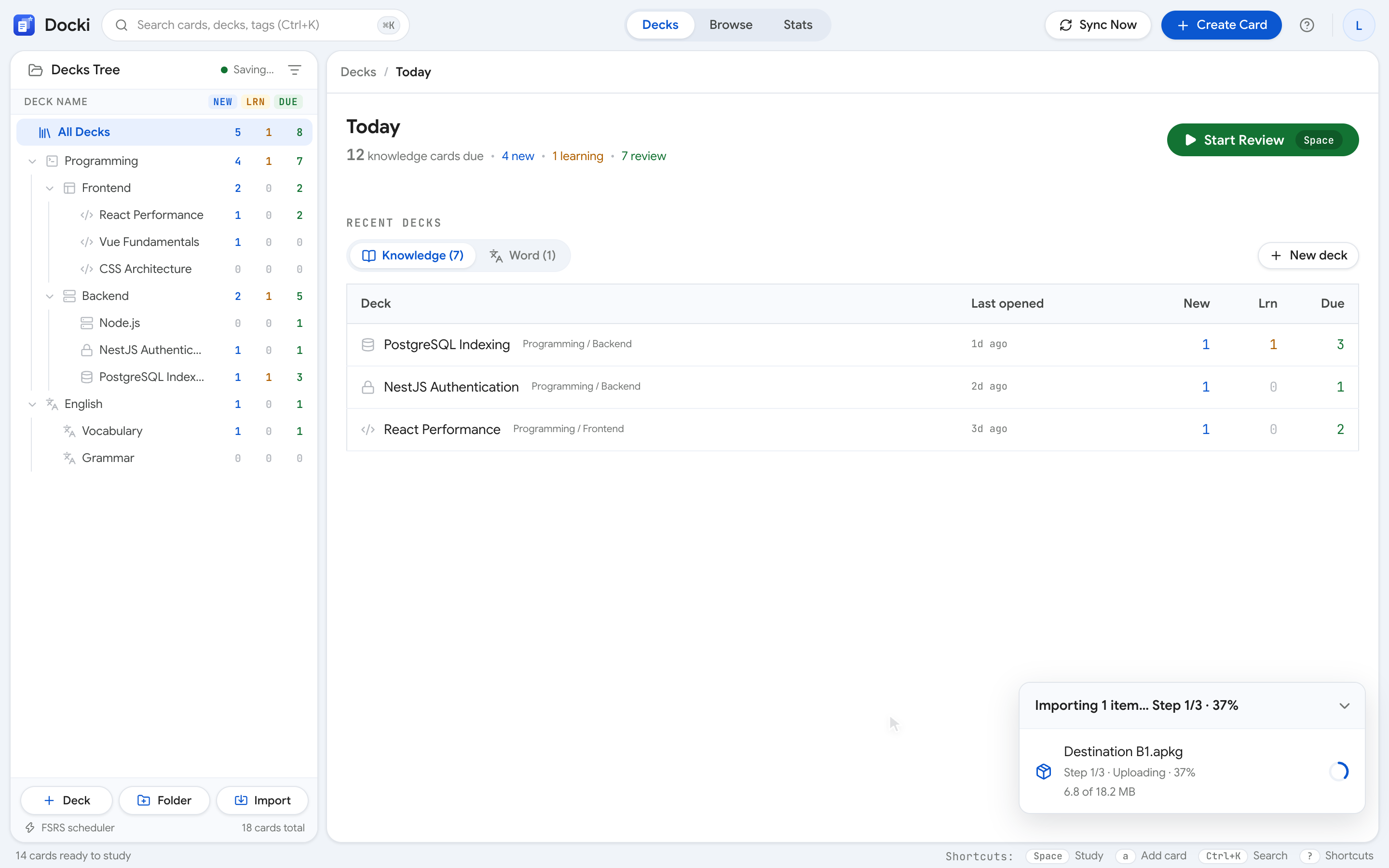
Step 4: Watch the 3-Phase Background Progress Tray
Click Import. Docki streams the import through a non-blocking background tray that reports real-time progress across three phases:
 Screenshot S4: Watch the progress tray step monotonically through Uploading, Reading/Saving media, and Adding cards / Saving to server.
Under the hood, the pipeline processes large packages without freezing your browser tab:
- Uploading: Streams the package to the worker thread parser.
- Reading / Saving media: Unpacks images and audio in batches of 100 files, deduplicates by SHA-256 hash, and stores them in cloud media storage.
- Adding cards / Saving to server: Renders card templates into clean Markdown in chunks of 500 cards and syncs them to your workspace.
4. Verifying the Result: Sub-Decks, Media, Cloze, and Type-Answer Cards
Sub-Deck Hierarchy Preserved as Folders and Decks
Anki's A::B::C deck naming convention maps cleanly into Docki's sidebar hierarchy:
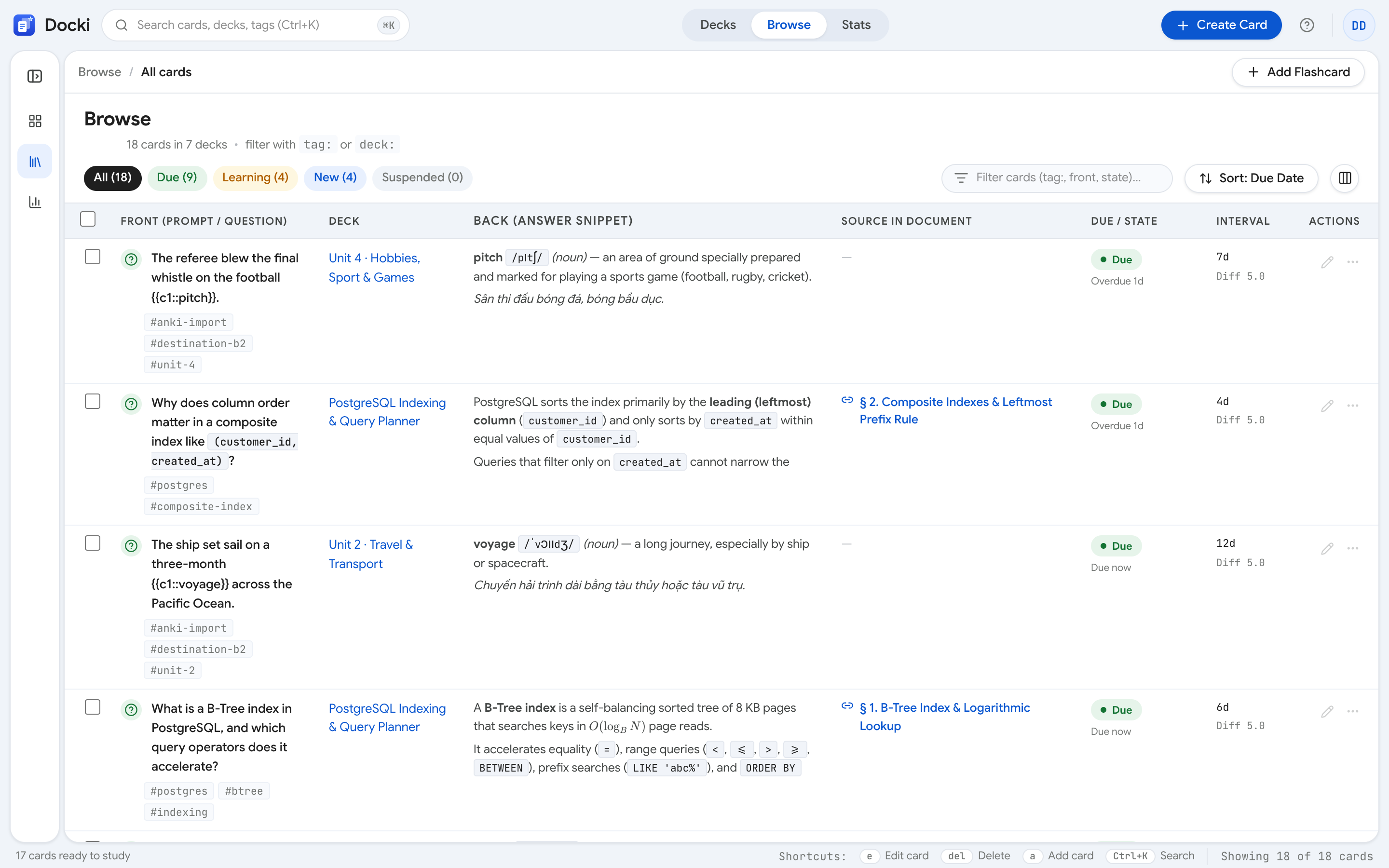 Screenshot S5: Inspect the sidebar tree—nested Anki paths (
A::B::C) become folders A › B holding deck C.
If a parent deck in Anki held cards of its own alongside child sub-decks, Docki creates a folder for the parent and places the parent's direct cards into a deck of the same name inside that folder so nothing is lost or flattened.
Reviewing an Imported Card: Images, Audio, Cloze, and Typing
Start a Study session on your imported deck to see how your cards render:
Why do nerve impulses travel fast along myelinated fibres?
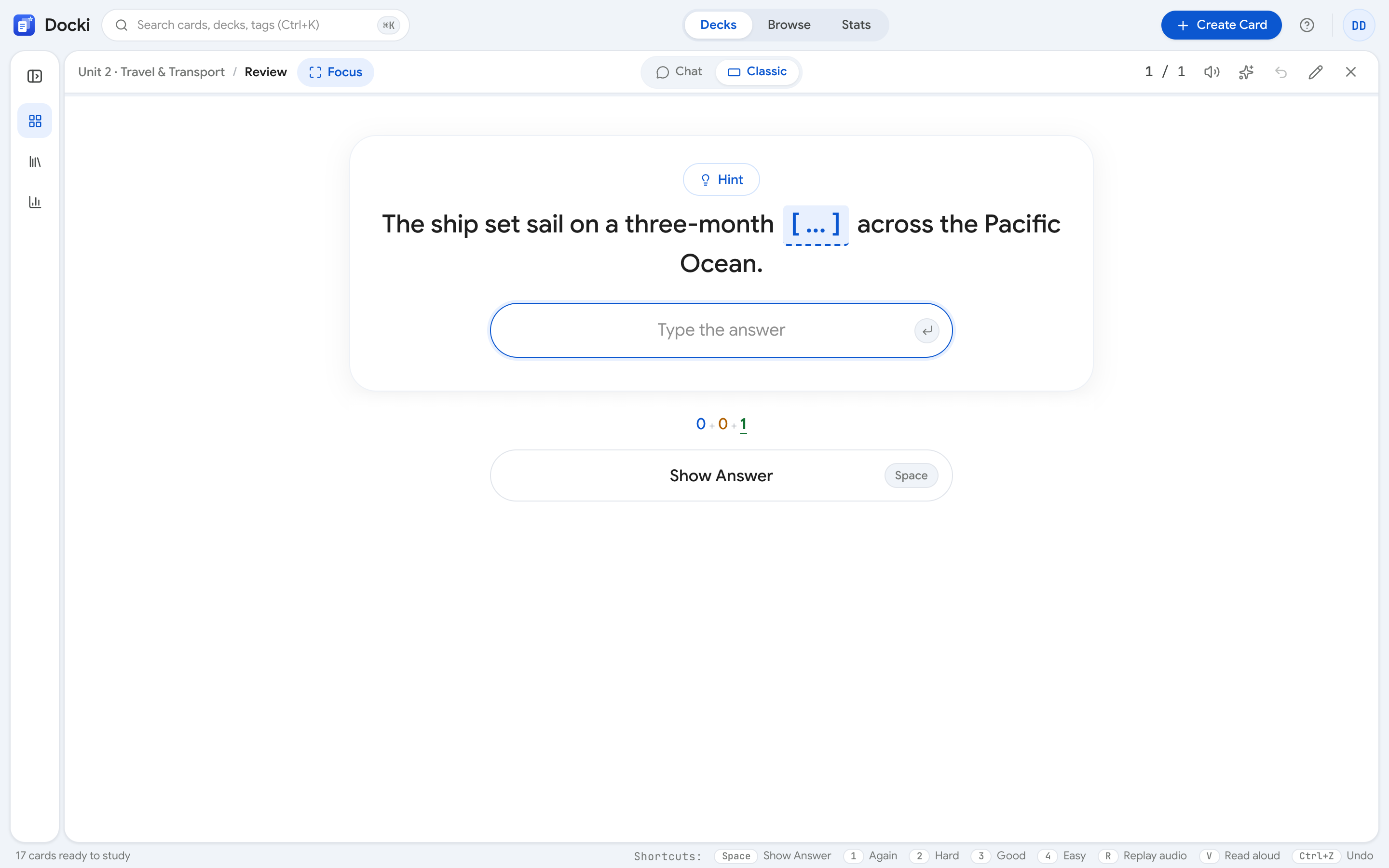 Screenshot S6: During review, notice how the card keeps its image, inline audio player, Cloze blank, type-in-the-answer box, and semantic styling.
Docki's HTML-to-Markdown converter specifically preserves the formatting constructs Anki learners rely on:
- Images and
[sound:...]audio clips stay inline on the exact side of the card where you placed them. - Cloze deletions and
{{type:...}}fields become native interactive blanks and character-diff typing inputs. - Expandable hints, text alignment, and semantic classes: Collapsible hint blocks, centered/right-aligned blocks, and common vocabulary CSS classes (headword, phonetic/IPA, part of speech, meaning, translation, example) map directly to Docki's native styling roles.
5. Honest Engineering Breakdown: What Transfers vs. What Changes
Anki users care deeply about scheduling integrity and note structure. Here is the exact behavior when migrating:
| Anki Feature | How Docki Handles It on Import |
|---|---|
| Images & Audio Files | Kept 100%. Deduplicated via SHA-256 and linked directly inside card Markdown. |
Sub-Deck Hierarchy (A::B::C) | Kept 100%. Converted into nested sidebar folders (A › B) and decks (C). |
Cloze & {{type:...}} Cards | Kept 100%. Converted into native Cloze blanks and character-diff typing prompts. |
| Tags & Suspended State | Kept 100%. Card tags and suspended flags carry over unchanged. |
| Active Card Scheduling State | Mapped to FSRS. Docki converts each studied card's current Anki schedule into an initial FSRS state: Anki's interval becomes FSRS Stability, Anki's ease factor maps to FSRS Difficulty (where default 250% ease ≈ Difficulty 5), and due, reps, and lapses are preserved so your mature cards stay mature. |
Historical Review Log (revlog) | Not imported. While current scheduling state is preserved on every card, past year-by-year click logs from Anki's revlog table are not imported into /stats. |
| Desktop Add-ons & Custom JS | Not executed. Python desktop add-ons and arbitrary JavaScript inside custom note templates do not run; cards are rendered into clean, portable Markdown so they edit and sync reliably everywhere. |
6. Bonus Upgrade: Import Word (.docx) and Google Docs (.zip) into Your Decks
Once your Anki cards are in Docki, you can bring in the lecture notes or study guides that belong with them. Click Add Decks & Files and pick a .docx file—or a .zip archive downloaded from a Google Drive folder—to open the Import documents planner:
Why does recalling help you remember?
Rereading a page feels productive, but mostly it just makes the page familiar. Retrieval practice — pulling information back without looking — forces the brain to rebuild the path to the memory, and each rebuild makes the next one easier.
When you try to recall, the brain has to search for and reconnect pieces of information. That effort is the exercise: the connection gets stronger each time, so next time you remember faster and keep it longer.
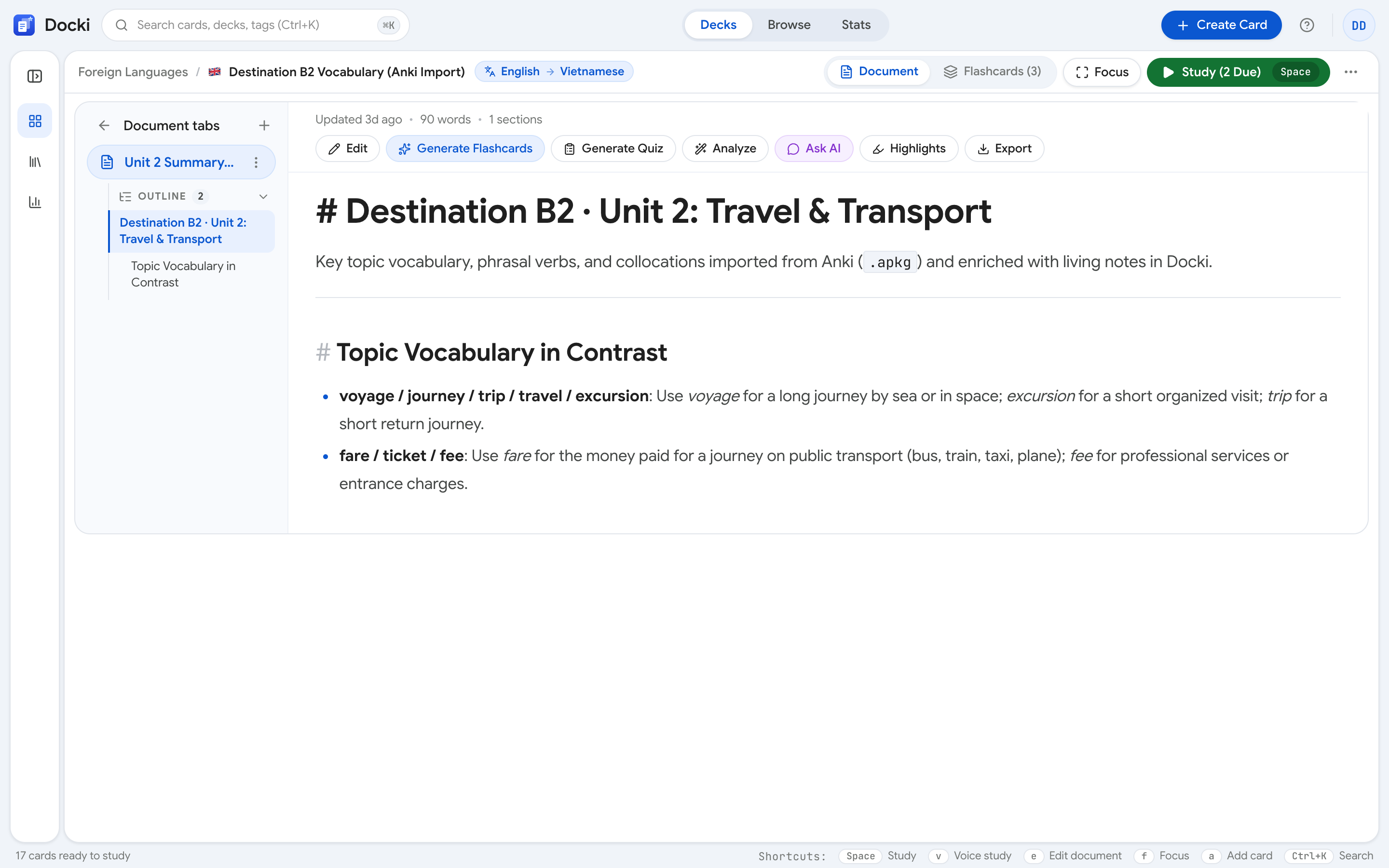 Screenshot S7: In Import documents, review the target Folder, choose between One tab per section and One tab per file, and rename or uncheck any document or tab before importing.
Because Google Docs exports each document tab as a Word section inside .docx, selecting One tab per section automatically reconstructs your multi-tab Google Doc as individual Markdown tabs inside Docki's Document view (and if your .zip includes a docki-import.json sidecar, Docki uses those exact tab names; otherwise it names each tab from its first heading):
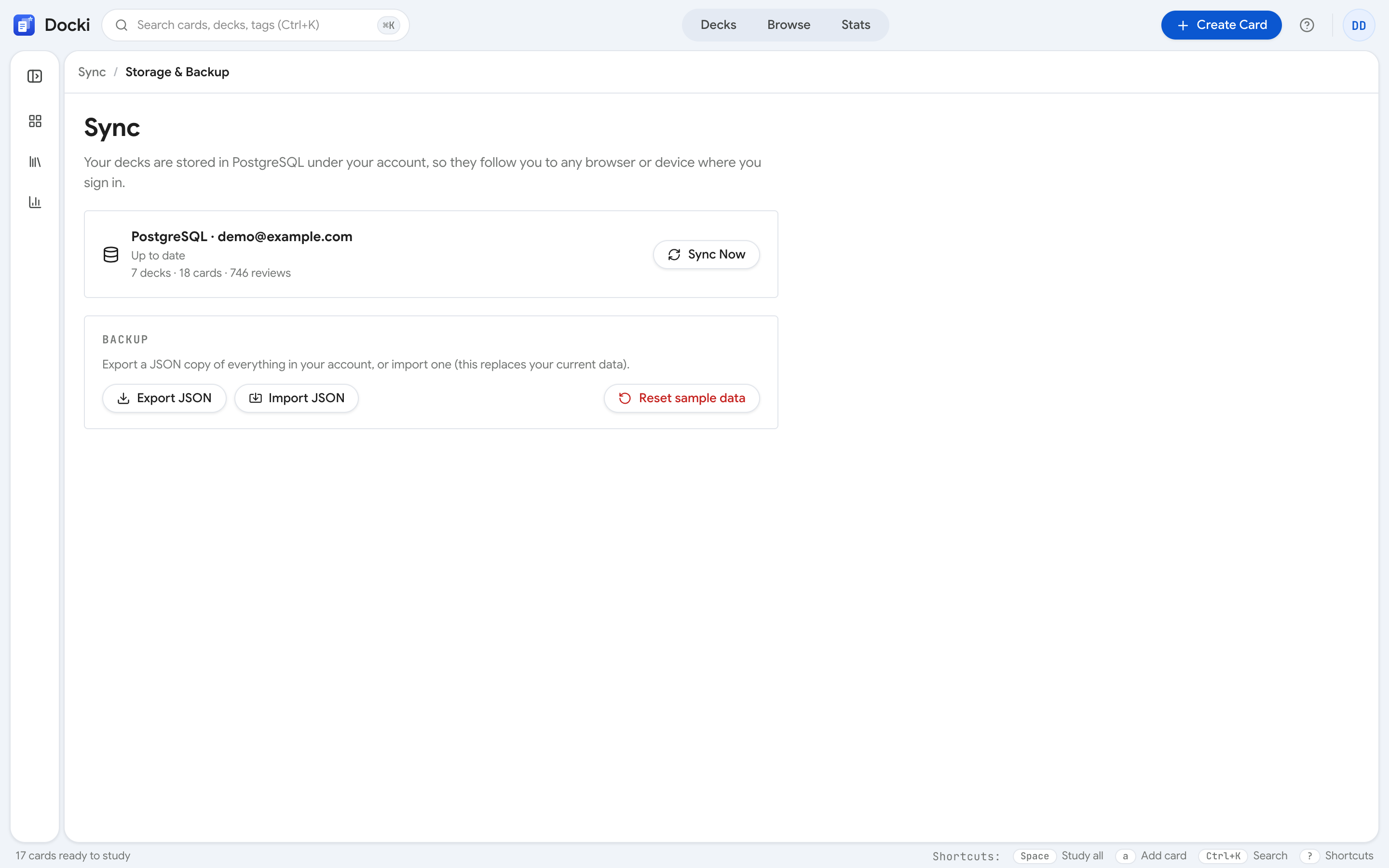 Screenshot S8: Inside the imported deck's Document tab, each Word section appears as a separate Markdown tab with headings and embedded pictures preserved.
7. Real-World Scenario: Importing a 120-Card Multimedia Deck
To give you concrete numbers, we imported a 120-card multimedia language deck containing two nested sub-decks, 85 images, 120 MP3 pronunciation clips, Cloze sentences, and three weeks of active Anki review history:
Each dot is a review: memory returns to full and then fades more slowly than before. Gaps between reviews widen as you remember well. (Illustration.)
- Upload & unpack: ~3 seconds.
- Media batch processing (205 files): ~14 seconds.
- Card conversion & sync (120 cards): ~4 seconds.
- Total wall-clock time: 21 seconds, with all 120 cards retaining their media, Cloze typing prompts, and upcoming FSRS due dates.
8. Practical Migration Tips and Backups
- Keep your original
.apkgand use JSON backups: Always keep your exported.apkgarchive as a snapshot, and use Docki's built-in Export JSON / Import JSON tools whenever you want a full workspace backup. - Spot-check 3–5 cards in Study right after import: Verify that you picked the right card type (Knowledge vs. Word) and that audio autoplay matches your preference.
- Import Vocabulary and Knowledge decks separately: If your Anki collection mixes language decks with STEM decks, export and import them in separate
.apkgfiles so you can assign Word to language decks and Knowledge to conceptual decks.
9. Frequently Asked Questions (FAQ)
How large can an imported .apkg file be, and is there a rate limit?
Docki streams uploads to disk and processes media in batches of 100 and cards in chunks of 500, so multi-thousand-card decks with thousands of audio/image files import smoothly without exhausting browser memory. Each user can run up to 10 Anki imports per 10-minute window.
What happens if I accidentally import the same .apkg twice?
Docki creates a separate deck tree rather than silently overwriting cards you may have edited, while SHA-256 media deduplication skips re-storing identical images and audio clips. You can simply delete the duplicate deck folder from the sidebar.
Will my mature Anki cards reset to New when I switch to Docki?
No—as long as you check Include scheduling information when exporting from Anki, Docki converts each card's interval, ease factor, due date, reps, and lapses into an equivalent FSRS state (learn more in Spaced Repetition in Practice).
Bring Your Anki Decks into Docki Today
You do not have to choose between the cards you spent years building in Anki and a modern workspace that unites living documents, AI assistance, and FSRS scheduling.
- Sign up for Docki for free, click Add Decks & Files, and import your first
.apkgdeck in under three minutes. - Want to test-drive a deck first? Browse and preview public templates without an account at Starter Decks (
/starter). - Related reading:
Put this method to work in your own studying
Create study documents, extract flashcards with AI and review with FSRS spaced repetition on Docki, completely free.
Start for free