An AI Study Assistant Inside Your Documents: Select, Explain, Rewrite, Ask
Picture how a typical study session goes when you hit a dense paragraph in a molecular biology textbook, a constitutional law casebook, or a foreign-language article. You highlight the confusing sentence, press Ctrl+C, switch browser tabs to an external AI chatbot, paste the excerpt, type "Explain this simply," read the answer, and then switch back to your notes. After four or five tab-switches, your reading flow is shattered — and the explanation you just got is trapped inside an unorganized chat log, completely disconnected from your study notes and your flashcards.
Worse still, a standalone chat window has no idea what the rest of your chapter says. It cannot see the definitions introduced three paragraphs earlier, it does not know which deck you are studying, and it cannot turn its answer into a spaced-repetition flashcard with a single click.
In Docki, the AI study assistant is not a separate destination. It lives right inside the document you are reading and editing. Whether you are working in a Markdown note or reading an uploaded PDF, selecting any passage lets you explain it in detail, generate concrete examples, simplify academic prose, ask multi-turn follow-up questions grounded in your document, rewrite paragraphs into tables or Mermaid diagrams, beautify messy formatting, and turn AI answers directly into flashcards.
1. The Core Principle: AI That Assists Your Reading — Grounded in Your Source Material
Before touring the interface, it is worth stating Docki's design philosophy clearly: AI should remove friction while you read actively, not replace the act of reading itself.
Asking an AI to summarize an entire 30-page chapter without reading it yourself creates a shallow illusion of familiarity that evaporates on exam day. By contrast, when you read the primary text yourself, pinpoint the exact sentence where a mechanism feels unclear, and ask the assistant to unpack that specific passage, you stay in the driver's seat of your own learning.
To keep your study workflow rigorous and trustworthy, Docki builds every AI action around two guardrails:
- Grounded in your document: When you open the Ask AI panel, Docki automatically supplies your current document as context (including extracted text from PDF tabs up to roughly 60,000 characters). Answers are anchored in your actual course material rather than generic guesswork.
- Preview before you commit: Whenever you use Edit with AI or Beautify, you see the proposed changes first and can accept, insert below, or undo (
Undo/Ctrl+Z) at any time. Because any language model can occasionally misstate edge-case numbers or citations, you always stay in control of what enters your notes and cards.
Why does recalling help you remember?
Rereading a page feels productive, but mostly it just makes the page familiar. Retrieval practice — pulling information back without looking — forces the brain to rebuild the path to the memory, and each rebuild makes the next one easier.
When you try to recall, the brain has to search for and reconnect pieces of information. That effort is the exercise: the connection gets stronger each time, so next time you remember faster and keep it longer.
2. Selection Is Where Everything Starts: The Floating Action Menu
While reading any Markdown Document or PDF tab in Docki, highlight a word, sentence, or paragraph with your cursor. A compact floating toolbar appears immediately above your selection.
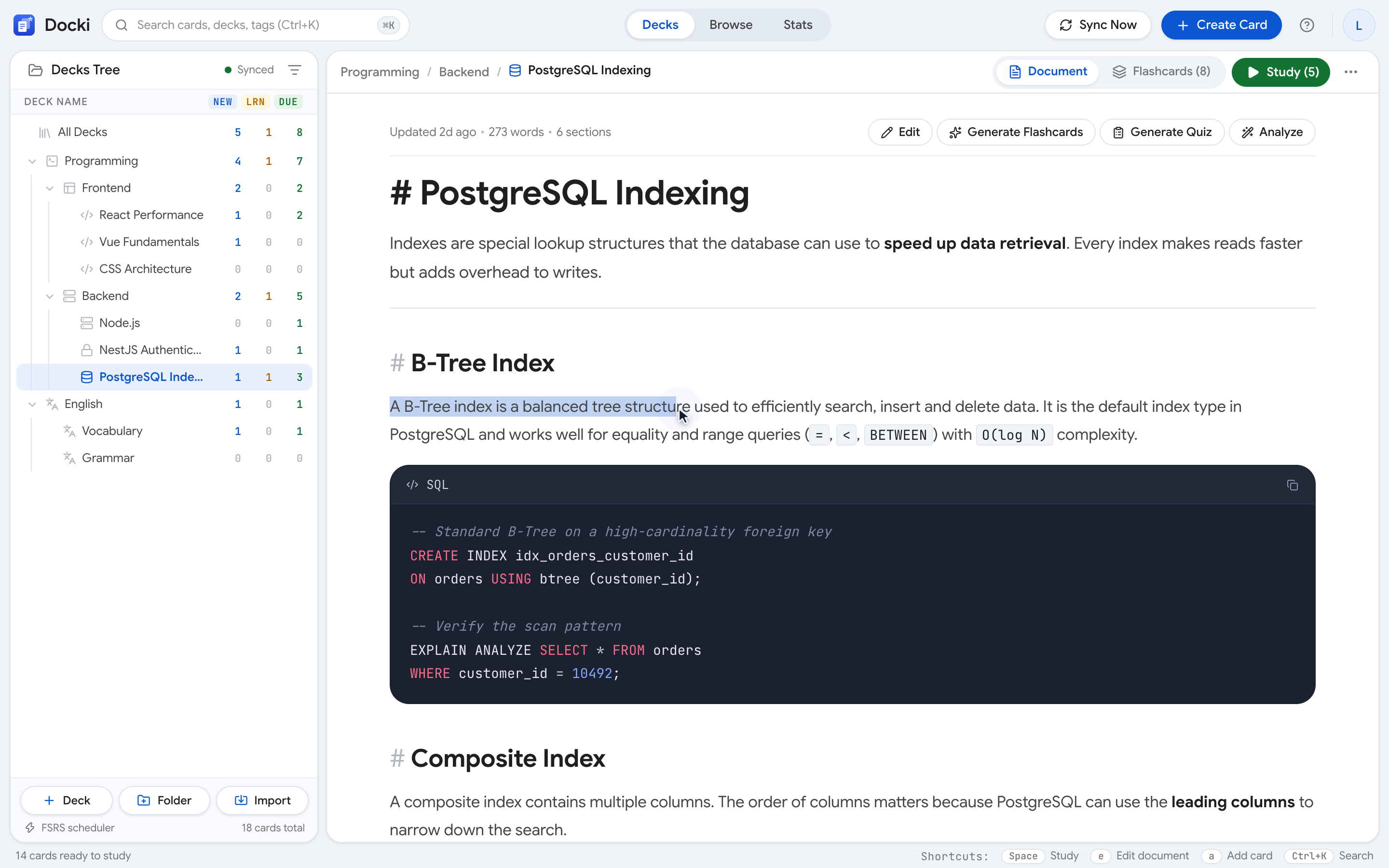 Figure S1: Selecting any passage in a Document or PDF brings up the floating menu with AI assistant & learning and Flashcards & review actions.
Every item in the selection menu maps to a specific study need:
- Explain in detail (AI badge): Breaks down the underlying mechanism, cause-and-effect chain, and technical terminology in the selected passage.
- Give illustrative examples: Generates concrete real-world examples, clinical scenarios, or analogies to make abstract rules click.
- Simplify: Rewrites dense academic language into plain, approachable sentences without stripping out the core meaning.
- Ask AI about this…: Sends the highlighted passage as a quote into the side-by-side Ask AI chat panel so you can ask a custom question about it.
- Create new Flashcard (
Ctrl+Nor⌘N): Opens the card creator pre-populated with your selection and linked to that exact section. - Generate quiz: Creates interactive multiple-choice practice questions from the selected passage.
- Read aloud: Speaks the selected passage aloud using natural text-to-speech.
- Copy excerpt (
Ctrl+Cor⌘C): Copies the selection to your clipboard.
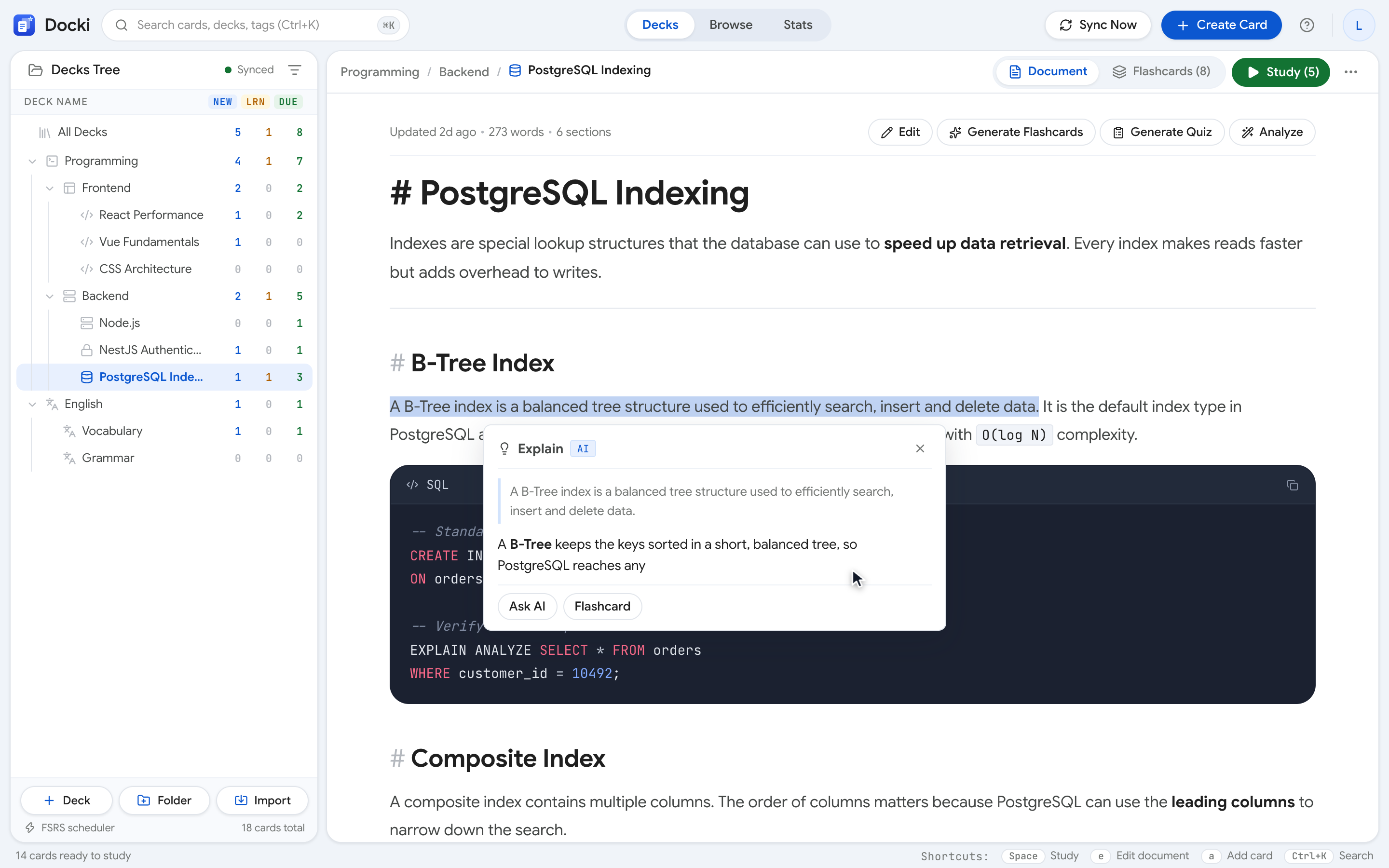 Figure S2: Clicking Explain in detail opens an inline explanation right beside your text so you never lose your place on the page.
When you choose Explain in detail, Give illustrative examples, or Simplify, the response streams into a clean popover right beside the paragraph (Figure S2). Once it clicks, you can dismiss the popover and keep reading — or promote it into the full Ask AI chat panel if you want to ask a follow-up question.
3. Ask AI: Multi-Turn Conversations Grounded in Your Document and PDFs
Sometimes a single inline explanation sparks a deeper "what if" question — for instance, "How would lipid absorption change if the common bile duct were obstructed?" Clicking Ask AI about this… from the selection menu (or the Ask AI button in the document header) opens a resizable side panel right beside your notes.
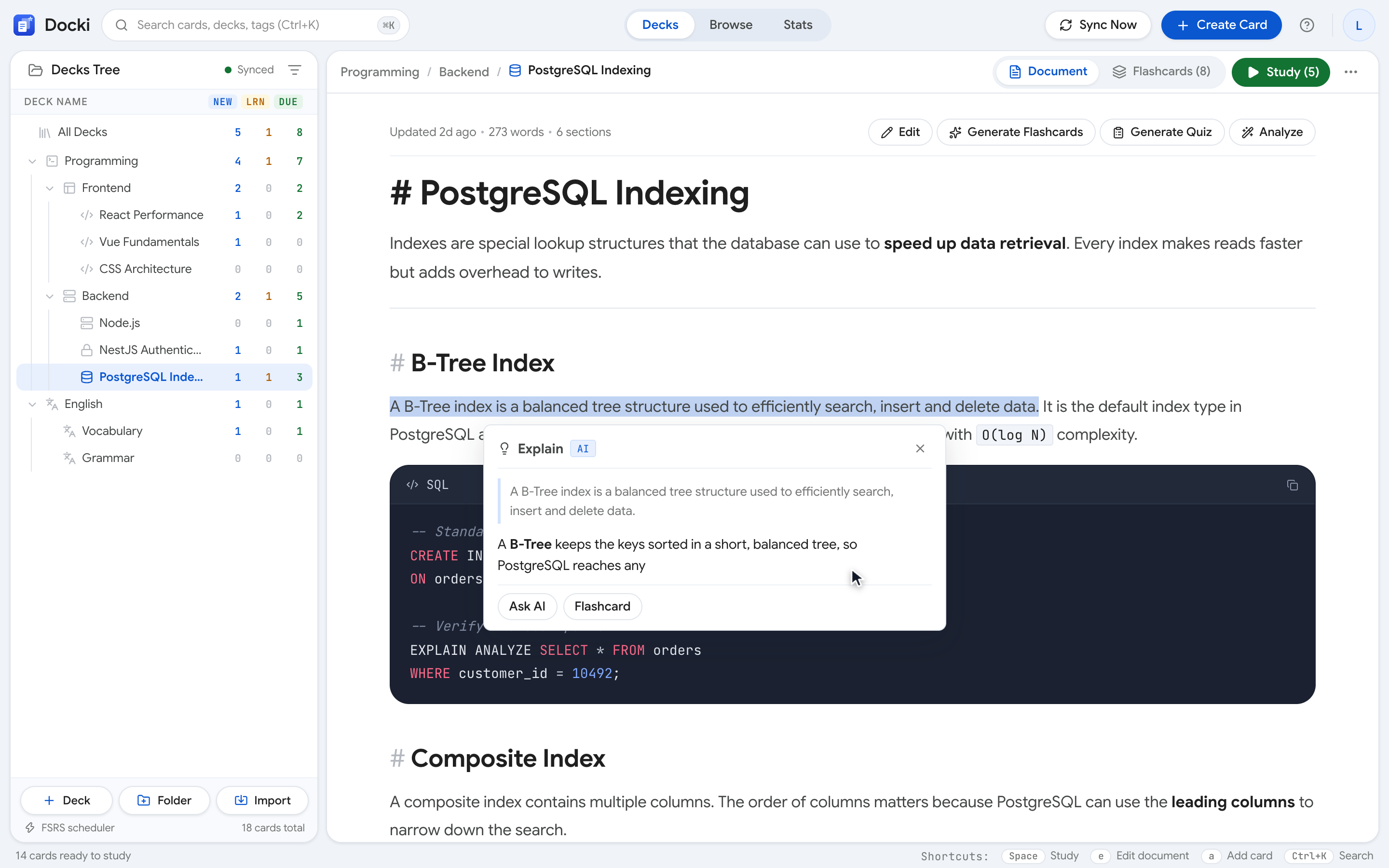 Figure S3: The Ask AI panel sits beside your document, quotes your selected passage, and streams its answer in real time.
Here is why Ask AI inside Docki beats tab-switching to an external chatbot:
- Full document and PDF context: Every question you send carries the context of the document you are currently viewing (including PDF text up to ~60,000 characters). You can ask "How does the enzyme in Section 3 relate to the pH table in Section 1?" and get an answer grounded directly in your notes.
- One persistent thread per deck: Each deck maintains its own conversation history in your browser. When you reopen your Human Digestion deck next week, your previous Q&A thread is still waiting for you.
- Voice input built into the chat box: Click the Microphone icon inside the Ask AI input box to dictate long questions out loud instead of typing them.
- Seamless multi-turn follow-ups: Ask follow-up questions naturally without re-pasting passages.
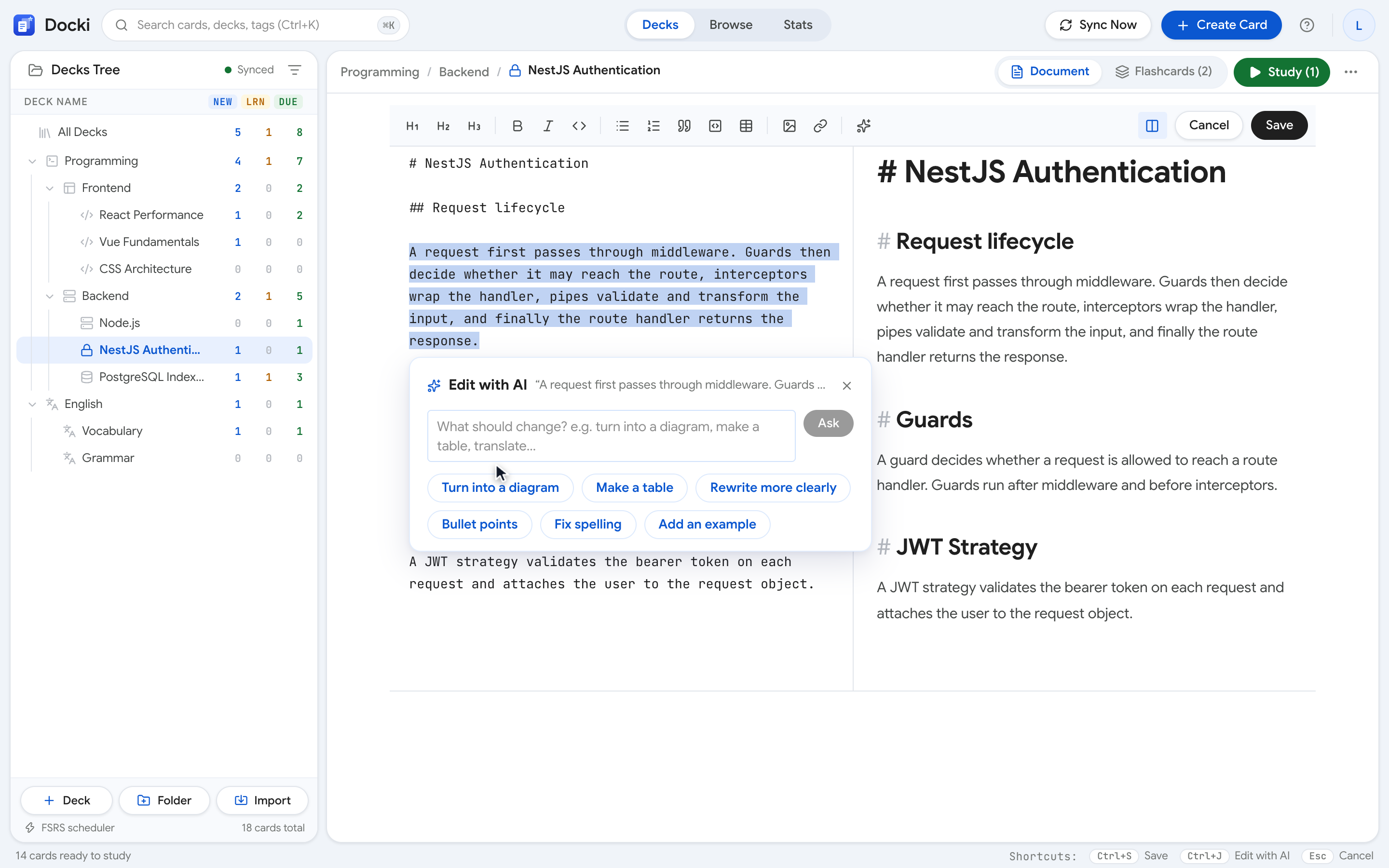 Figure S4: Multi-turn conversations in Ask AI preserve both your document context and your prior questions.
4. Edit with AI: Rewrite Passages into Tables or Diagrams with Safe Preview
When you are editing a Markdown document and select a passage inside the editor, an Edit with AI pill (⌘J on Mac or Ctrl+J on Windows/Linux) appears right below your selection.
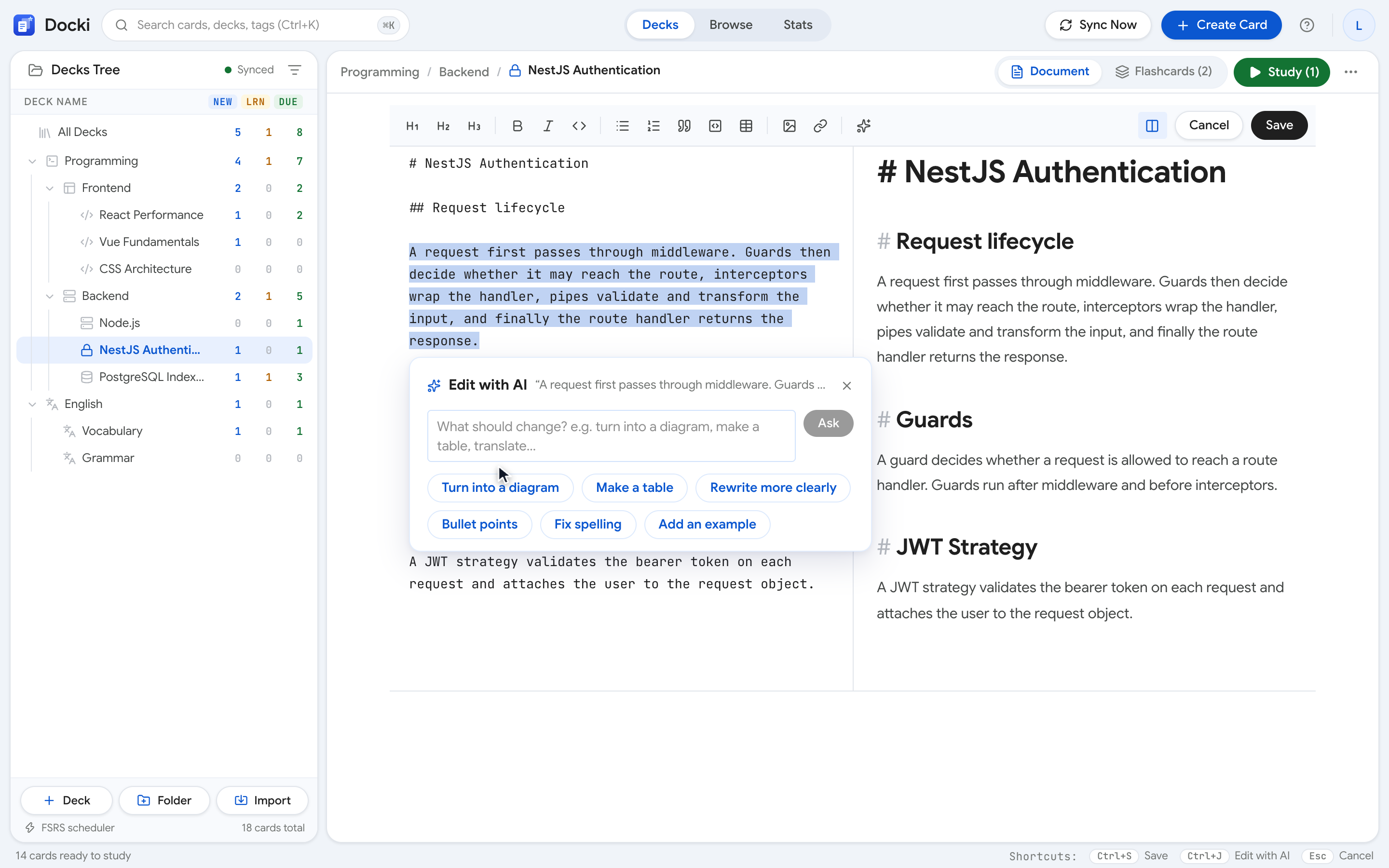 Figure S5: Pressing Edit with AI (
⌘J / Ctrl+J) opens quick-action chips and a custom instruction box.
For knowledge decks, Edit with AI offers six one-click prompt chips:
- Turn into a diagram: Converts a step-by-step description into a Mermaid flowchart.
- Make a table: Organizes comparisons or parameters into a clean Markdown table.
- Rewrite more clearly: Sharpens wordy notes for easier studying while keeping every fact intact.
- Bullet points: Turns dense paragraphs into concise bullets with key terms in bold.
- Fix spelling: Fixes spelling, grammar, and punctuation only — changing nothing else.
- Add an example: Keeps your original text and appends a concrete example underneath.
Clicking a chip attaches it to the instruction box so you can add extra details if needed, then press Enter to run.
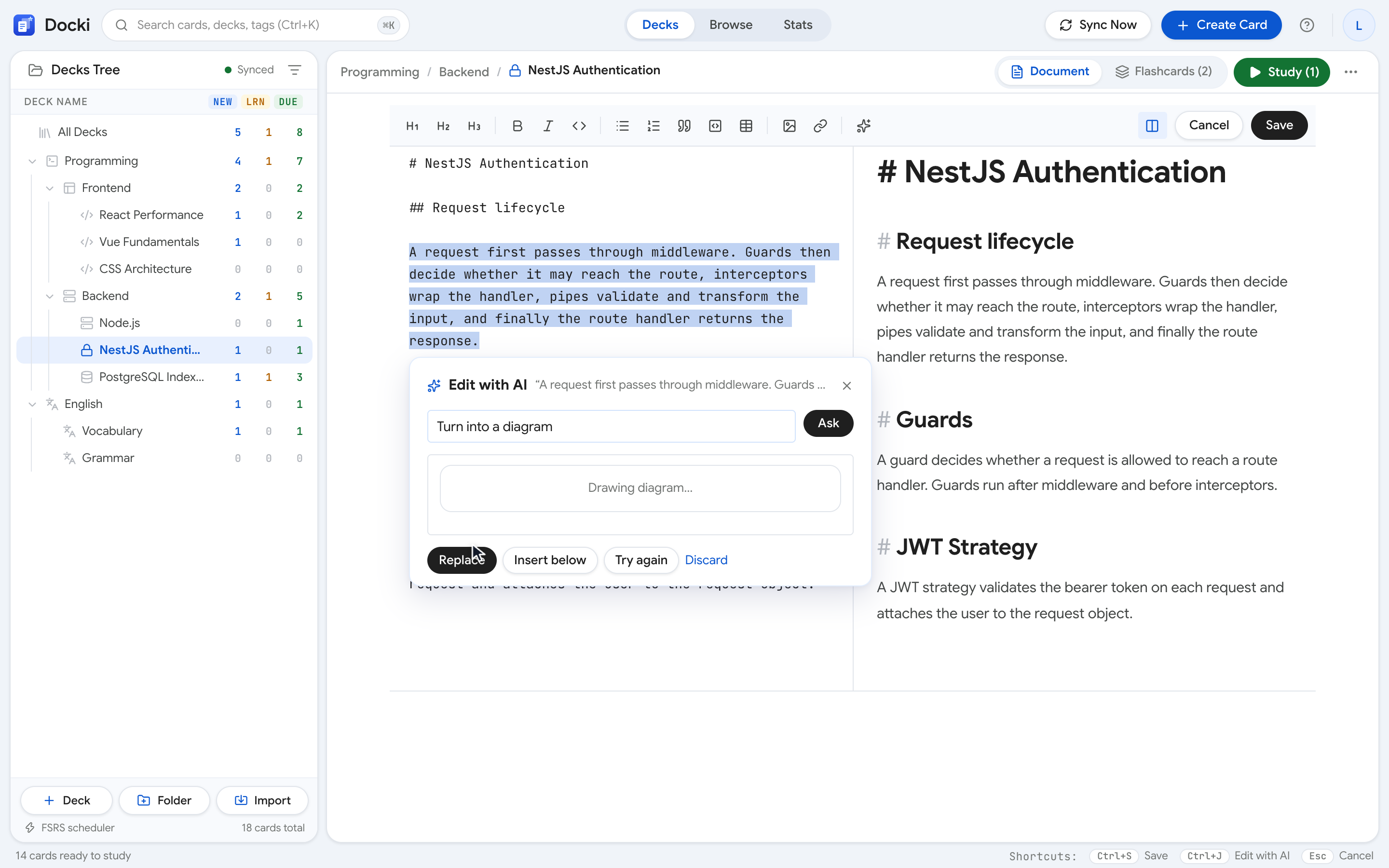 Figure S6: Edit with AI always lets you preview the rewritten passage before choosing Replace or Insert below.
Crucially, Docki never overwrites your notes blindly. You inspect the rendered preview first (Figure S6) and choose Replace (swap out the selected passage) or Insert below (keep your original text and place the new version underneath). And because edits are applied through standard editor history, pressing Ctrl+Z (⌘Z) undoes the change instantly.
5. Beautify: Clean Up Messy Markdown and Format Entire Pages
When you paste raw lecture notes or transcripts into a document, they often arrive as a wall of unformatted text. Clicking Beautify in the editor toolbar cleans and structures the entire page in two stages:
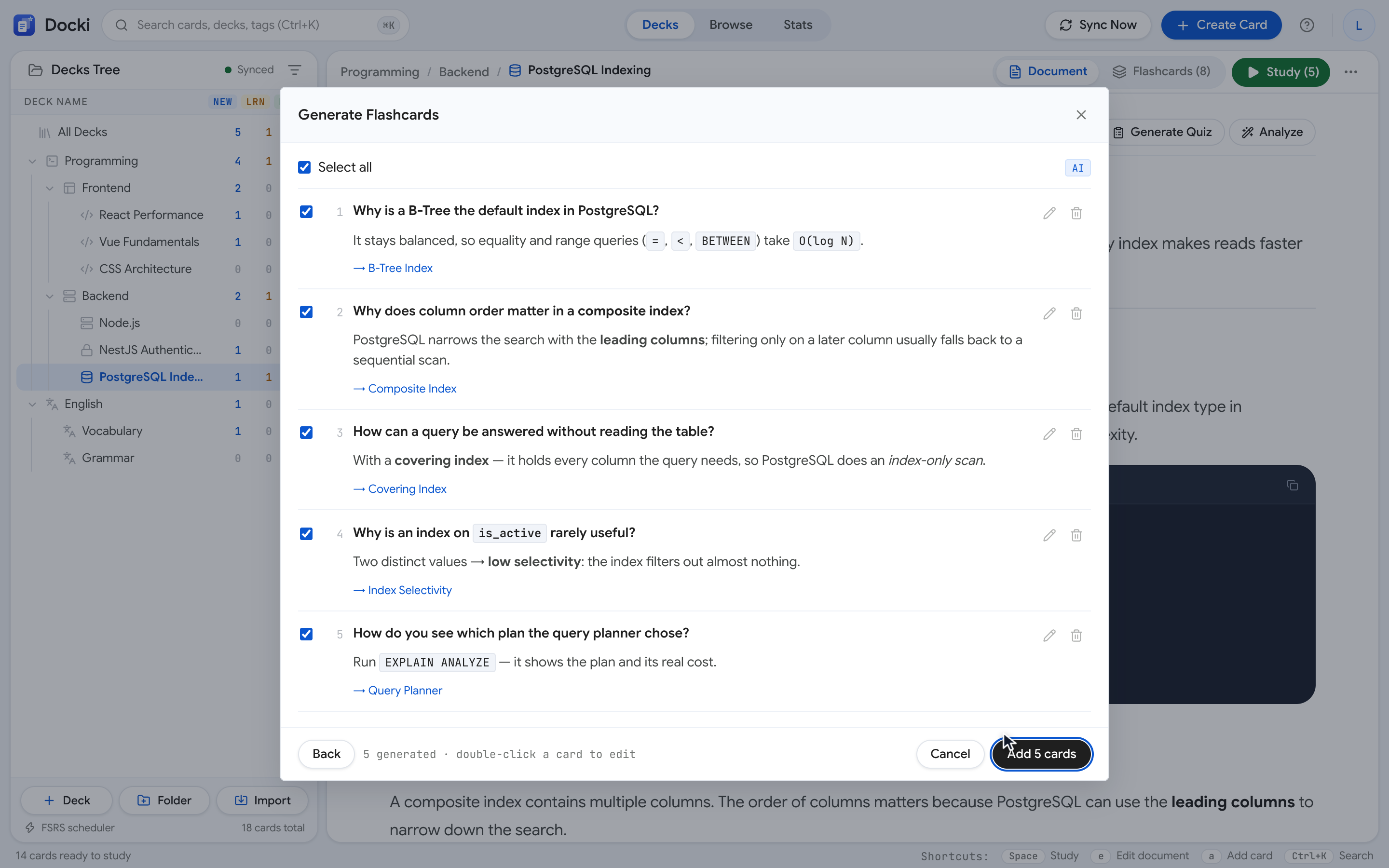 Figure S7: Beautify cleans up Markdown syntax first and then adds paragraph breaks, bold key terms, and italics without altering your wording.
- Instant non-AI Markdown cleanup: Normalizes spacing, headings, and list formatting immediately.
- AI layout & emphasis only: Choose whether to apply Paragraph breaks, Bold key terms, and Italicize terms, and pick an emphasis density (Light, Balanced, or Rich). The server enforces a strict rule: the AI may only adjust layout breaks and bold/italic emphasis — it is not allowed to rewrite or delete your words. A built-in Undo button restores the exact original state in one click.
6. Dedicated AI Assistant Actions for Vocabulary Decks
When you open the Document tab of a vocabulary deck (for language learning) and trigger Edit with AI on a word, phrase, or example paragraph, Docki automatically adapts its prompt groups to your deck's target and meaning languages:
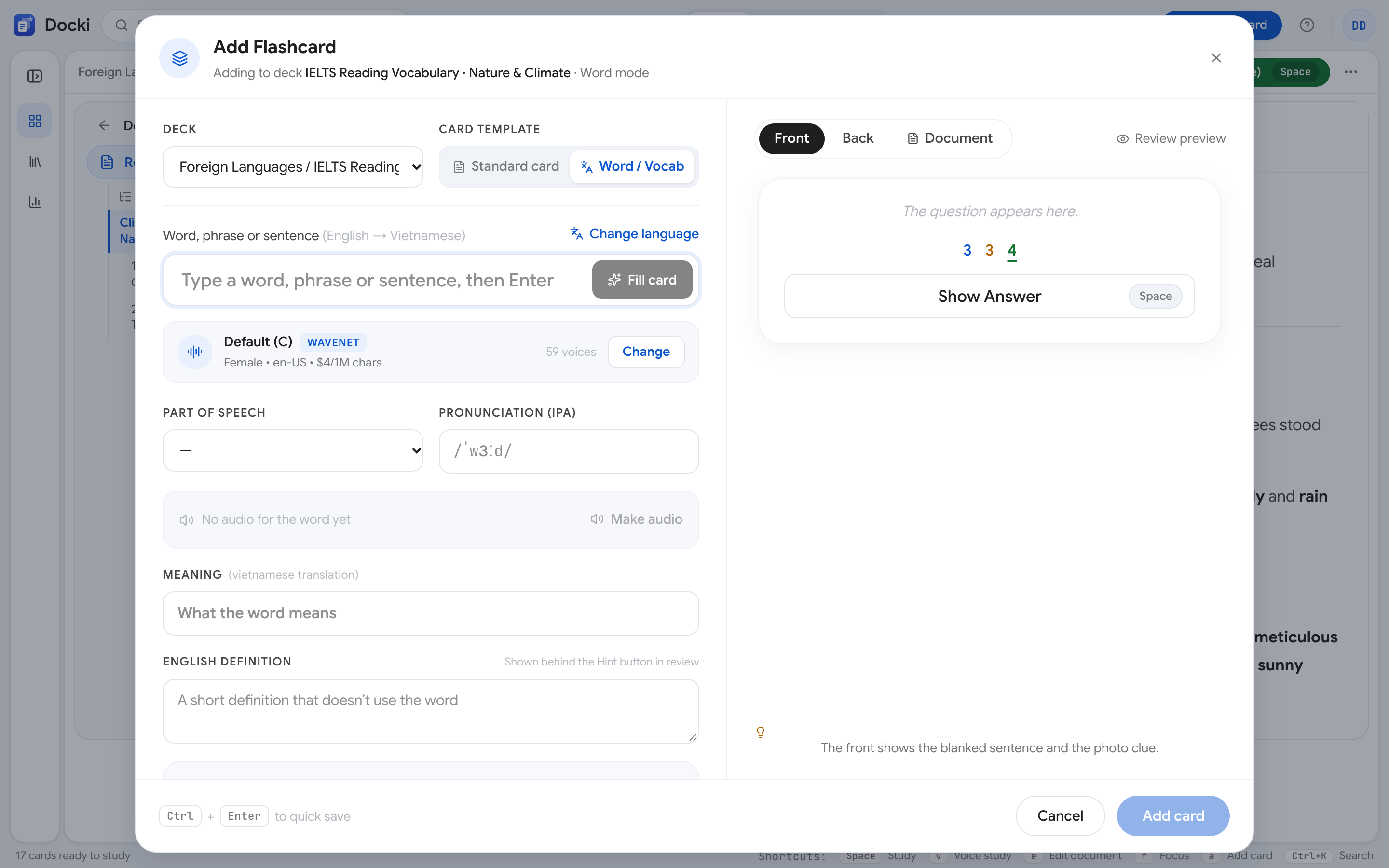 Figure S8: Inside a vocabulary deck, Edit with AI switches to specialized Vocabulary and Document Editing & Polishing actions.
- Vocabulary group: Definition & IPA Phonetics (adds meaning and
/IPA/transcription), Synonyms & Antonyms, Add Examples (writes natural example sentences with translations), and Translate to…. - Document Editing & Polishing group: Fix Spelling & Grammar, Rewrite Naturally (polishes phrasing to sound like a native speaker), Make Concise, Elaborate / Expand, Change Tone (prompts you to specify formal, friendly, simple…), and Format as Bullet List.
Paired with Bulk AI Vocabulary Flashcard Generation, this turns your vocabulary document into an interactive language notebook.
7. From AI Answer to Flashcard in One Click
Understanding a tough paragraph while reading is only half the battle; retaining it next month requires Active Recall and spaced repetition. That is why every AI explanation in Docki — both in the inline popover and inside the Ask AI chat panel — includes a one-click Flashcard button (as well as an option to insert the explanation directly into your document).
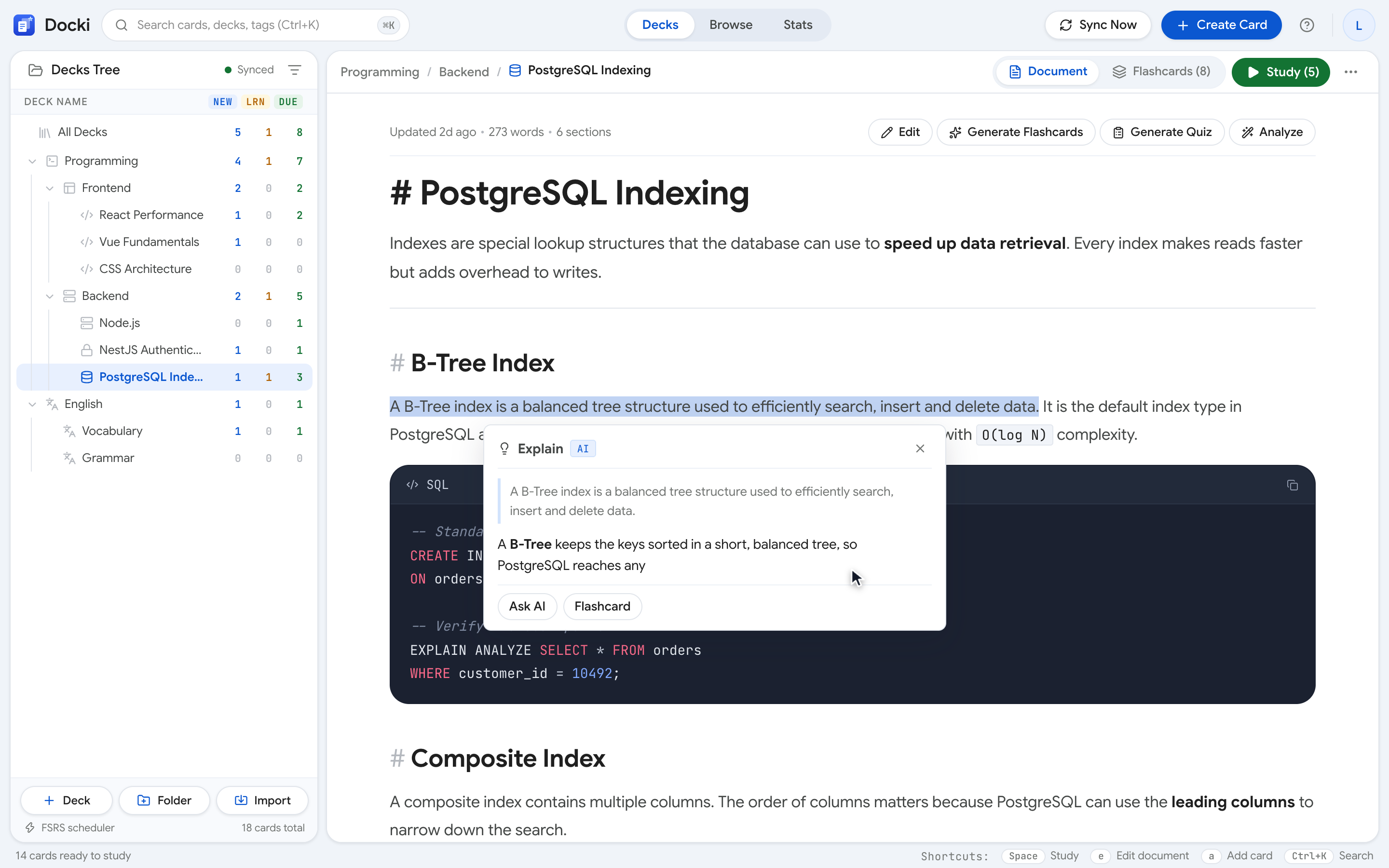 Figure S9: Click the Flashcard button underneath any AI response to turn the question and explanation into a review card immediately.
You can also run Analyze → Knowledge Coverage on your document (covered in detail in our guide to Living Study Notes) to see which concepts in your document still lack flashcards.
8. Real-World Walkthrough: Studying a Biology Chapter in 14 Minutes
To measure how much friction this removes in practice, we timed a complete study pass over a 650-word Human Digestion chapter in Docki:
- Actions performed: Selected 3 complex passages (
1 Explain in detailpopover +2 follow-up questionsin Ask AI on gastrin regulation and bicarbonate buffering); used Edit with AI → Make a table to convert a 4-cell-type prose paragraph into a clean Markdown table; created 4 flashcards directly from the AI explanations and text. - Total measured time: 14 minutes 20 seconds — with zero tab switches outside Docki, a cleaner study document than we started with, and 4 source-linked flashcards ready for Voice Study.
9. Best Practices & Common Pitfalls
- Ask specific, causal questions: Instead of "Explain this," ask "Why doesn't pepsinogen digest the chief cells that secrete it?"
- Verify exact clinical or legal numbers against your source: AI excels at conceptual explanations, but always double-check precise dosages, dates, or statutory numbers against your primary text before clicking Replace.
- Keep sensitive personal data out of prompts: Only paste study notes and course materials.
- Use preview and Undo freely: Experiment with Make a table or Turn into a diagram knowing you can preview before applying or press
Ctrl+Zanytime.
10. Frequently Asked Questions (FAQ)
Is my document content used to train public AI models?
Docki sends only the necessary passage and current document context over encrypted API calls to fulfill your request, in accordance with our privacy policy at /privacy. Your personal study notes are never sold or shared with third parties.
Can Ask AI read my uploaded PDF files?
Yes. When you open a PDF tab in Docki, the extracted text of the PDF (up to roughly 60,000 characters) is passed as context to Ask AI, and you can select any text directly on the PDF page to run Explain in detail or Simplify.
Which AI models power Docki's assistant?
Docki's backend routes requests through leading large language model providers configured for low-latency streaming and high academic accuracy across explanation, editing, and grading tasks.
Does the AI assistant work offline?
No. While reading Markdown notes and reviewing flashcards work offline, Ask AI, Edit with AI, and AI-powered Beautify require an active internet connection.
11. Study With an AI Tutor Right Inside Your Notes
Stop losing your train of thought copying and pasting between PDF viewers, note apps, and external chat tabs. Read, ask, rewrite, and build flashcards in one continuous flow with Docki.
- Try starter decks with built-in study documents now: Explore Docki Starter Decks (/starter)
- Related guides:
Put this method to work in your own studying
Create study documents, extract flashcards with AI and review with FSRS spaced repetition on Docki, completely free.
Start for free