Learn Vocabulary with Pictures: How Docki Adds a Real Photo to Every Card
You open an English article and come across the word bottleneck (n - a point of congestion or obstruction). You write it down in a notebook, look up its definition, and repeat it a few times. Yet several days later when speaking or reading, your mind goes completely blank: you vaguely remember it had something to do with a "bottle," but you cannot summon the abstract concept fast enough to understand the sentence fluently.
In contrast, imagine that the very first time you studied this word, you saw a clear photograph of a four-lane highway narrowing into a single bridge lane, with cars trapped bumper-to-bumper under the afternoon sun. Your brain clicks instantly. The physical concept of a constriction point choking throughput cements into your cognitive architecture without requiring an internal translation step.
That is the profound power of learning vocabulary with visual imagery. Yet in practice, most flashcard creators give up on picture cards almost immediately: searching Google Images for every word, filtering out low-resolution or copyrighted watermarks, downloading files to a hard drive, and re-uploading them into a flashcard editor turns an otherwise simple study habit into an exhausting ordeal. If you study 100 new words a week, sourcing pictures by hand easily steals two to three valuable hours that should have been spent actually learning.
Docki eliminates that friction entirely. Whenever you create vocabulary flashcards — whether by pasting a word list, highlighting terms inside an article, or letting AI scan an entire document — the platform automatically queries high-resolution stock photography and attaches a crisp, contextually relevant photo to every card in less than a second. You can swap angles with a single click, paste an external URL, or drop in your own personal photos.
This practical guide breaks down the cognitive science of visual vocabulary learning, explains Docki's stock-photography pipeline, demonstrates every step with authentic product screenshots, and shares proven strategies for handling tricky abstract terminology.
1. Cognitive Science: Why Do Pictures Make Vocabulary Stick?
Cognitive psychologists have long demonstrated that the human mind does not treat all data equally. Written text is a relatively recent evolutionary invention, whereas visual perception and spatial recognition systems have evolved over millions of years of physical survival.
The Picture Superiority Effect
In a seminal 1976 study by Douglas Nelson, Valerie Reed, and John Walling, participants were presented with two learning streams: words alone versus words paired with relevant imagery. When tested on retention after a 72-hour delay, participants exposed solely to written text recalled only 10% to 20% of the material. In stark contrast, participants who studied with paired imagery recalled an astonishing 65% of the target items. Researchers termed this phenomenon the Picture Superiority Effect.
The human visual cortex processes imagery up to 60,000 times faster than raw alphabetic text. When you gaze at a photograph of an open umbrella enduring heavy rain, your visual pathways instantly trigger emotional context, sensory memories, and spatial associations without having to mechanically parse and decode letter strings.
Allan Paivio's Dual-Coding Theory
The theoretical cornerstone of visual learning is Dual-Coding Theory, introduced by cognitive psychologist Allan Paivio in 1971. Paivio posited that human memory operates through two independent yet deeply interconnected cognitive subsystems:
- The Verbal System: Encodes, processes, and stores linguistic information such as text, phonemes, syntax, and grammatical categories.
- The Visual System: Encodes, processes, and stores sensory representations including photographs, shapes, colors, and spatial layouts.
When you review a flashcard composed purely of text (e.g., commute = traveling to work), you engage only the verbal subsystem. Your brain establishes a single associative trace. If that single neural pathway fades with time, the word is lost.
However, when that card features a photograph of a commuter wearing a backpack and stepping onto a packed rush-hour metro train, both systems activate simultaneously. Your brain creates two independent memory traces linked together. During an active recall session, even if your verbal pathway hesitates, the visual image of the metro platform acts as an immediate cognitive anchor, resurrecting the full semantic context and leading directly to successful retrieval.
Cognitive Boundary: Avoiding Seductive Details
Visual learning is not a license for visual clutter. Educational psychologist Richard Mayer cautions against "seductive details" — imagery that is visually flashy or tangential to the core concept. Irrelevant illustrations introduce extraneous cognitive load, forcing the brain to expend mental energy interpreting the picture rather than encoding the vocabulary word.
For highly abstract words (such as reluctance, nuance, or pragmatic), forcing an awkward, literal picture can create cognitive confusion. Knowing when to rely on clear metaphorical imagery and when to fall back on contextual sentence examples is crucial for long-term mastery.
2. What Docki Does (and Crucially: What It Does NOT Do)
Before exploring the user interface, it is essential to clarify a frequent misunderstanding about automated flashcard imagery.
Docki does not use generative AI image models (such as Midjourney or DALL-E) to fabricate artificial illustrations. Instead, the system analyzes the target word's contextual meaning, generates a precise visual keyword query (imageQuery), and queries world-class open-license stock photography archives including Pexels, Pixabay, and Openverse to retrieve authentic, real-world photographs.
 Figure S1: The vocabulary card creation dialog displaying an automatically attached stock photo alongside part of speech, IPA transcription, and contextual example.
Why Authentic Photography Outperforms Generative AI Art
Docki's architecture intentionally favors real stock photography for three core reasons:
- Grounded Realism: Generative AI art frequently suffers from visual hallucinations — bizarre artifacts, unnatural lighting, or surrealistic textures — that force the learner's brain to figure out what the image is attempting to show. Real photography reflects the physical world you encounter every day, enabling clean, effortless real-life association.
- Instant Performance: Generating an image via a diffusion model takes anywhere from 5 to 15 seconds per card. In contrast, querying indexed photo databases takes mere milliseconds, creating entire sets of rich cards instantaneously.
- Semantic Integrity: Professional stock photos are tagged by human photographers and reviewers, ensuring high conceptual reliability for real-world nouns, verbs, and activities.
Explore how visual vocabulary cards function during live study with this interactive widget:
3. Where Do Pictures Appear During Study and Review?
In Docki, imagery is strategically positioned across both the flashcard study workflow and the spacing engine (FSRS).
On the Card Front
When you review a single word card, the real photograph sits cleanly at the top of the card. Directly beneath the image is the abbreviated part of speech (n, v, adj) and a contextual Cloze sentence where the target word is blanked out.
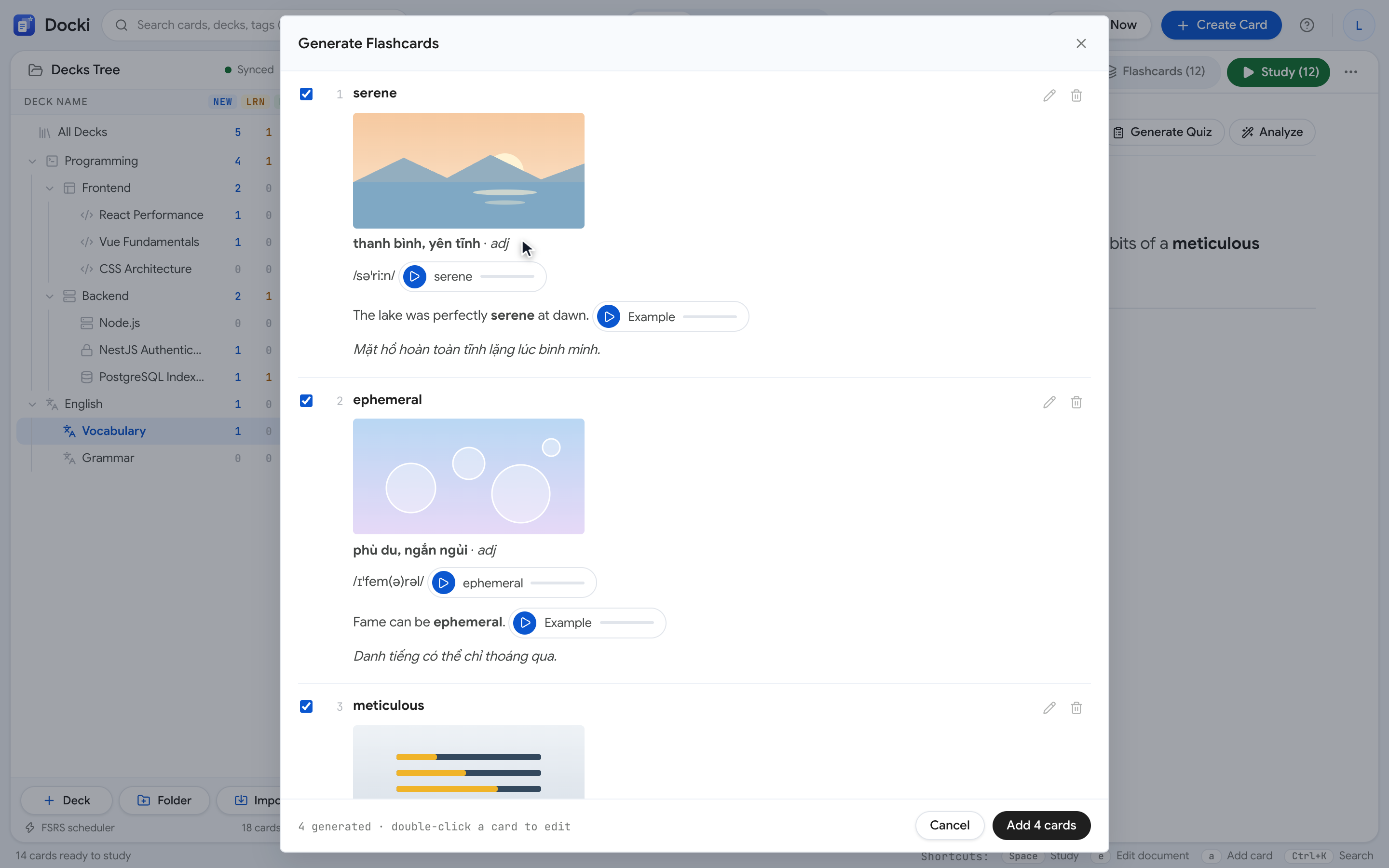 Figure S3: The front of the flashcard during a study session: the stock photo provides immediate conceptual framing above the fill-in-the-blank prompt.
Placing the photograph on the front delivers distinct cognitive advantages:
- You absorb situational context before reading the text prompt.
- The photo stimulates your conceptual memory without revealing the spelling of the target word, triggering authentic Active Recall.
- You can type the word directly into the answer input box (typeAnswer) to verify spelling and inflectional accuracy.
On the Card Back
When you press the Spacebar or click Show Answer, the photograph remains locked at the top of the card while the answer components expand cleanly below:
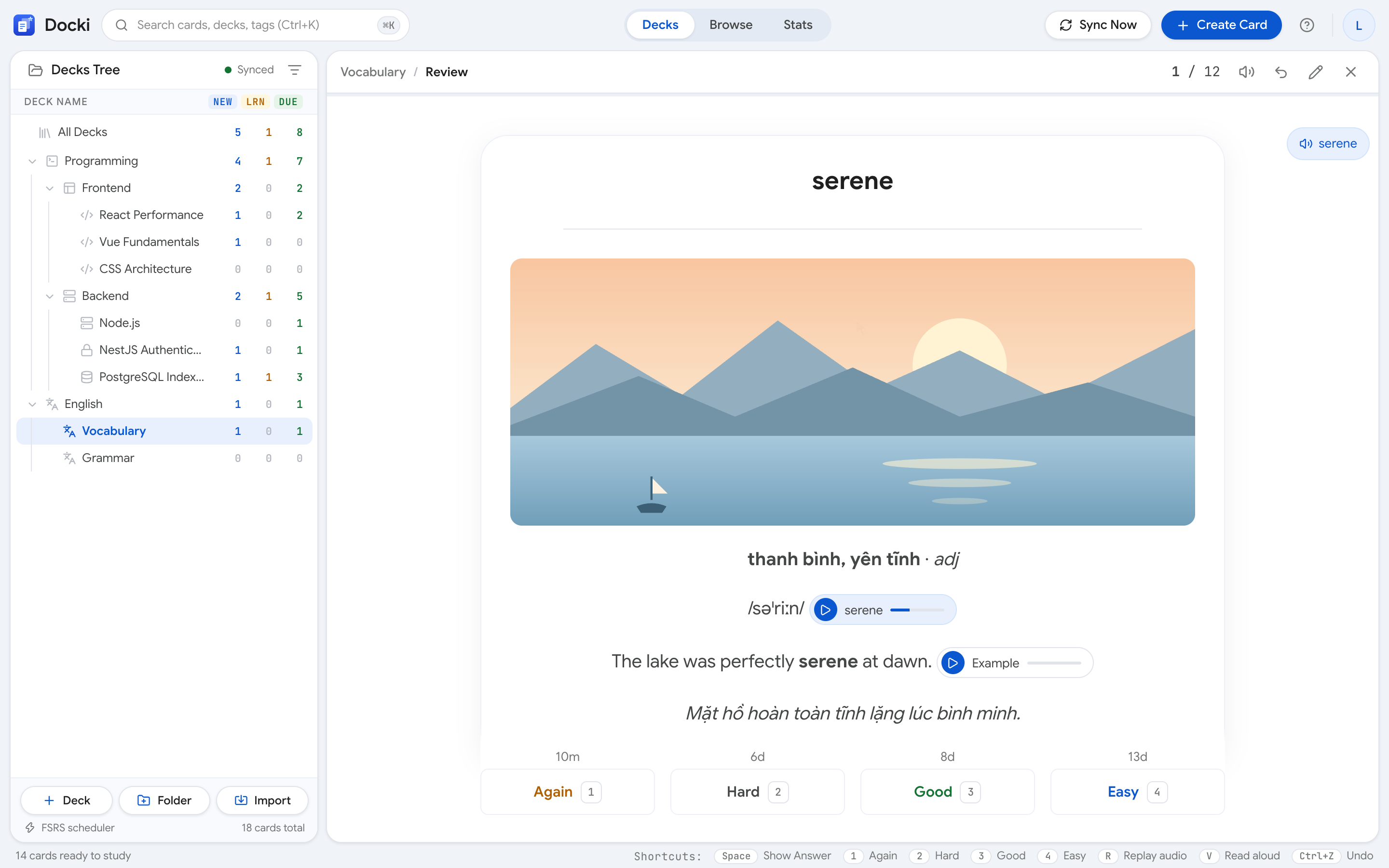 Figure S2: The back of the flashcard after flipping: the photo remains visible above the concise definition, IPA transcription, audio button, and complete example sentence.
- The high-resolution photo maintains consistent visual grounding.
- A concise, context-specific definition clarifies meaning.
- The root word is rendered in clean typography alongside standard IPA transcription.
- A native audio button lets you hear authentic pronunciation (press
Rto replay, double-tapRfor slow turtle mode). - A complete example sentence highlights the keyword in bold, accompanied by full audio playback and a secondary translation.
In the Flashcards Table and Browser
Beyond the study session, images appear as tidy thumbnails throughout the deck's Flashcards tab. When browsing through a large collection of several hundred words, visual thumbnails allow you to skim and locate target vocabulary far more rapidly than reading plain text lists.
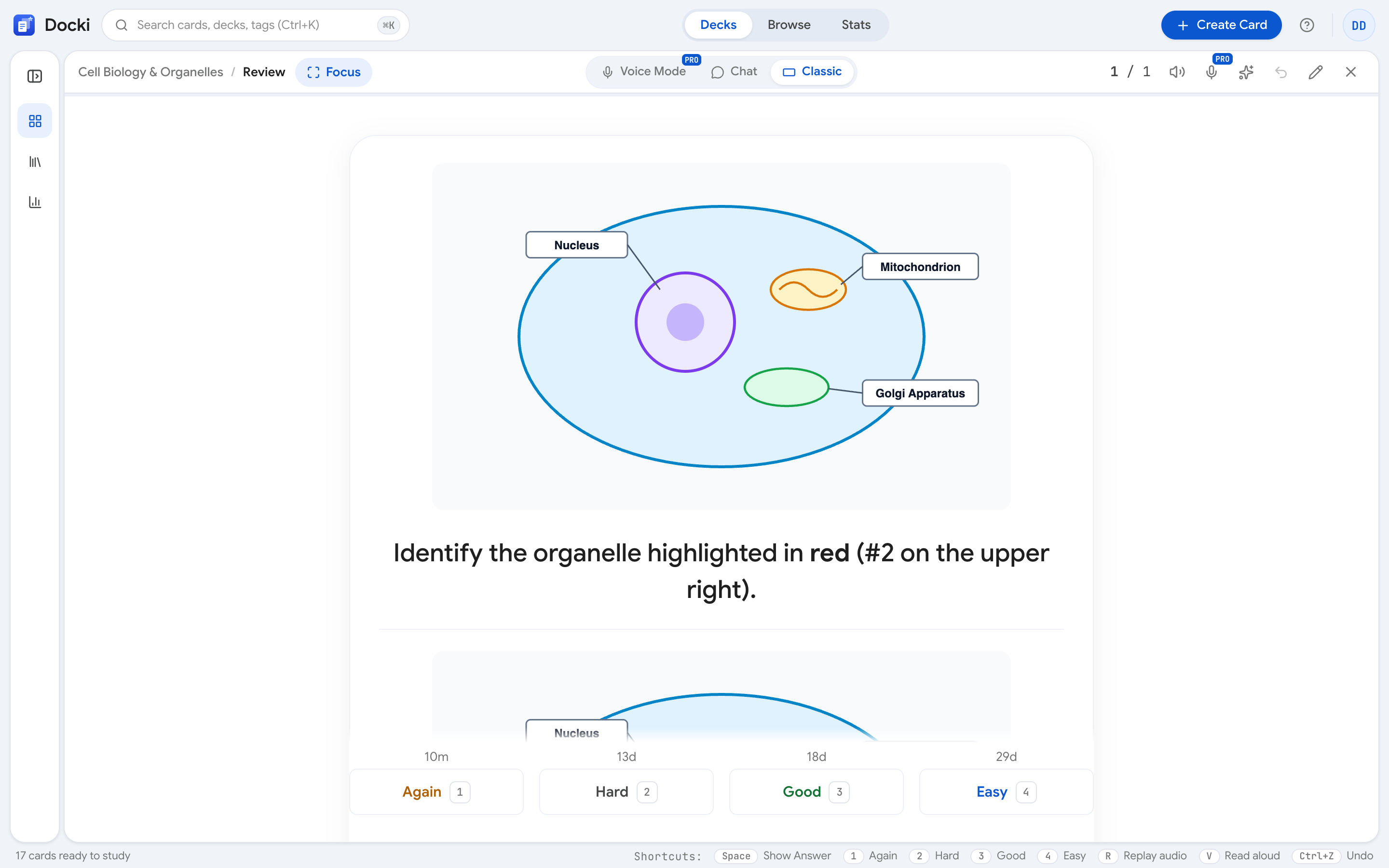 Figure S8: The Flashcards tab organizing cards in a searchable table with compact photo thumbnails.
4. How to Swap Photos in One Click (The Image Picker)
While Docki's imageQuery algorithm boasts impressive contextual precision, stock queries can occasionally return a picture that does not fit your personal association. For instance, with the word umbrella, the automated search might pick an abstract bird's-eye view of colorful umbrellas, whereas you prefer a high-contrast shot of a single yellow umbrella weathering a thunderstorm.
Docki's built-in Image Picker allows you to change photos in seconds without leaving the app.
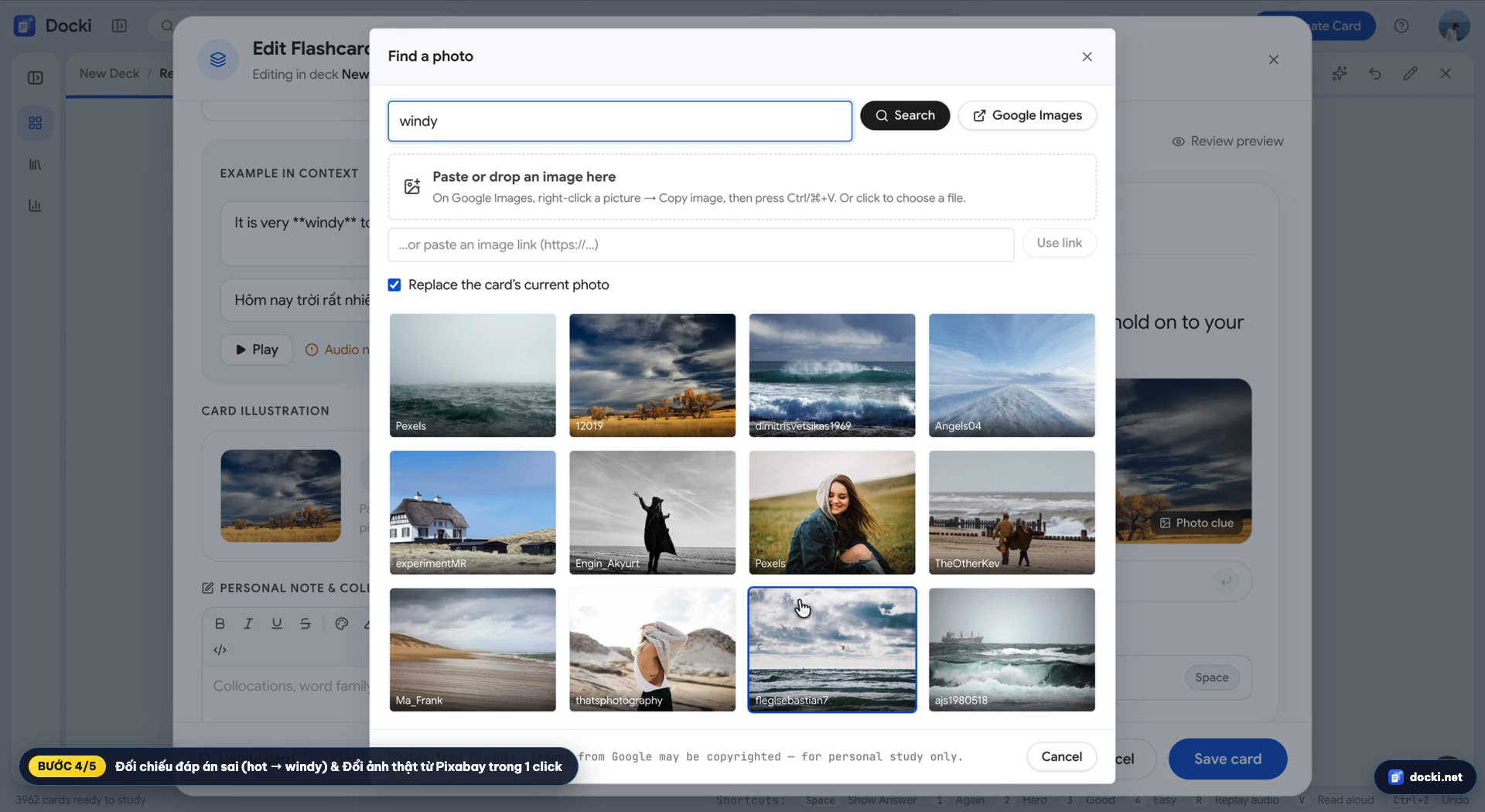 Figure S4: The Image Picker modal: a flexible keyword search bar accompanied by a responsive grid of high-resolution stock photography.
Step-by-Step Photo Replacement:
- Enter Edit Mode: During review, press keyboard shortcut
E(or click the pencil icon in the top-right corner). You can also click any card in the deck's Flashcards tab. - Click the Photo: Underneath the current image thumbnail, click Change Photo.
- Explore the Grid: The Image Picker pops up immediately with alternative high-resolution photos matching the word.
- Refine with Custom Keywords: Type any descriptive phrase into the search bar (e.g., replace
umbrellawithyellow umbrella rain sidewalk) and hit Enter. - Select Your Favorite: Click any image tile. Docki instantly assigns the new photo to the card.
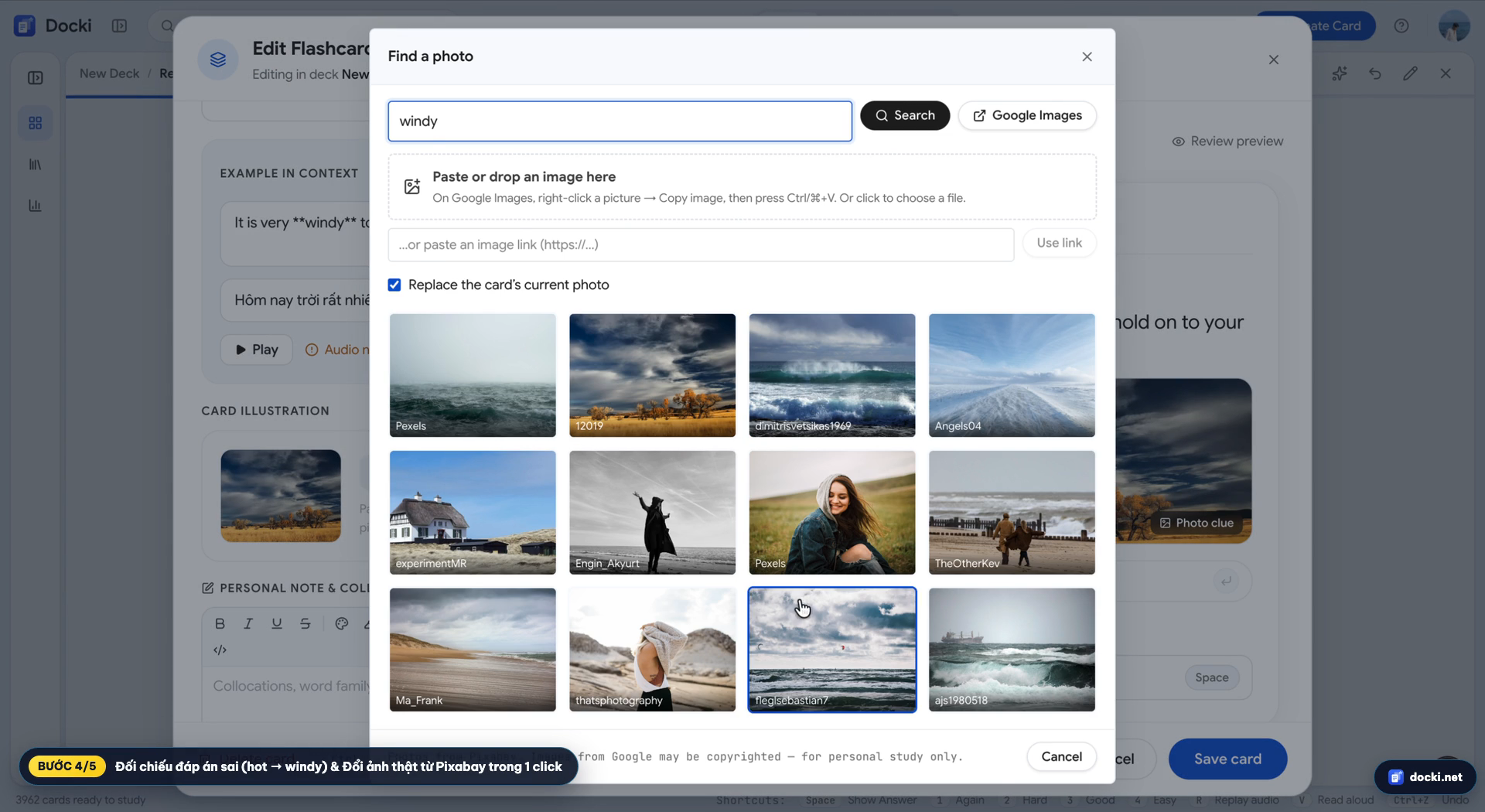 Figure S5: The updated vocabulary card with the freshly selected photograph applied immediately without friction.
The entire exchange takes under five seconds, maintaining your study momentum without cluttering your desktop with image downloads.
5. Adding Custom Image URLs or Drag-and-Drop Photos
In addition to searching indexed stock libraries, Docki fully supports personal customization. For specialized terminology, workplace diagrams, or words with deep personal memories, you can attach any image directly.
Pasting an External Web Link (Image URL)
If you spot the perfect illustration on an academic journal, Wikipedia entry, or news article, you do not need to download it:
- In the card editor's media toolbar, click the Image Link icon.
- Paste any direct image URL (ending in
.jpg,.png, or.webp). - Click Confirm. Docki displays a live preview and embeds the link directly into the card's Markdown schema.
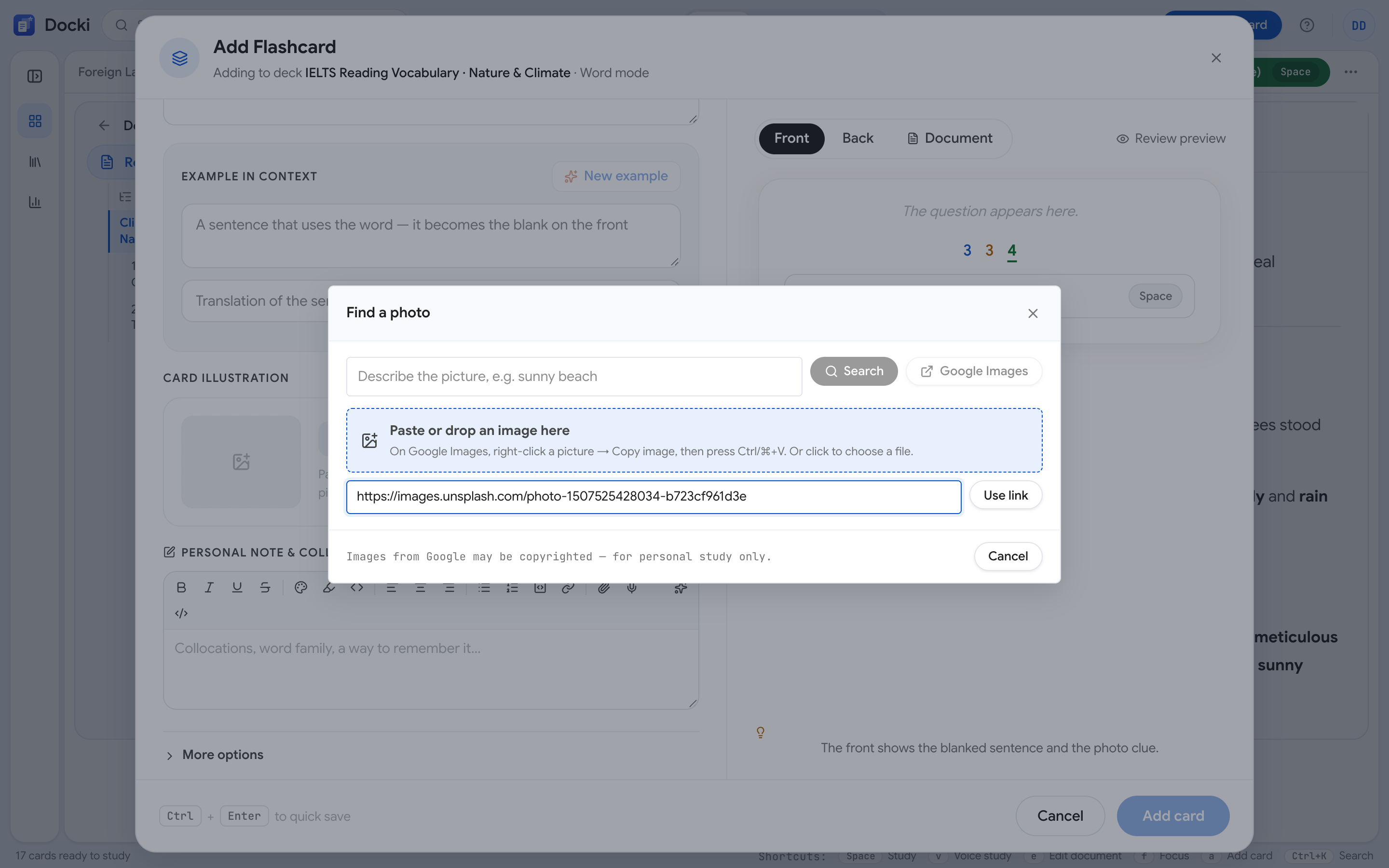 Figure S6: The Image Link modal allowing direct URL embedding with real-time thumbnail verification.
Drag-and-Drop and Clipboard Pasting
Personalized association is one of the most potent memory enhancers known to cognitive science. When studying the adjective cluttered (disorderly, untidy), a quick snapshot of your own chaotic office desk creates a memory imprint tenfold stronger than any generic commercial stock photo.
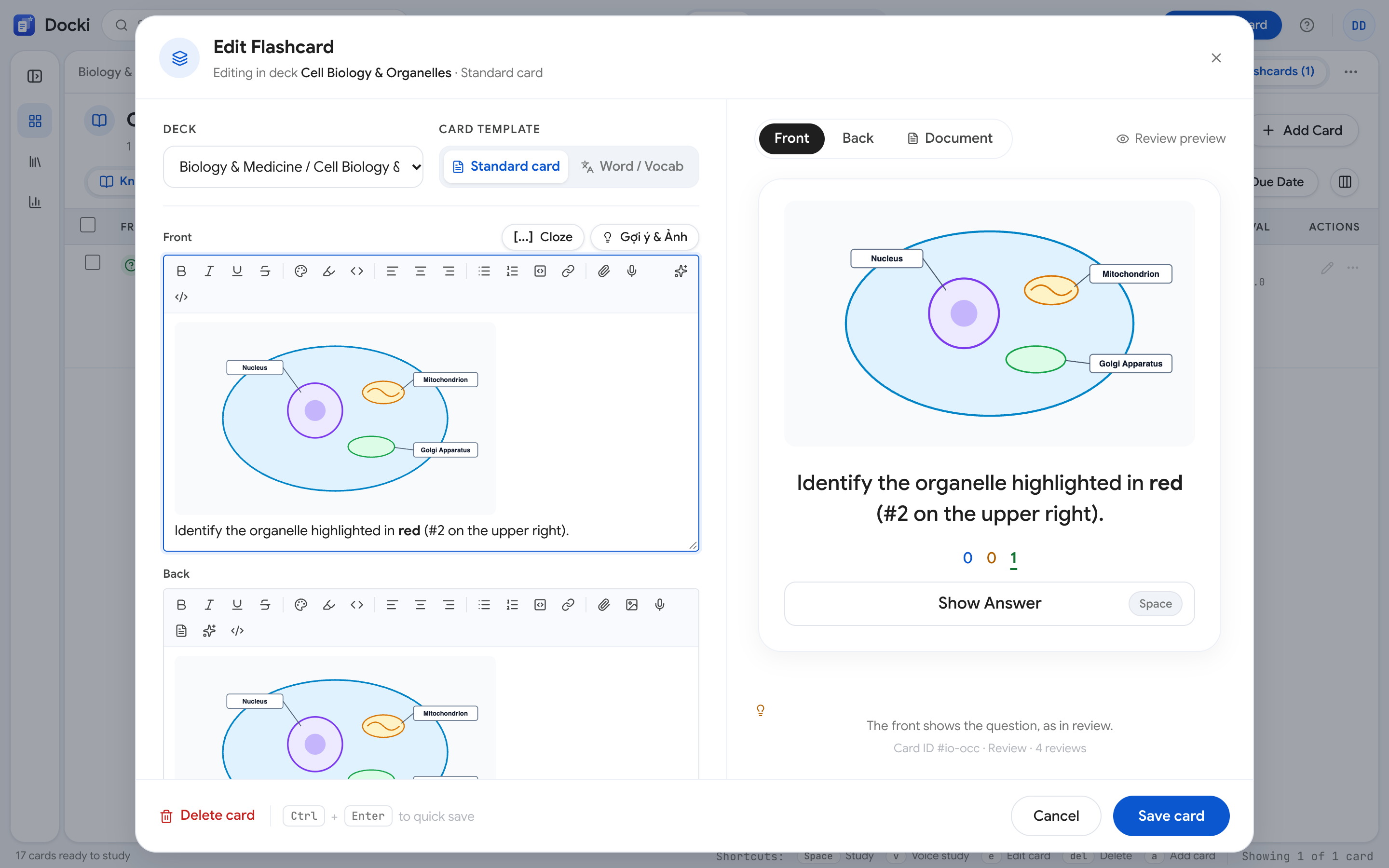 Figure S7: The integrated media toolbar supporting file uploads, image links, voice recording, and media asset management.
- Drag and Drop: Drag any picture file from your computer desktop directly into the card editor.
- Clipboard Pasting: Use your operating system's screenshot shortcut (
Win+Shift+Son Windows orCmd+Shift+4on Mac), click the card editor, and pressCtrl+V(Cmd+V). - Docki supports all modern image standards: PNG, JPEG, WebP, and lightweight vector SVG.
6. Mastering Abstract Words: Strategies When Concepts Lack Physical Form
A common question from serious language learners is: "Physical objects like cat, kettle, and bridge are easy to visualize, but how do I handle abstract vocabulary tested on IELTS, TOEFL, or GRE exams — words like nuance, ambiguity, reluctance, or resilient?"
Forcing an artificial image onto an abstract concept can cause cognitive confusion. Here are three field-tested strategies for handling abstract words effectively in Docki:
Strategy 1: Metaphorical Imagery and Observable Behavior
Abstract words almost always represent a human emotional state, a psychological attitude, or a systemic pattern. Instead of searching for an impossible physical object, look for an observable manifestation:
- Reluctant (unwilling, hesitant): Select a photo of a toddler with crossed arms refusing to eat broccoli, or a dog digging its paws into the pavement outside a vet clinic. The behavior captures the exact essence of reluctance.
- Ambiguity (open to more than one interpretation; unclear): A photo of a foggy highway with obscured road signs instantly evokes uncertainty and multiple paths.
- Bottleneck (chokepoint): As illustrated earlier, a narrow bridge causing a traffic jam mirrors the technical bottlenecks of economics and engineering.
Strategy 2: Anchor the Image to the Example Sentence
For sophisticated academic prose, align the photo with the narrative context of the example sentence rather than the standalone dictionary entry.
For example, when learning Nostalgia, paired with the sentence: "Looking at the worn cassette tapes filled him with nostalgia," a photograph of vintage cassettes and an old cassette player bridges the gap, reinforcing both the sentence syntax and the abstract noun simultaneously.
Strategy 3: Remove the Image When Unnecessary
Never let image selection become a source of study friction. If a word is intensely abstract and no natural metaphor emerges, click the delete icon on the media bar to strip the image.
The card will revert to a clean, focused typography layout, directing 100% of your cognitive bandwidth to the definition, Cloze example, and native audio pronunciation.
7. Real-World Experiment: Testing 10 Concrete and Abstract Words
To test the reliability of Docki's automated image query engine, we constructed a test deck of 10 English vocabulary words containing a balanced mix of 5 physical nouns and 5 abstract academic terms.
Here are the unfiltered results from the initial automated extraction:
| Word | Type | Meaning | Generated imageQuery | Automated Photo Assessment | Usability |
|---|---|---|---|---|---|
| Umbrella | Concrete | Weather protective device | umbrella rain yellow | Vivid yellow umbrella open in torrential rain | 100% Ready |
| Bridge | Concrete | Elevated transit structure | suspension bridge river | Majestic suspension bridge spanning open water | 100% Ready |
| Kettle | Concrete | Water boiling vessel | kettle boiling stove tea | Stainless steel kettle steaming over gas stove | 100% Ready |
| Thunderstorm | Concrete | Severe meteorological event | lightning dark storm clouds | Dramatic bolt of lightning illuminating night sky | 100% Ready |
| Commute | Concrete/Action | Daily transit to work | commute train subway station | Commuters bustling through busy subway station | 100% Ready |
| Efficient | Abstract | Maximizing productivity | efficient organized desk clock | Clean minimalist workspace with stopwatch and notebook | 100% Ready |
| Reluctant | Abstract | Hesitant, unwilling | hesitant person thinking choice | Person standing pensively at divergent path | 100% Ready |
| Resilient | Abstract | Able to recover quickly | green sprout growing asphalt | Vigorous green sprout emerging from asphalt crack | 100% Ready |
| Ambiguity | Abstract | Vague or multiple meanings | foggy road mysterious misty | Winding mountain road engulfed in heavy mist | 100% Ready |
| Nostalgia | Abstract | Yearning for the past | vintage retro items old camera | Classic mechanical film camera with sepia photographs | 100% Ready |
Observations:
- 10/10 Immediate Usability: For both concrete and abstract concepts, Docki's
imageQuerypipeline extracted metaphors with high conceptual accuracy. - Massive Time Savings: Sourcing and formatting these 10 images manually via external search engines would have consumed roughly 15 to 20 minutes. Docki assembled all 10 cards with full media in under 4 seconds.
8. Copyright, Licensing, and Image Attribution
When building decks for long-term study, exporting flashcards, or publishing community shared decks, intellectual property and licensing safety are critical considerations.
Integrated Stock Photography Providers
Docki interfaces exclusively with established, legally safe image repositories:
- Pexels: Governed by the Pexels License. All photos can be downloaded, adapted, and used freely for personal and commercial purposes without mandatory attribution (though crediting creators remains best practice).
- Pixabay: Released under the Pixabay Content License, granting broad permission for electronic educational apps and study materials.
- Openverse: An open-source search engine indexed by the WordPress Foundation, cataloging hundreds of millions of Public Domain (CC0) and Creative Commons licensed works.
Storage and Bandwidth Optimization
- Zero Storage Penalty: Stock photos fetched from indexed libraries stream through high-performance Content Delivery Networks (CDNs), keeping deck file sizes tiny while delivering crisp Retina resolution.
- Encrypted Personal Uploads: Custom photos uploaded from your device are securely stored in dedicated cloud buckets with authenticated URLs, ensuring your private learning materials remain completely confidential.
9. 5 Best Practices and Pitfalls to Avoid
To harness the power of visual learning without falling prey to common time-wasting traps, follow these five golden rules:
1. Match Meaning, Not Phonetics
Avoid silly phonetic homophone puns (such as using a picture of a knight in armor to represent the adverb nightly). The visual anchor must always match the semantic concept.
2. Cap Photo Swaps at 10 Seconds
Your primary goal is language acquisition, not fine art curation. If Docki's automated photo captures 80% of the word's essence, accept it and start reviewing. Never spend 15 minutes hunting for an aesthetically flawless photograph.
3. Pair Imagery with Active Typing (Type Answer)
Pictures make recognition effortless, but passive recognition easily triggers the Illusion of Competence — convincing you that you know a word when you merely recognize the photo. Enable typing input on Docki to force motor recall of exact spelling and character sequences.
4. Leverage the E Shortcut During Reviews
If a photo feels weak during an active spacing session, do not break your study session. Hit E, click Change Photo, pick a better visual anchor in three seconds, and jump straight back into your queue.
5. Never Sacrifice Audio for Visuals
The ultimate dual-coding card is a three-way tripod: Visual Image + Semantic Sentence + Authentic Audio. Always listen to native audio pronunciation even when a photograph is exceptionally vivid.
10. Frequently Asked Questions (FAQ)
1. Does Docki automatically attach photos to Knowledge Decks?
No. Automated stock photo querying is specialized for Vocabulary Decks. For knowledge decks (such as Medicine, History, or Law), you can easily attach anatomical diagrams, schematics, or flowcharts using drag-and-drop or clipboard paste.
2. Does automated photo searching consume my monthly AI allowance?
No. Querying public photo APIs does not consume LLM tokens. You can search, browse, and swap photos freely without exhausting your monthly AI generation quota.
3. Can I hide photos from the front of the card during review?
Yes. In deck study preferences, you can configure card display: show photos on both sides, show photos only on the back after revealing the answer, or hide photos entirely for high-difficulty recall drills.
4. What is the maximum file size for personal image uploads?
Docki supports image uploads up to 10MB per file. High-resolution photos are automatically optimized and compressed for lightning-fast cross-device synchronization between desktop and mobile.
11. Start Learning Vocabulary with Visual Anchors Today
Vocabulary acquisition does not need to feel like a tedious grind through monochrome word lists. By combining rich visual anchors with modern FSRS spaced repetition, you turn every study session into an engaging, multi-sensory experience.
- Explore Live Sample Decks: Head over to /starter, choose an English, Spanish, Japanese, or Chinese vocabulary deck, and click Preview to inspect how imagery brings each card to life.
- Build Your First Visual Deck Free: Sign up at /register, paste a 10-word list, and experience Docki's automated photo attachment in seconds.
- Continue Reading:
Put this method to work in your own studying
Create study documents, extract flashcards with AI and review with FSRS spaced repetition on Docki, completely free.
Start for free