Bulk-Create Vocabulary Flashcards with AI: From One Reading to 30 Cards
Every language learner knows the frustration: you finish reading an engaging short article in Spanish, Japanese, or English, and you have underlined 25 useful words and expressions you genuinely want to remember. You open your flashcard app intending to turn them into cards—and twenty minutes later you have barely finished six of them. For every single word, you are juggling four browser tabs: a dictionary for the right contextual meaning, another site for IPA or reading transcription, a third for a natural example sentence, and an image search for a visual cue. By the time the cards are built, your study time is over.
That card-making bottleneck is the main reason learners fall back on bare two-word translation cards (front: word, back: translation) that fade from memory within days. Which raises a practical question: How can you go from a reading passage or a raw list of words to dozens of complete vocabulary cards—each with a contextual meaning, pronunciation + audio, a cloze example sentence, and a real photograph—in under a minute, without giving up editorial control?
In this guide, we will walk through the three ways to bulk-create vocabulary flashcards with AI in Docki, illustrated step by step with real screenshots from the app, a live screen recording, and interactive audio samples.
Why Multi-Sensory Context Cards Beat Bare Word Lists
When you study a bare word pair in isolation, your brain has only a single fragile hook to retrieve it. Research on Dual-Coding Theory (Paivio) and contextual vocabulary acquisition shows that words stick far better when anchored across multiple channels at once: a concrete visual scene, spoken pronunciation, and a real sentence showing how the word behaves in context.
Explore how Docki structures every vocabulary card in the interactive preview below:
Whenever Docki creates a Word card, it follows a unified template designed for active recall:
- On the front (for single words): You see a real photo above the card, the abbreviated part of speech (
n,v,adj…), and a natural example sentence with the target word blanked out as a cloze gap. Instead of passively flipping the card, you actively type the word (typeAnswer)—and if you get stuck, the Hint button reveals a simple definition in the target language plus the first letter. - On the back: You get the photo, the concise meaning and part of speech, the headword with its pronunciation (IPA for English/European languages, Pinyin with tone marks for Chinese, Hiragana + Romaji for Japanese, or Revised Romanization for Korean) and word audio button, followed by the full example sentence with its own audio button and translation.
Docki never generates synthetic AI drawings for vocabulary cards. Instead, AI writes a 2–4 word English visual search query describing a concrete scene for the word's meaning, and Docki automatically searches and attaches a real photograph from stock photo libraries (Pexels, Pixabay, and Openverse).
Watch this 48-second screen recording from Docki to see the full workflow—from scanning a reading passage to reviewing the finished cards with active recall and FSRS:
You can also click the audio buttons below to hear real word and sentence audio generated by Docki:
| Target Word | IPA & Part of Speech | Word Audio | Contextual Example & Sentence Audio |
|---|---|---|---|
| rain | /reɪn/ · noun (n) | rain | "I forgot my umbrella, so I got wet in the rain." rain example sentence |
| cloudy | /ˈklaʊdi/ · adjective (adj) | cloudy | "It is cloudy today, so we should take an umbrella." cloudy example sentence |
| windy | /ˈwɪndi/ · adjective (adj) | windy | "It is very windy today, so hold on to your hat." windy example sentence |
| sunny | /ˈsʌni/ · adjective (adj) | sunny | "It is a sunny day, so let's go to the beach." sunny example sentence |
Preparation: Configure Your Vocabulary Deck Settings
Before generating cards, tell Docki which language the deck teaches and which language you want meanings written in. Right-click your deck in the sidebar (or click ⋯ in the deck header) and open Deck settings….
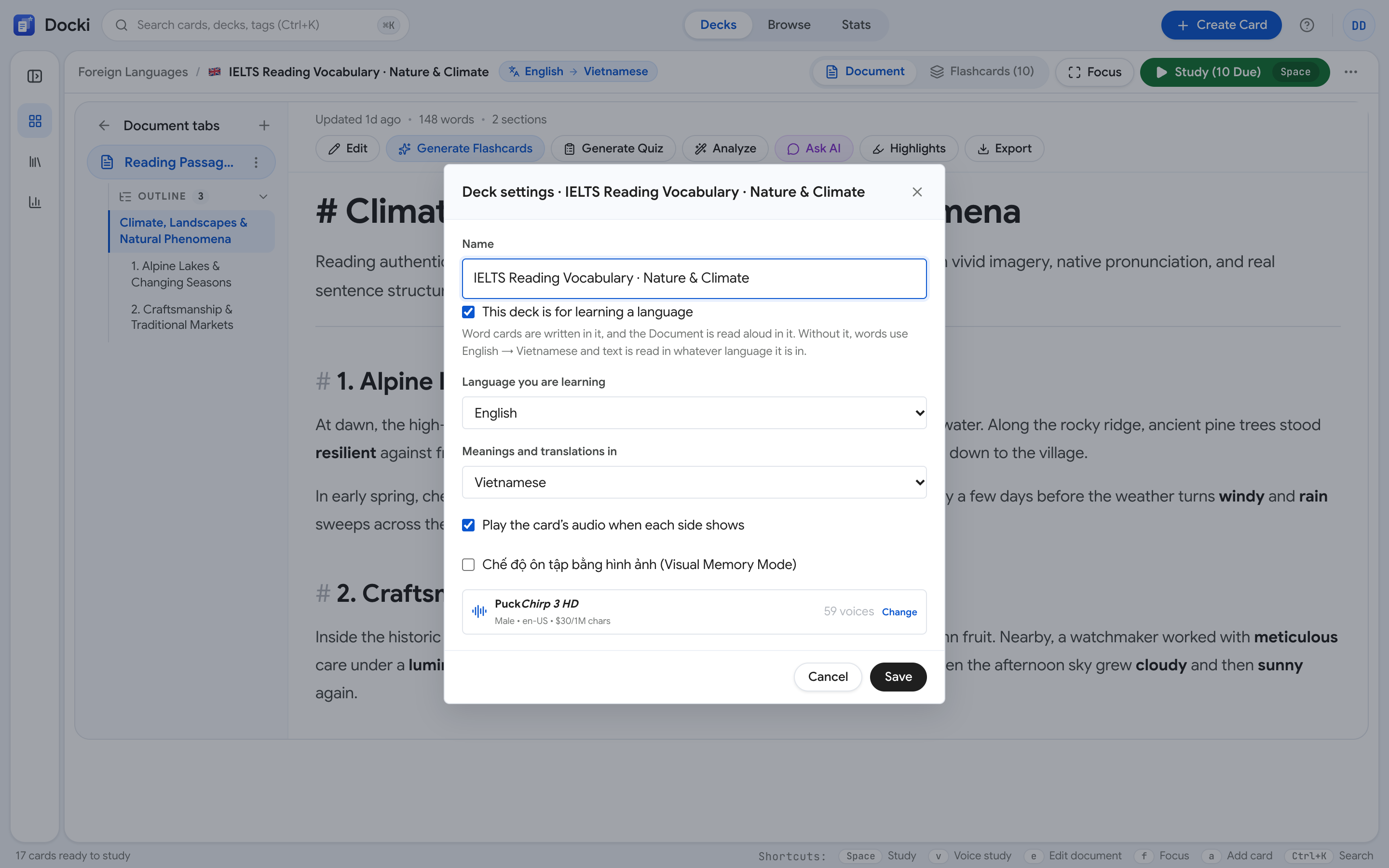 Figure S1: The Deck settings… modal. Notice the checkbox This deck is for learning a language, the Language you are learning and Meanings and translations dropdowns, and the audio autoplay toggle.
In Deck settings… (Figure S1), set three options:
- This deck is for learning a language: Tick this box to turn on vocabulary mode (your deck icon in the sidebar will automatically display the language's flag).
- Language you are learning & Meanings and translations: Pick from built-in choices (English, Japanese, Chinese, Korean, French, German, Spanish, Vietnamese) or choose Other… to type any language. In our screenshots we use an English → Vietnamese deck (Reading: City Life), though you can pair any languages—such as Spanish → English or Japanese → English—or pick the same language for both (e.g., English → English) for a monolingual deck.
- Play the card's audio when each side shows: Enable autoplay so you hear every word and sentence the moment you flip a card.
Once saved, you have three ways to build vocabulary cards in bulk.
Method 1: Bulk-Create from a Word List
Use this method whenever you already have a list of words from a textbook chapter, a class handout, or your notebook.
Step 1: Open Generate Flashcards and paste your words
Click Generate Flashcards on the Document tab (or Generate with AI on the Flashcards tab). Because this is a language deck, the Vocabulary style is selected automatically.
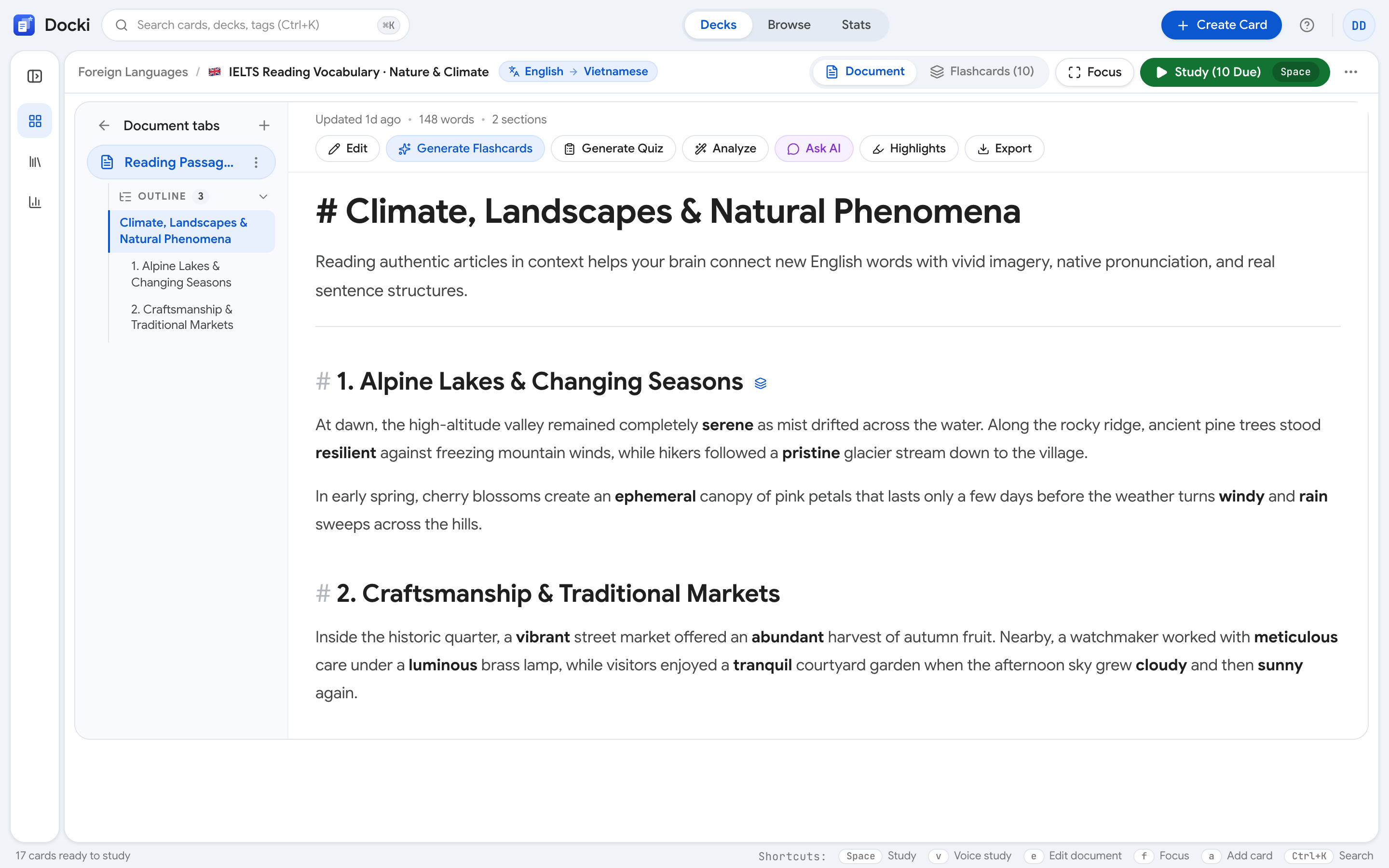 Figure S2: Generate Flashcards in Vocabulary mode. Look at the editable text box containing 12 words (one per line) and the Google voice selector below it.
Type or paste your words—one word or phrase per line (Figure S2 shows 12 urban-life words: commute, congestion, pedestrian, suburb, vibrant, affordable, skyline, neighborhood, renovation, amenity, bustling, outskirts). You can edit lines freely before generating and pick your preferred Google TTS Voice below the list.
Step 2: Generate and watch cards stream in parallel
Click the generate button. Docki processes three words in parallel at a time, fetching definitions, examples, Google TTS audio, and stock photos simultaneously.
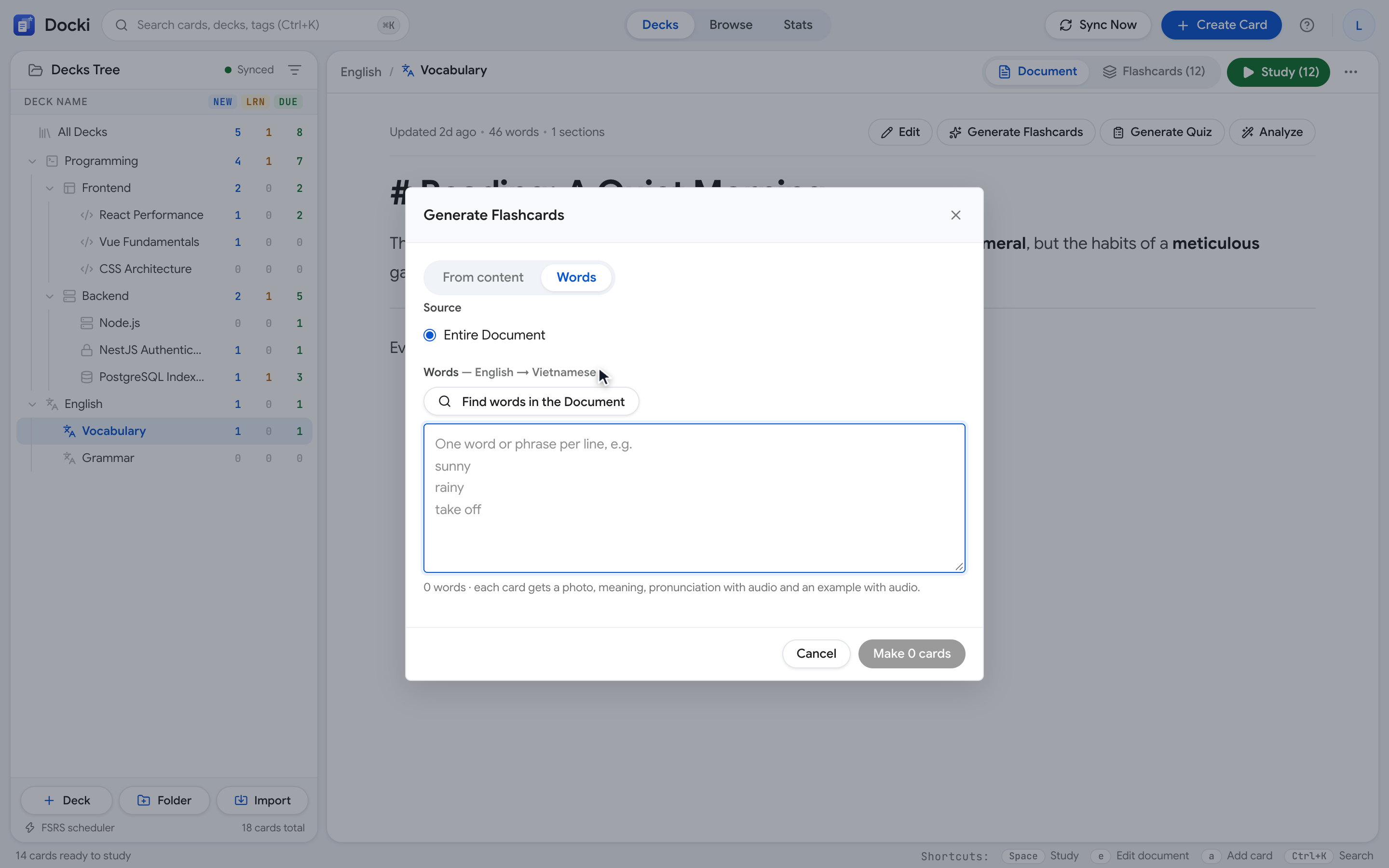 Figure S3: The bulk generation progress screen. Completed cards appear immediately so you can inspect them while the remaining words finish.
Method 2: Let AI Find Words in the Document
What if you don't have a word list yet—just an article, story, or transcript you want to read? Paste the reading into your deck's Document tab and let Docki extract the key vocabulary for you:
Why does recalling help you remember?
Rereading a page feels productive, but mostly it just makes the page familiar. Retrieval practice — pulling information back without looking — forces the brain to rebuild the path to the memory, and each rebuild makes the next one easier.
When you try to recall, the brain has to search for and reconnect pieces of information. That effort is the exercise: the connection gets stronger each time, so next time you remember faster and keep it longer.
Step 1: Click Find words in the Document
With your reading saved in the Document tab, open Generate Flashcards and click Find words in the Document.
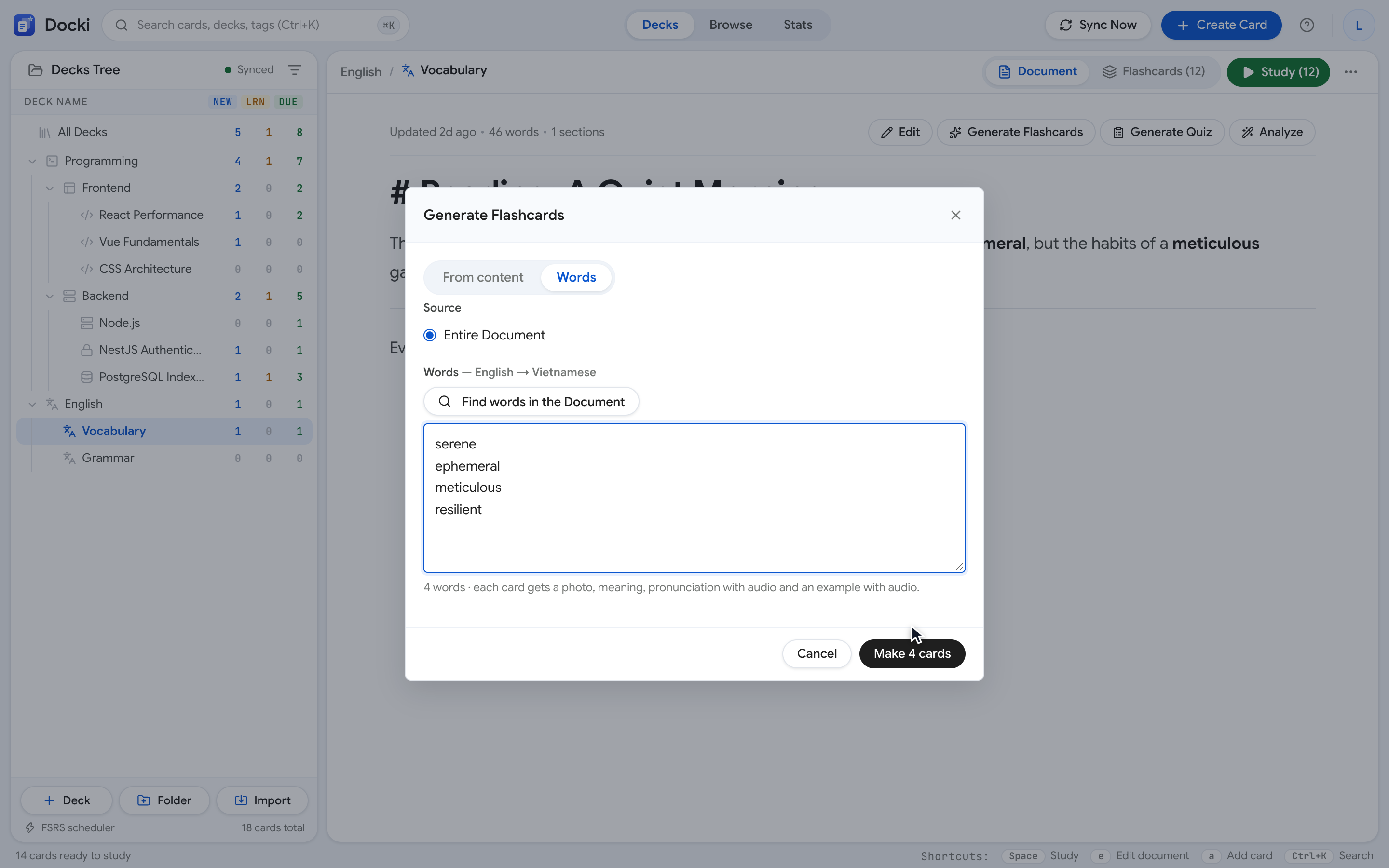 Figure S4: Opening Find words in the Document to scan the current reading passage for study-worthy words and phrases.
Step 2: Untick words you already know
Within seconds, AI scans up to 30,000 characters of your text and extracts the key words and multi-word expressions in order of appearance, returning dictionary headwords along with part of speech and brief meaning.
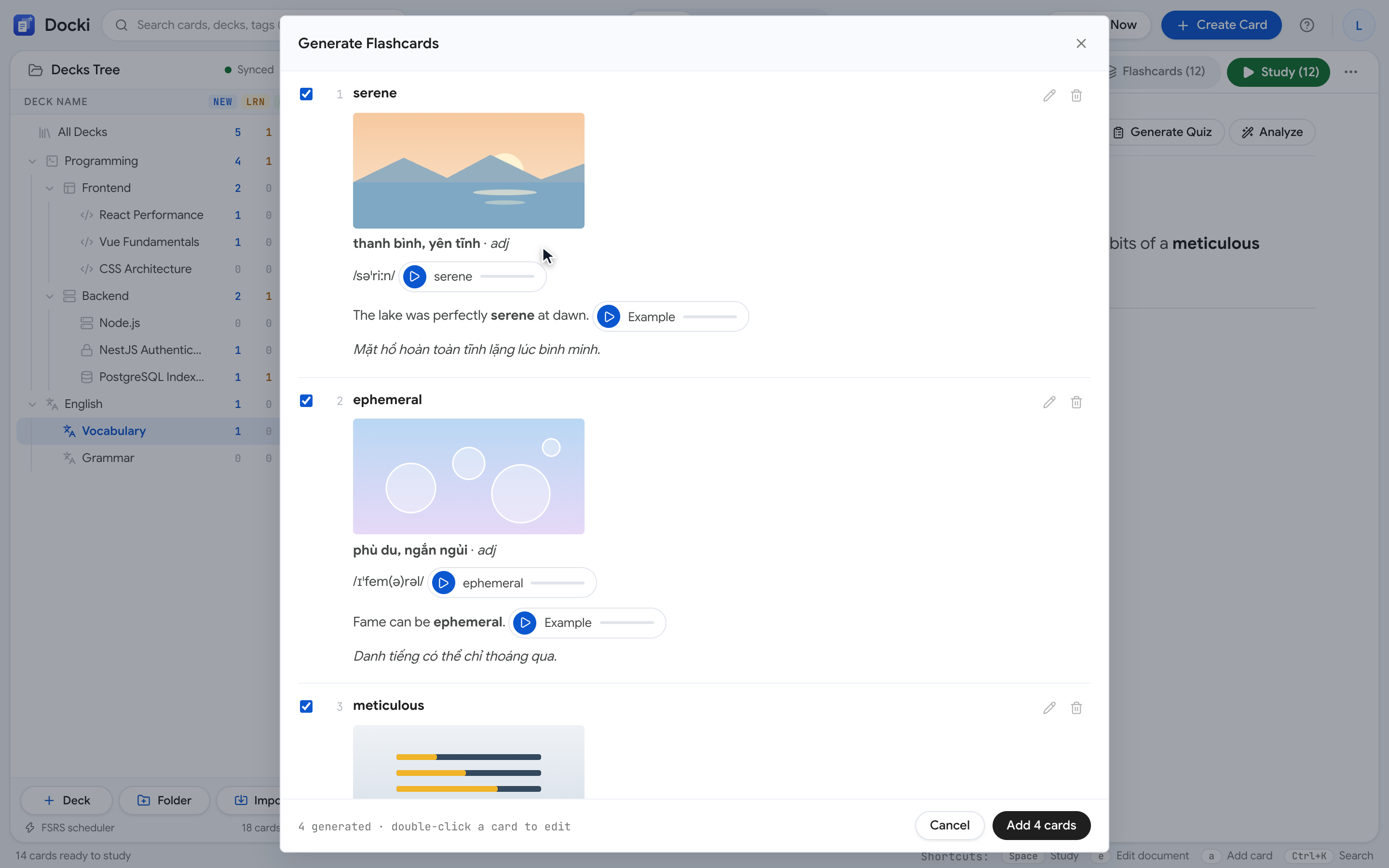 Figure S5: The extracted vocabulary checklist from Reading: City Life. Simply untick any words you already know before generating the full cards.
When Docki builds cards from a Document, it passes the surrounding passage as Context to the AI—so polysemous words get the exact sense used in your reading.
Method 3: Add a Word on the Fly While Reading (Add as a word)
Sometimes you are reading a Document (or reviewing another card) and spot one great word or idiom you want to capture right away.
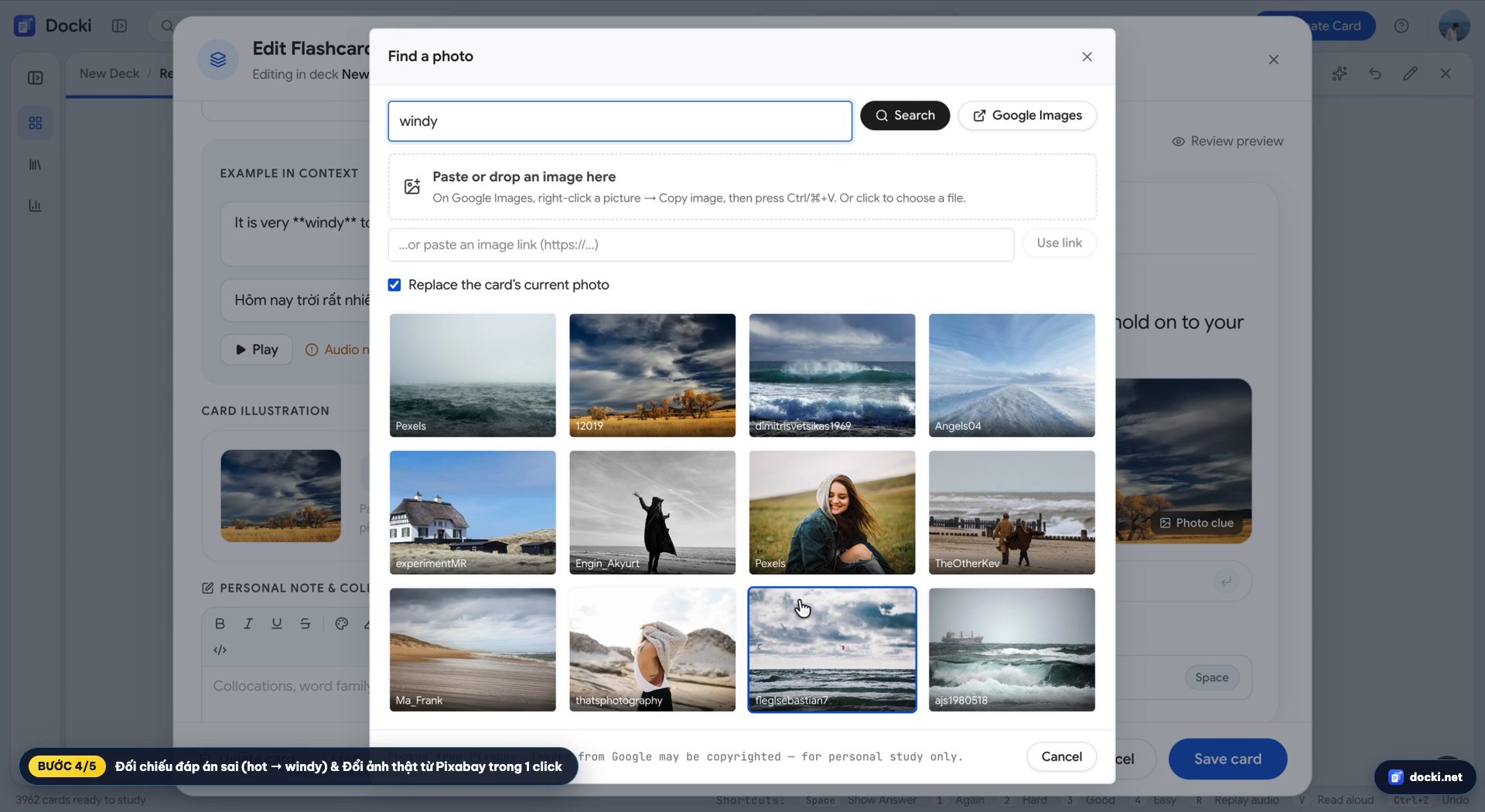 Figure S6: Highlighting a word or phrase inside the Document and clicking Add as a word from the floating selection bar.
Highlight the word or phrase and click Add as a word (Figure S6). Docki builds the complete vocabulary card—photo, IPA, audio, and contextual example—and adds it straight to your deck without interrupting your reading flow.
Review Drafts Before Adding to Your Deck
Whether you use Method 1 or Method 2, Docki always shows a draft review screen before saving anything to your deck.
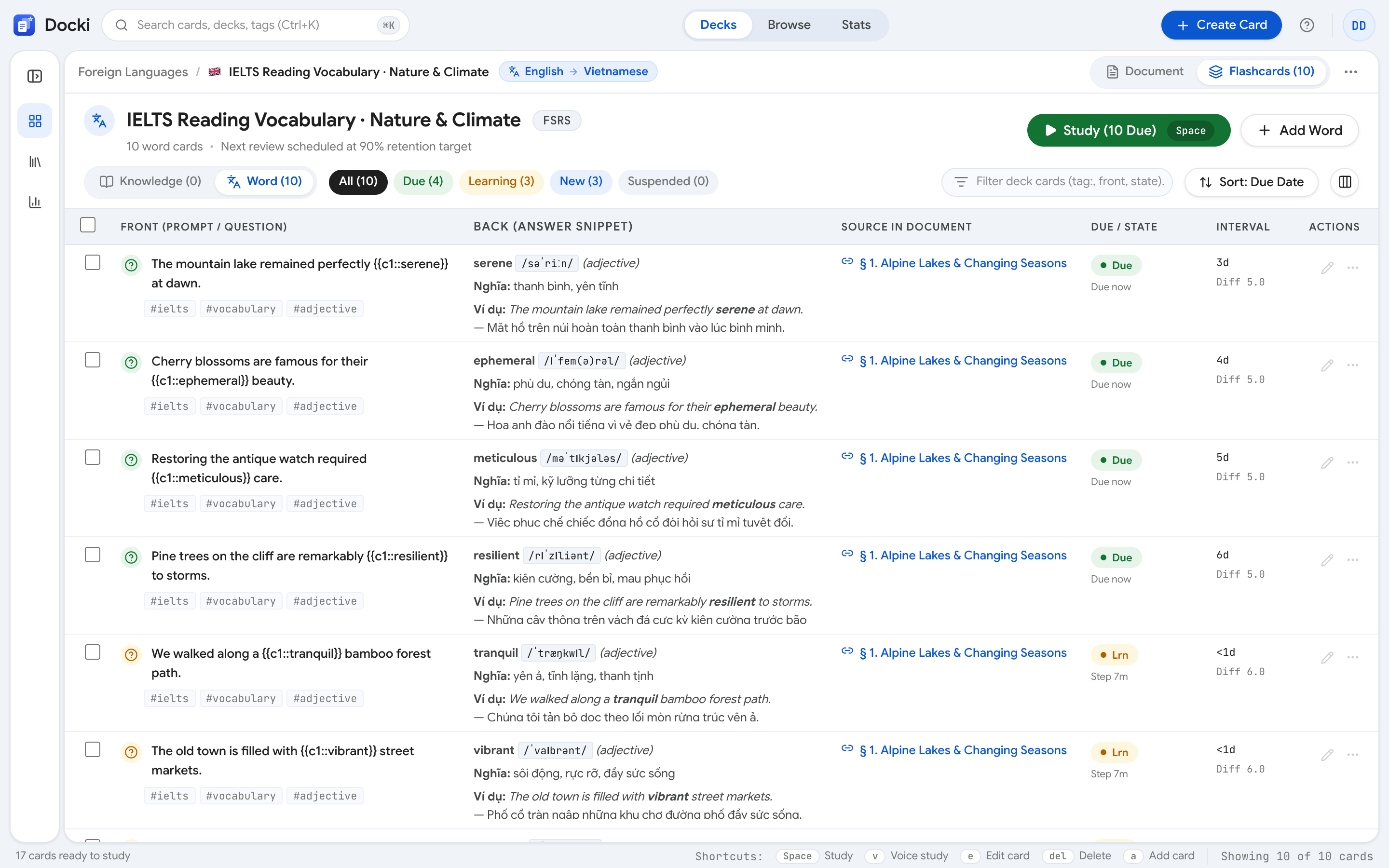 Figure S7: Inspecting a draft card before adding. Notice the blanked cloze sentence on the front and the real stock photo, meaning, IPA, audio, and translated example on the back.
Words already in your deck are flagged as Duplicate and unticked automatically. You can click Edit on any draft to tweak the meaning or swap the photo, then confirm to add the checked cards. Opening the deck's Flashcards tab shows your new collection ready for study:
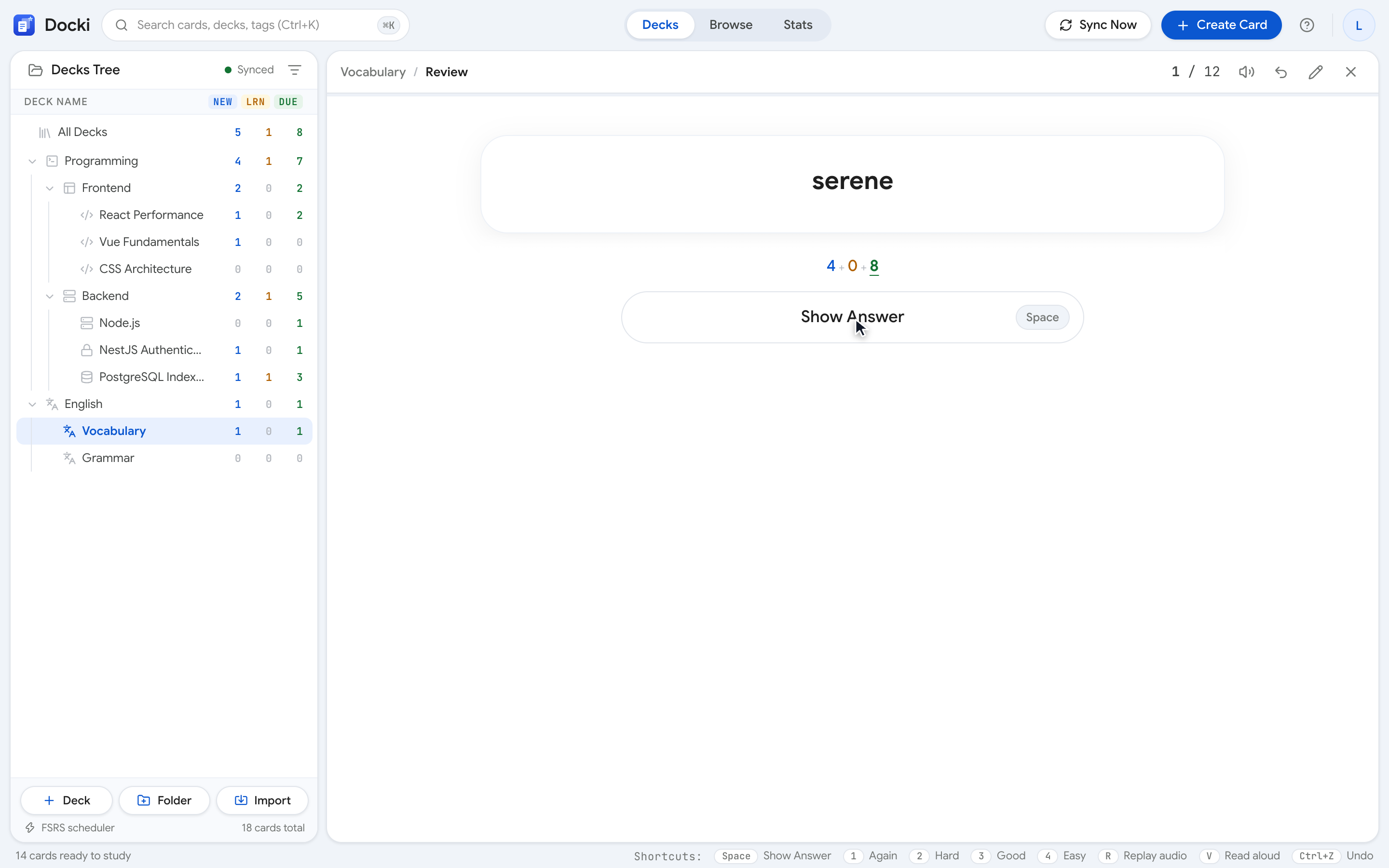 Figure S8: The Flashcards tab after adding the batch, showing each word with its photo thumbnail, meaning, pronunciation, and audio button.
Real-World Benchmark: From a 410-Word Article to 12 Cards in 32 Seconds
Here are the exact measurements from our test run building the Reading: City Life deck shown above:
- Source text: A 410-word article on urban transit and public parks pasted into the Document tab.
- Extracting words (Find words in the Document): 4 seconds to extract 18 candidate words and phrases.
- Filtering: 15 seconds to untick 6 familiar words and keep 12 target words.
- Generating 12 full cards: 32 seconds total to generate definitions, translations, IPA, 24 Google TTS audio clips, and 12 real stock photos.
During review, you practice active recall by typing the missing word on the front:
Why do nerve impulses travel fast along myelinated fibres?
And flipping the card (Space) reveals the full multi-sensory back side (Figure S9):
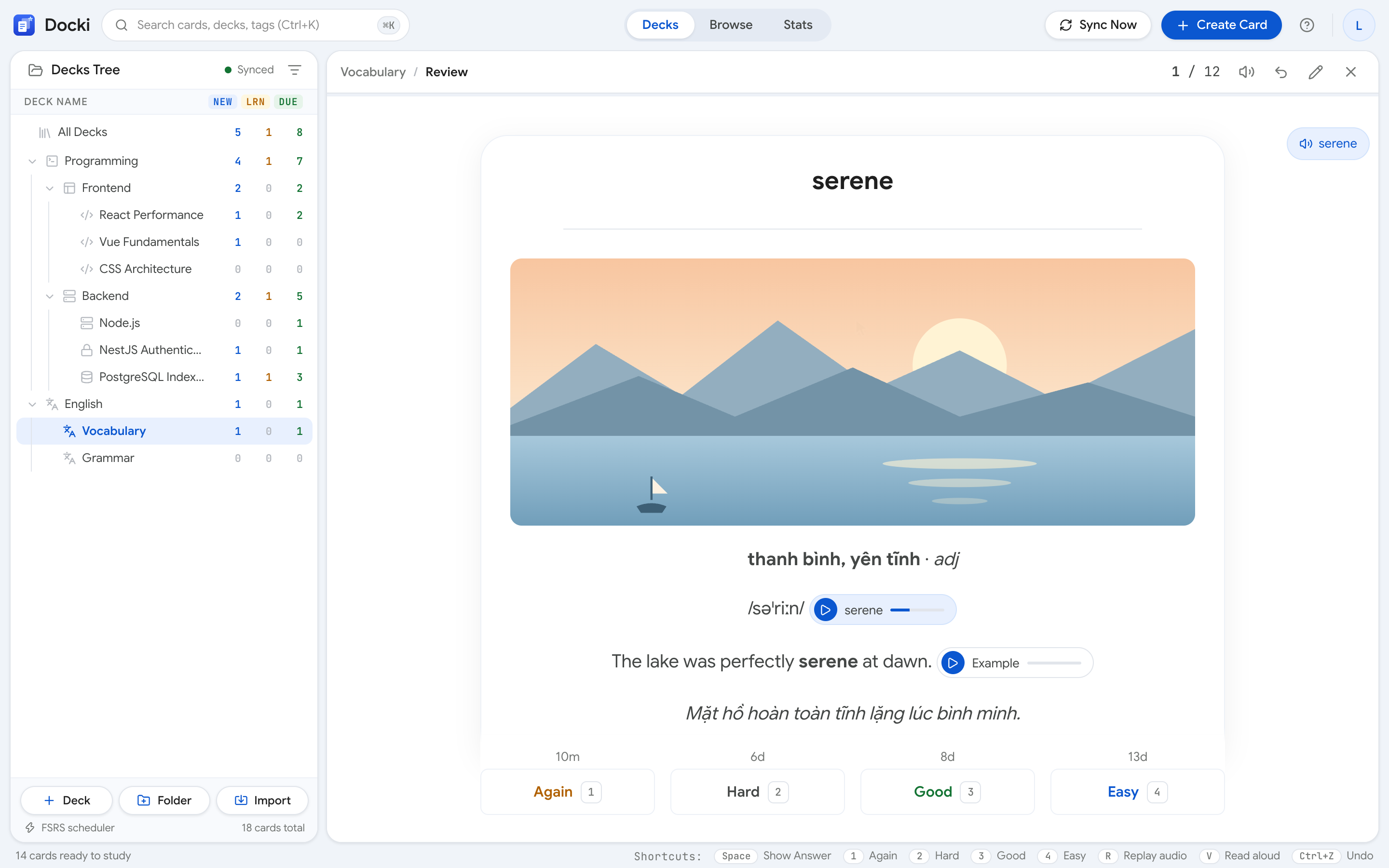 Figure S9: Reviewing one of the newly generated vocabulary cards with its real stock photo, IPA + audio, contextual example, and FSRS buttons.
5 Tips and Common Pitfalls to Avoid
- Cap new batches at 10–20 words per reading: Keep only the highest-value words so your daily FSRS review queue stays enjoyable.
- Generate from a Document whenever possible: Extracting words from a reading passes the sentence context to AI, preventing wrong-sense definitions.
- Try a Monolingual setup for intermediate/advanced study: Set both Language you are learning and Meanings and translations to the same language (e.g., Spanish → Spanish).
- Swap photos on abstract words: Press
Eduring review to pick a more memorable stock photo in one click. - Press
Rtwice for slow turtle playback: PressRto replay audio, and pressRagain within a few seconds to hear tricky pronunciations slowed down.
Frequently Asked Questions (FAQ)
1. Which languages are supported?
Deck settings… offers English, Japanese, Chinese, Korean, French, German, Spanish, and Vietnamese, plus Other… for any language, automatically choosing IPA, Pinyin, Hiragana + Romaji, or Revised Romanization.
2. Can I edit a vocabulary card after it is generated?
Yes. Every vocabulary card is stored as Markdown. You can edit text, regenerate the example sentence, switch the Google TTS voice, or change the photo anytime.
3. Are there limits on how many words I can extract or generate?
Find words in the Document scans up to 30,000 characters (up to 200 words). Card generation uses your AI allowance, and audio uses your monthly Google voice character allowance.
4. What happens if one word in a batch fails to find a photo or audio?
Docki uses safe fallbacks: if a photo isn't found or your Google voice quota is used up, the card is still created with all its text, IPA, and examples plus a warning note.
Build Your First Batch of Vocabulary Cards Today
Put this method to work in your own studying
Create study documents, extract flashcards with AI and review with FSRS spaced repetition on Docki, completely free.
Start for free