Living Study Notes: Markdown, PDF and Source-Linked Flashcards in One Place
If you have ever prepared for university exams, professional certifications, or medical boards, you are intimately familiar with this frustrating ritual: opening a dense PDF textbook in one reader, launching Notion or Obsidian on a second monitor to summarize chapters, and keeping Anki open in a third window to hand-type flashcards.
Whenever you encounter a crucial definition or anatomical diagram, you highlight the text, press Ctrl+C, switch windows, press Ctrl+V into your notes, and then copy-paste once more into your flashcard software to formulate a question and answer. This disjointed workflow drains your mental stamina long before you even begin actively studying. But that is not even the worst consequence.
The true tragedy unfolds weeks later, when your spaced repetition algorithm serves a card up for review. You stare at the brief prompt and realize you have forgotten the foundational concept. When you flip the card over, all you see is an isolated definition stripped of context, leaving you wondering: "What was the broader framework around this? What did the paragraphs before and after explain?" That card has become an "orphan card" — completely uprooted from its original lecture. To rebuild understanding, you are forced to reopen the multi-hundred-page textbook, search through tables of contents, and endure a cognitive disruption that destroys your focus.
Docki eliminates this fragmentation through a core architectural philosophy: Living Notes. Within every deck on Docki, source materials (Markdown notes, PDF textbooks) and spaced repetition flashcards coexist as a unified ecosystem. You read, annotate, and generate cards directly on the document pages. Most importantly, every card remembers exactly where it was born, allowing you to jump straight back to the original textbook page or note section with a single click.
This comprehensive guide demonstrates how to establish a closed-loop study system using Living Notes in Docki: from managing multi-tab documents and annotating PDFs to tracing card sources and scanning for knowledge coverage gaps.
1. The Living Notes Philosophy: Bridging Deep Comprehension and Long-Term Recall
In cognitive science, mastering complex material requires two continuous, indivisible learning phases:
- Encoding & Deep Comprehension: You read textbooks, compare references, and understand mechanisms and overarching conceptual structures.
- Retrieval Practice & Retention: You employ Active Recall paired with Spaced Repetition to consolidate that understanding into long-term memory.
When notes and flashcards live in isolated applications, the bridge between these two phases collapses. Students routinely swing between two destructive extremes:
- Spending dozens of hours reading and highlighting PDFs without making flashcards, only to forget 80% within a month (the classic Ebbinghaus forgetting curve).
- Grinding through decontextualized flashcards, memorizing superficial keywords while losing the big picture needed for complex diagnostic or analytical problems.
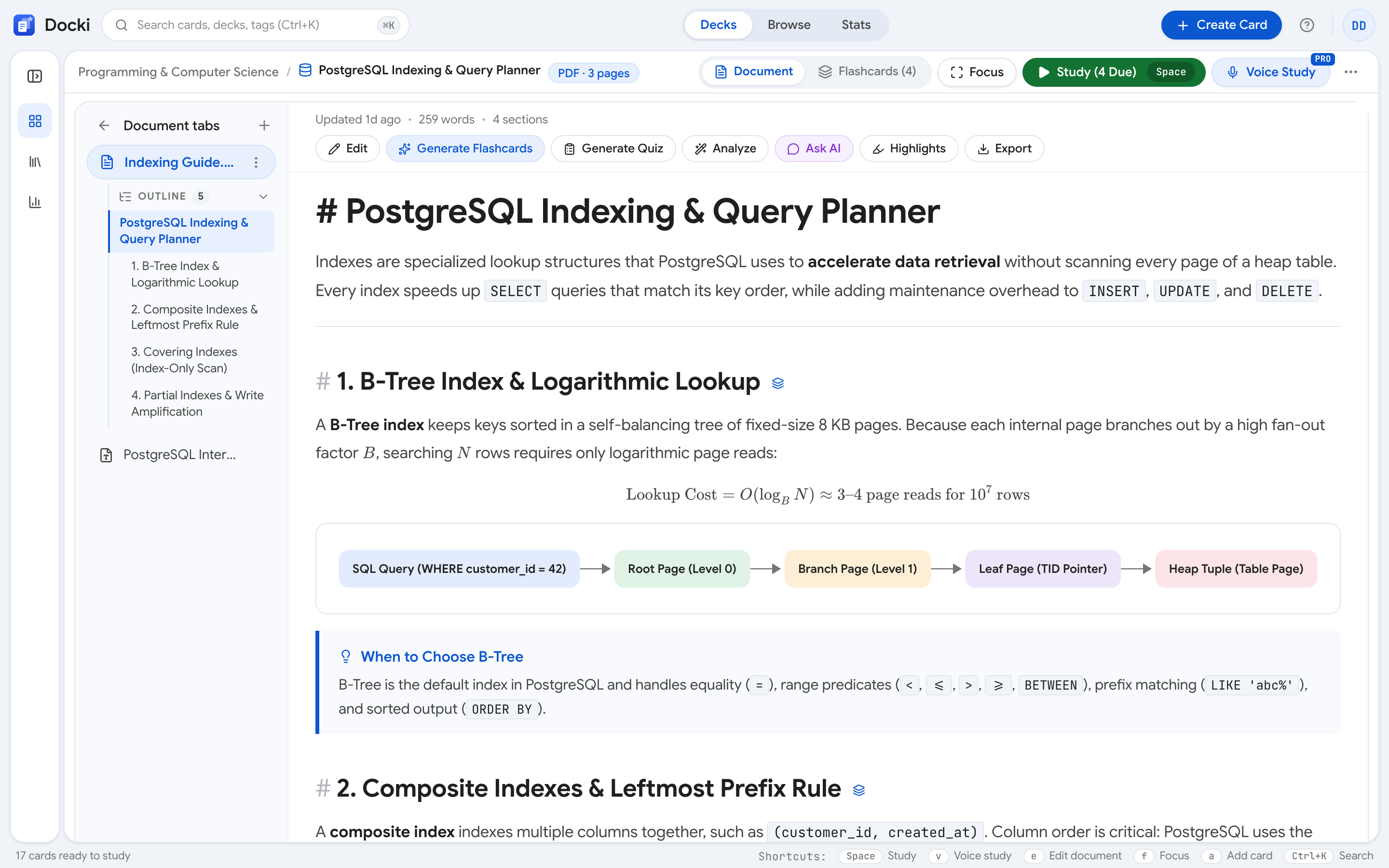 Figure S1: The deck overview screen in Docki: source documents, tab navigation, and flashcard collections live together in one seamless workspace.
In Docki, documents are never static text left behind after reading. A document is a "living" entity that continuously feeds flashcard creation and remains instantly accessible whenever you need to restore conceptual context.
Explore this integrated workflow with the interactive demo below:
Why does recalling help you remember?
Rereading a page feels productive, but mostly it just makes the page familiar. Retrieval practice — pulling information back without looking — forces the brain to rebuild the path to the memory, and each rebuild makes the next one easier.
When you try to recall, the brain has to search for and reconnect pieces of information. That effort is the exercise: the connection gets stronger each time, so next time you remember faster and keep it longer.
2. Managing Multi-Tab Documents: Markdown, PDF, and Word Conversion
Every knowledge deck on Docki features a multi-tab document panel located along the left sidebar or top navigation bar. Each deck maintains at least one active document tab, ensuring you never study in a contextual vacuum.
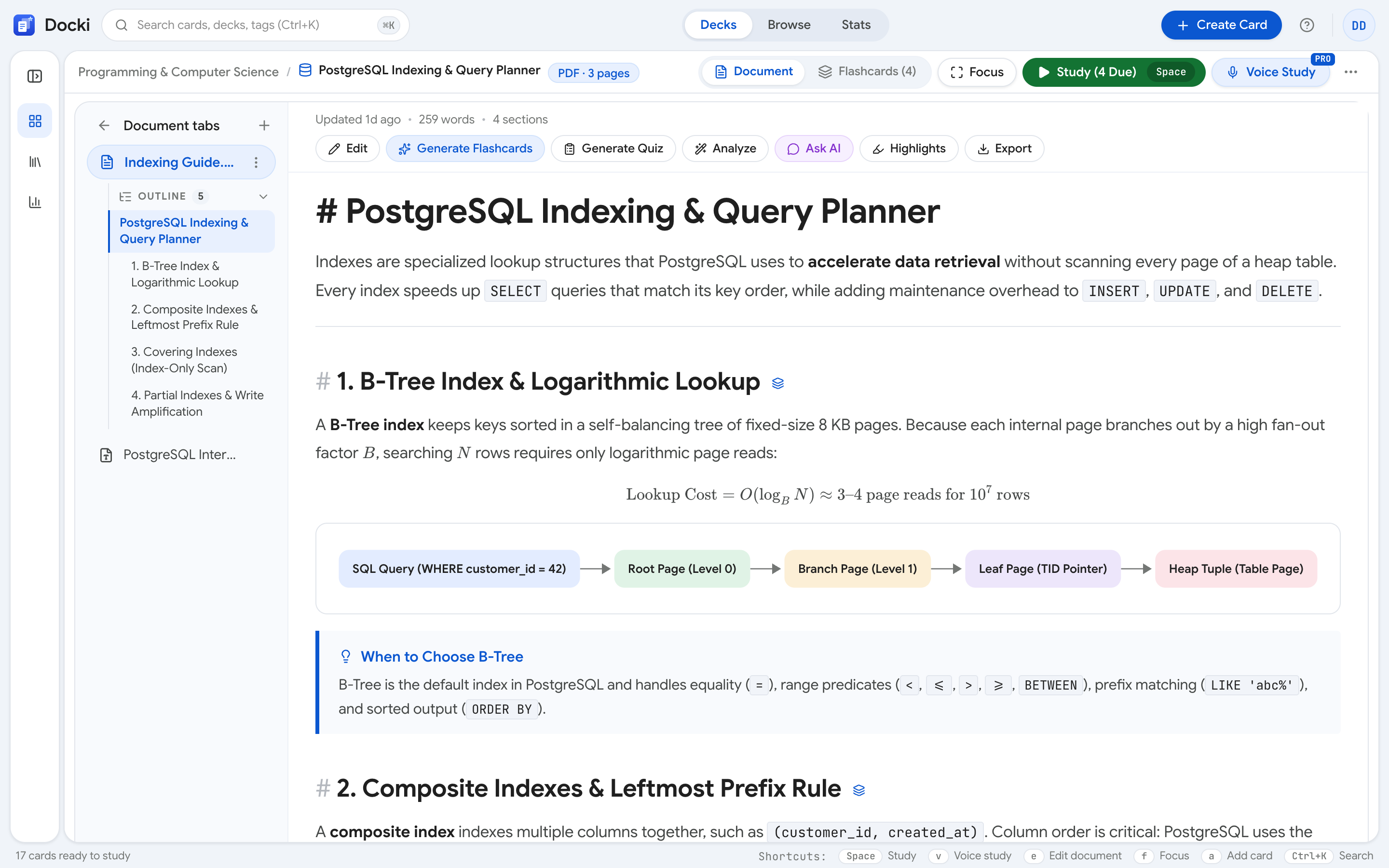 Figure S2: The document tabs panel: add new Markdown tabs, upload PDF textbooks, rename, duplicate, and drag to reorder tabs.
Three Supported Document Types:
- Markdown Tabs (.md): Designed for lecture notes, synthesis outlines, comparison matrices, and mathematical or scientific KaTeX formulas. Type directly, paste from your clipboard, or let AI scaffold your initial study outline.
- PDF Tabs (.pdf): Upload full course textbooks, lecture slide decks, clinical guidelines, or research papers directly into the deck. Docki's integrated PDF reader is optimized for high-resolution displays, offering instant keyword search, smooth zooming, and in-document annotations.
- Word (.docx) and Google Docs Import: When importing Word documents or zip archives, Docki automatically parses headers, tables, and text styles into clean, structured Markdown while preserving your outline hierarchy.
Tab Management Shortcuts:
- Add New Tab: Click Add Tab (+) to create an empty Markdown note or upload a local PDF file.
- Rename Tabs: Double-click any tab title to assign clear identifiers (e.g., Chapter 3 - Lipid Metabolism or Week 4 Pharmacology Slides).
- Drag-and-Drop Reordering: Click and drag tabs horizontally to align with your syllabus progression.
- Duplicate or Archive: Right-click tabs to clone working copies or archive completed modules.
3. Dedicated Markdown Editor: Tables, Mermaid Diagrams, and Spell Checking
For written notes, Docki provides an advanced academic Markdown editor designed for clear technical synthesis.
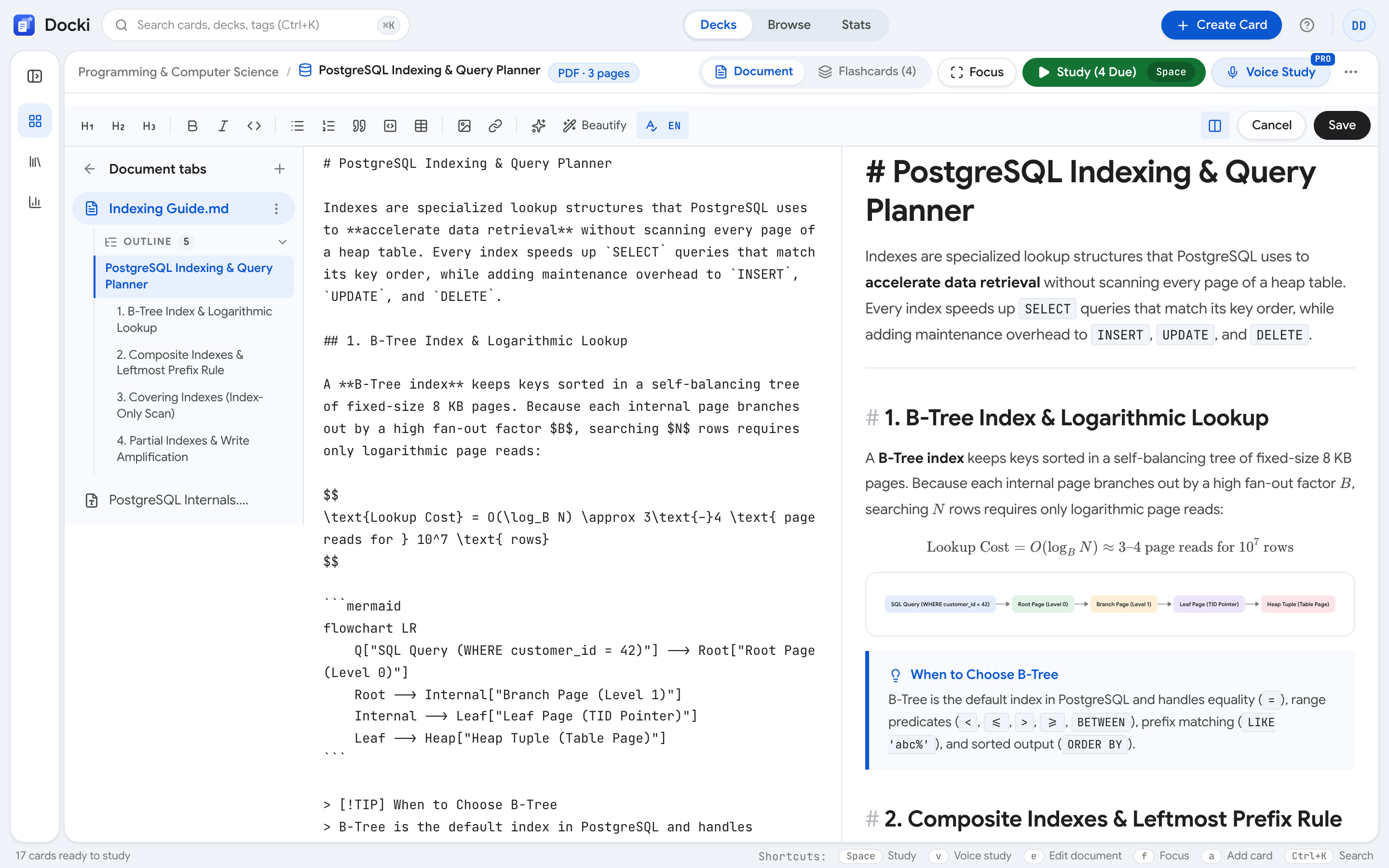 Figure S3: Docki's Markdown editor rendering side-by-side comparison tables, interactive Mermaid diagrams, and bilingual spell check.
Core Editor Capabilities:
- Structured Tables: Compare opposing concepts (such as Prokaryotic vs. Eukaryotic Cells or competing legal statutes) with clean, self-aligning grid formatting.
- Mermaid Flowcharts and Diagrams: Render biochemical pathways, decision trees, clinical diagnostic workflows, and algorithmic data structures directly in your notes using plain-text Mermaid syntax.
- KaTeX Mathematical Typesetting: Embed calculus proofs, chemical reaction equations, and physics notations using standard LaTeX syntax.
- Bilingual Spell Checking: Built-in spell checking with dedicated language toggles ensures accurate terminology in both English and Vietnamese.
- Split & Zen Modes: Toggle between side-by-side editing and preview, or switch to distraction-free full-screen reading mode.
4. Studying Directly from PDFs: Text Highlights, Area Selections, and Instant Cards
When your primary learning materials consist of massive PDF textbooks, Docki's integrated reader transforms how you engage with the text.
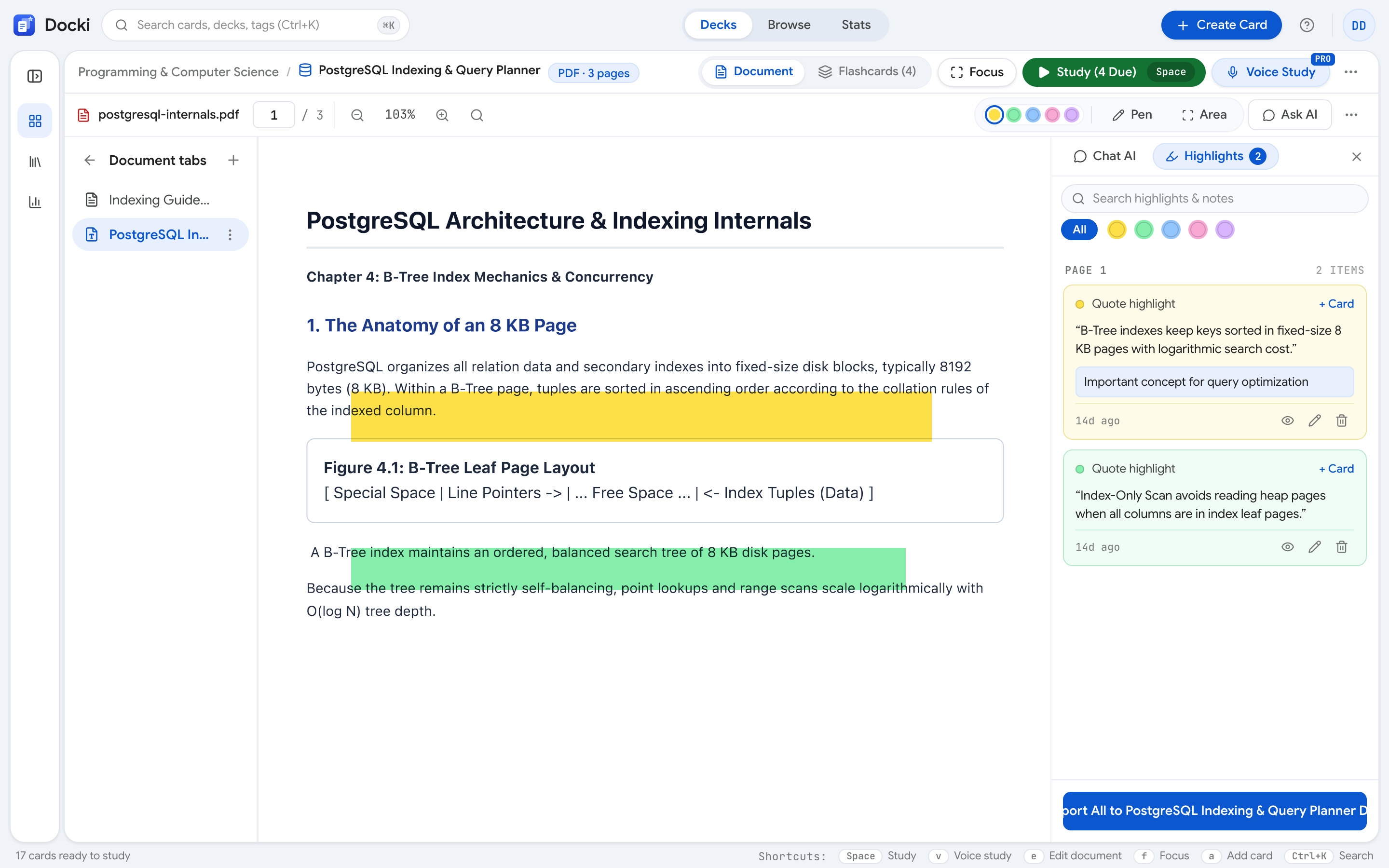 Figure S4: The integrated PDF reader featuring multi-color text highlights and a real-time annotation sidebar.
Intelligent Reading and Annotation:
- Multi-Color Text Highlighting: Select any passage and apply color-coded highlights: yellow for core definitions, green for clinical examples, or pink for diagnostic pitfalls.
- Area Snapshot Tool: For anatomical illustrations, ECG tracings, or complex biochemical pathways that cannot be selected as raw text, use the rectangular area tool to snapshot exact visual regions.
- Margin Annotations: Attach personal insights, mnemonic triggers, or questions directly to specific highlights.
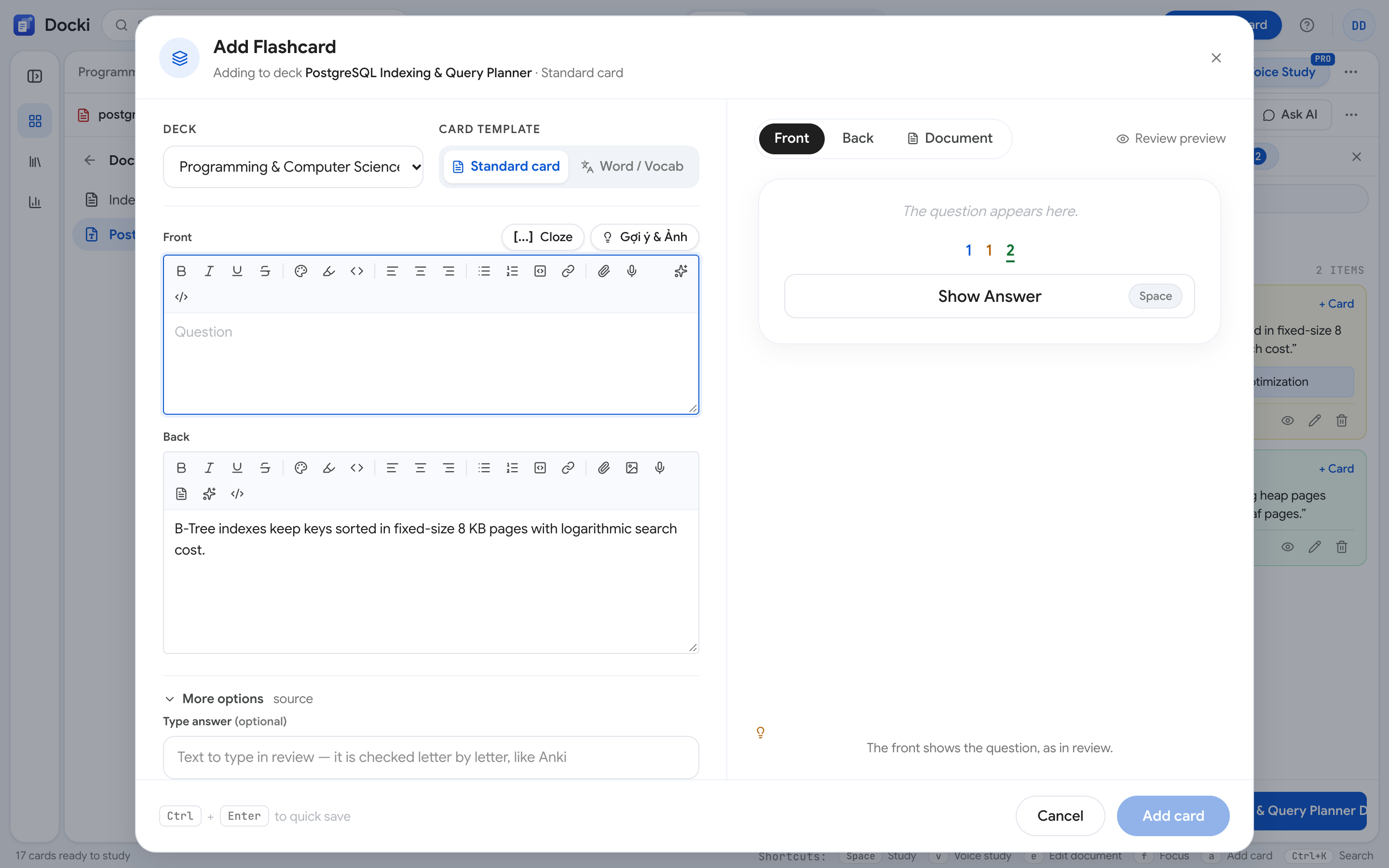 Figure S5: Generating a flashcard from a PDF highlight: selected text and visual snapshots automatically populate the card fields with page citations.
Instant Card Creation from Highlights:
Clicking any highlight or area snapshot triggers a contextual quick-action toolbar:
- Click Make Flashcard (or the lightning bolt icon).
- Docki opens a streamlined card creation modal pre-populated with your selected text on the front or back.
- Area snapshots attach automatically as back-side visual references.
- The system automatically logs the exact document name and page number (e.g., Principles_of_Neural_Science.pdf#page=214) as the card's source metadata.
5. Cards That Remember Their Origins: Source Anchors and the Source Modal
This feature represents the breakthrough that permanently eliminates the orphan card dilemma. Every flashcard generated from a Markdown tab or PDF carries a permanent Source Anchor.
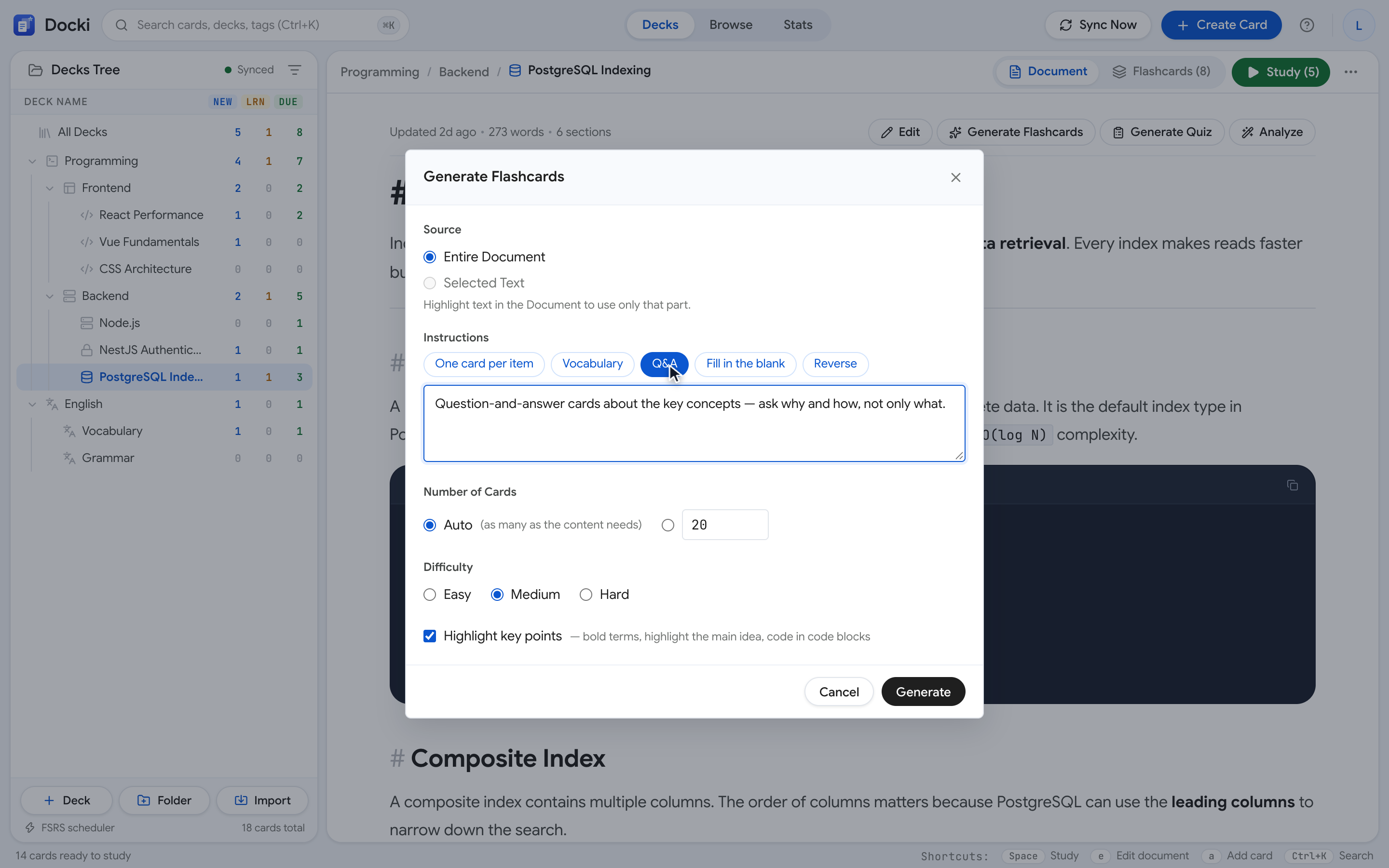 Figure S6: The Source Modal: clicking the Source button on any card instantly navigates to the original textbook page and highlights the source passage.
How It Works During Live Reviews:
During an intensive spaced repetition (FSRS) session, you encounter a challenging card:
- You flip to the back, but hesitate on the underlying mechanism: "Why do ACE inhibitors cause a persistent dry cough? What is the molecular pathway?"
- Rather than guessing or closing the app to hunt down your textbook, click the Source button on the card header (or press keyboard shortcut
S). - The Source Modal slides open directly over your review interface without terminating your active study session.
- The reader automatically navigates to the exact textbook page and flashes the precise highlighted paragraph where the card was authored.
- You spend 30 seconds reading the surrounding context, re-establish full conceptual clarity, close the Source Modal, and rate your card Hard or Good with total confidence.
Confidence stems from knowing that every fragmented fact you memorize is anchored to an accessible foundation of truth.
6. Eliminating Knowledge Gaps with Knowledge Coverage
When authoring cards across a 30-page academic chapter, how do you verify that you haven't missed a crucial concept, a dangerous drug contraindication, or an exception to a rule?
Docki's Knowledge Coverage analysis inspects your study materials to identify blind spots.
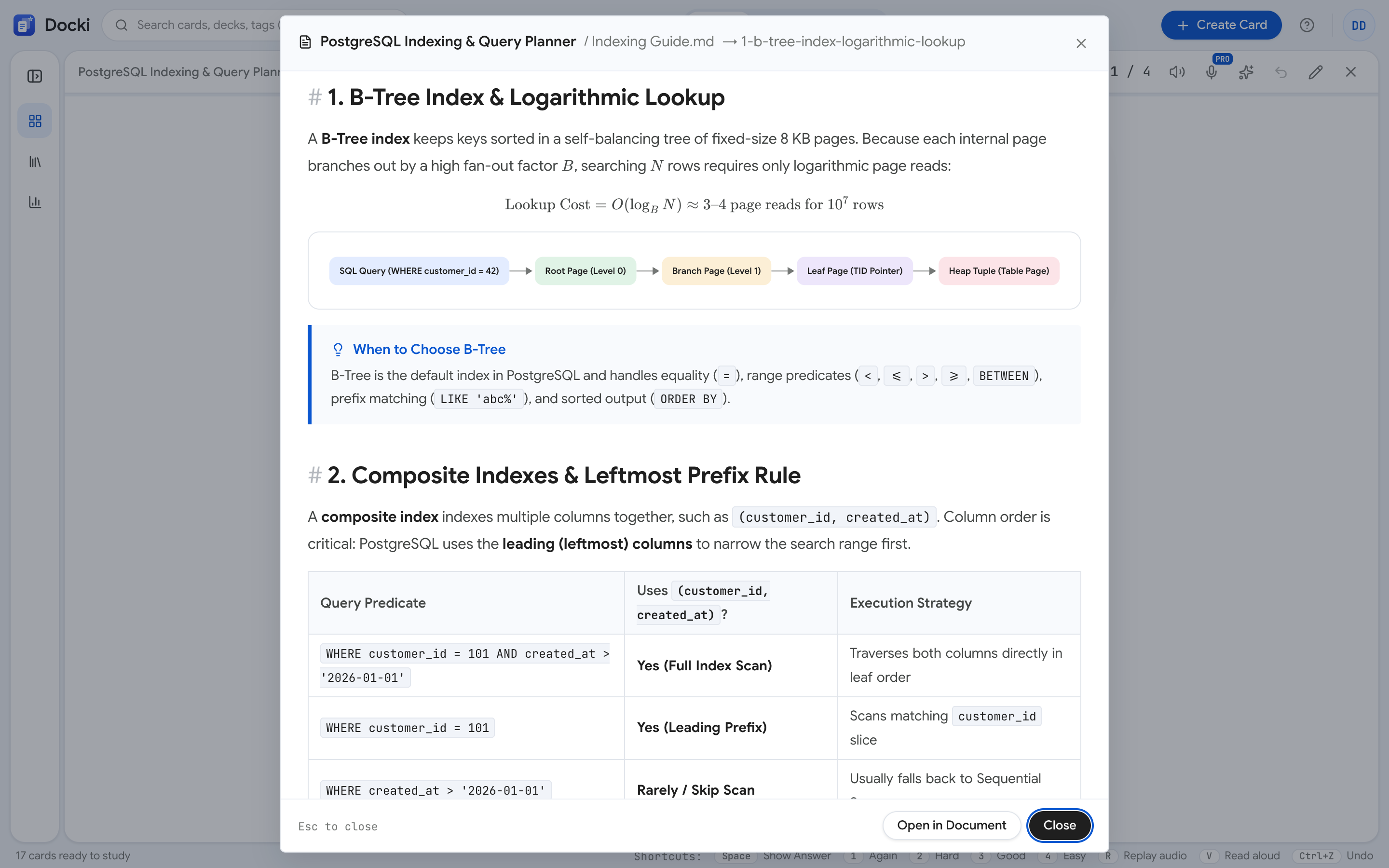 Figure S7: Knowledge Coverage analysis: identifying untested headings and offering one-click card generation for missing concepts.
The Coverage Workflow:
- Trigger Analysis: From any Markdown or PDF tab, select Analyze → Knowledge Coverage.
- Structural Cross-Check: The algorithm evaluates document headings (H1, H2, H3), bold terminology, bulleted lists, and tables, cross-referencing them against existing cards in the deck.
- Visual Coverage Dashboard: Docki generates an itemized audit:
- Sections thoroughly covered by flashcards (marked in green with card counts).
- High-yield sections lacking flashcard representation (highlighted with orange warnings).
- One-Click Gap Closure: Click Generate Missing Flashcards next to any unrepresented topic to automatically extract targeted questions with verified source links.
7. Fast In-Line Authoring with Write Card
When reading a document, you will frequently want to formulate your own custom conceptual question on the fly without AI generation. Docki offers the streamlined Write Card utility.
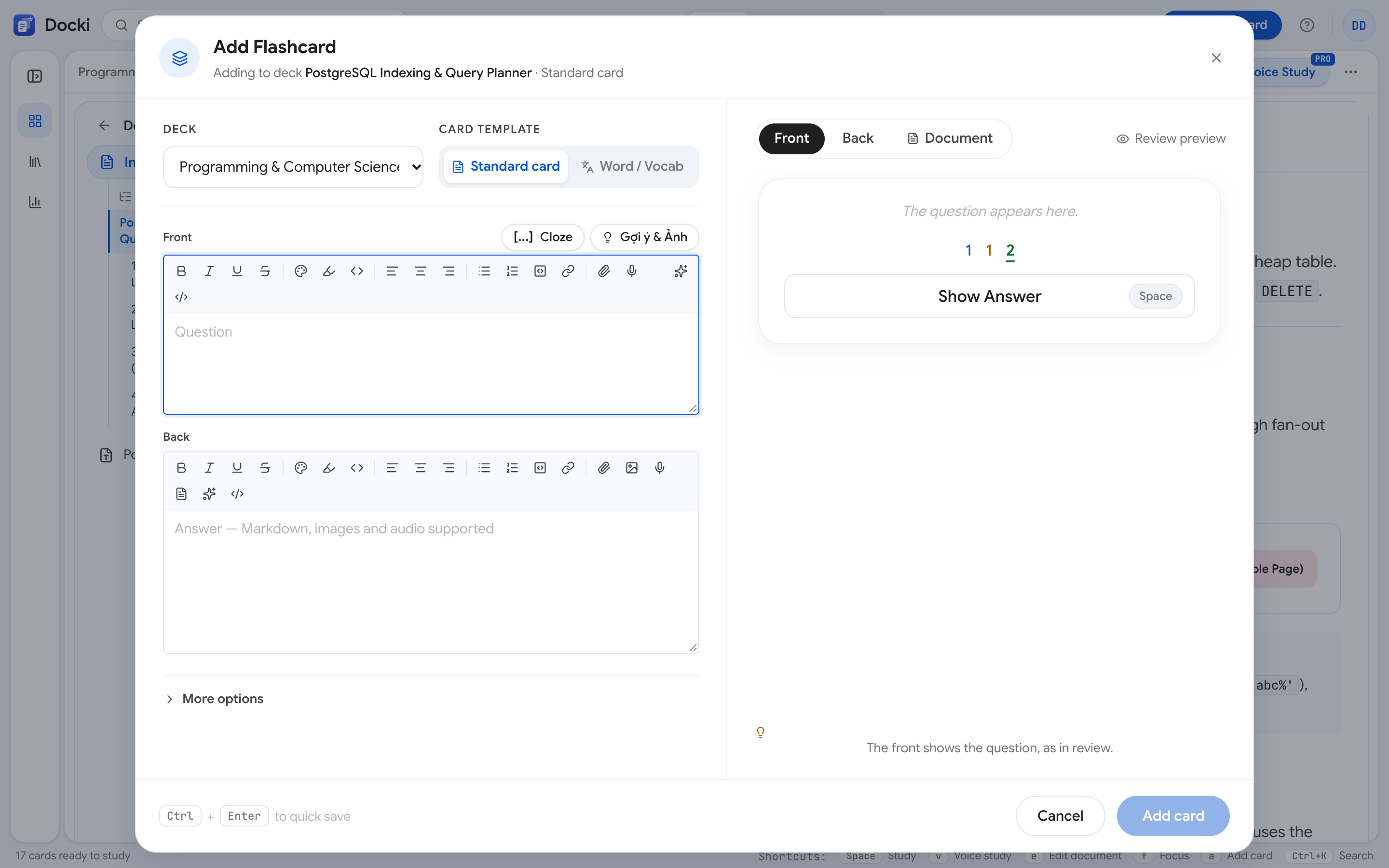 Figure S8: Highlighting text and triggering Write Card to draft a custom question while preserving automatic source attribution.
Rapid Workflow:
- Highlight any notable sentence or term in your Markdown or PDF tab.
- Press
Ctrl+N(Windows) orCmd+N(macOS). - The Write Card dialog appears instantly:
- Your selected excerpt is attached as a contextual reference.
- Enter your prompt on the front and answer on the back.
- Press
Ctrl+Enterto save the card and seamlessly resume reading.
Explore interactive card creation and deck management below:
8. Organizing Academic Complexity: Folders and Sub-Decks
As course loads expand into dozens of textbooks and subjects, organizing your study library is critical. Docki provides an intuitive hierarchical tree supporting Folders and Sub-Decks.
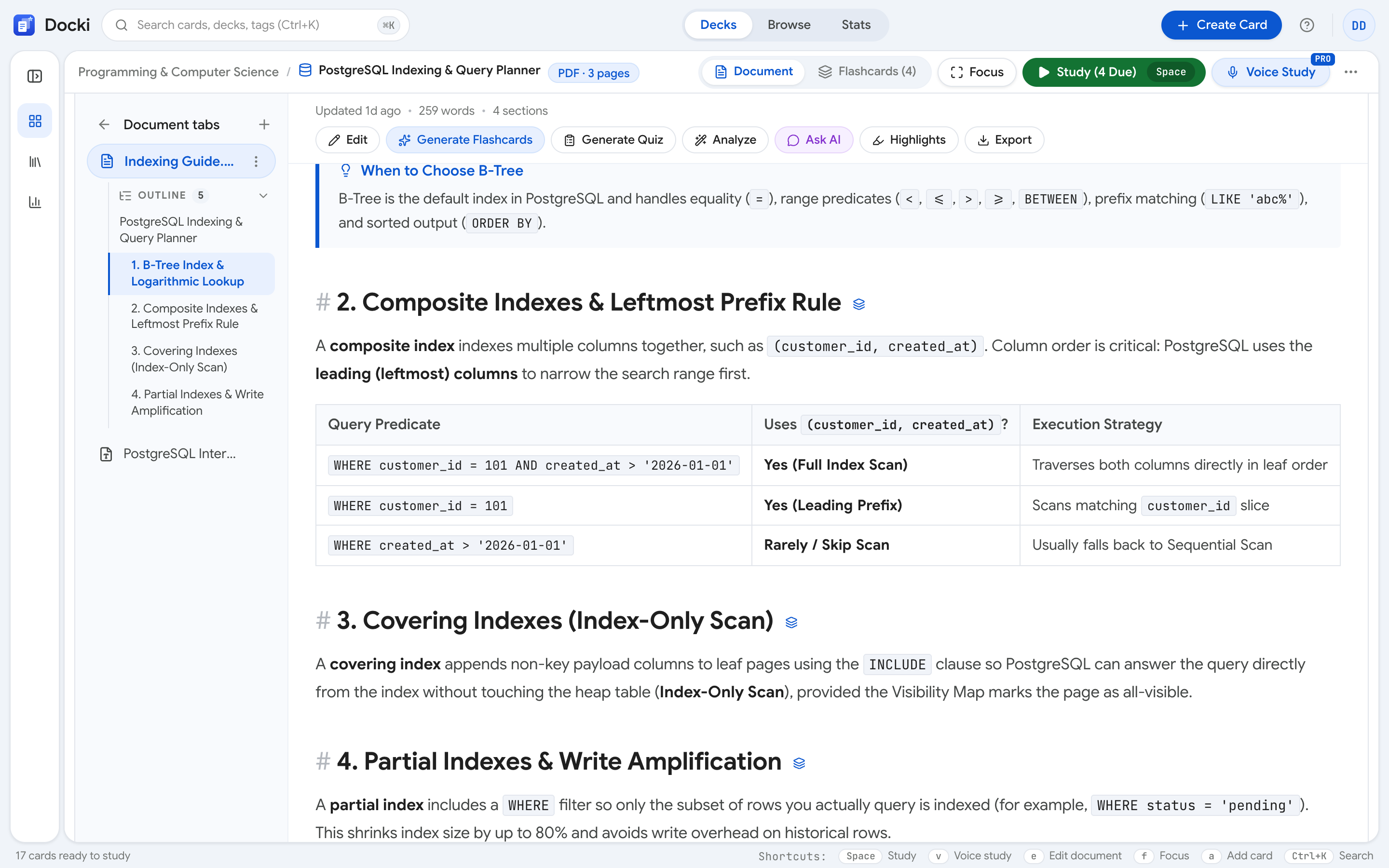 Figure S9: Sidebar navigation displaying nested folders and modular sub-decks organized by semester and clinical specialty.
Recommended Structure for Rigorous Academic Programs:
- Root Folders: Represent broad academic milestones (e.g., Medical School - Year 2 or CFA Level 1 Candidate).
- Sub-Folders: Organize discrete subject domains (e.g., Pathology, Pharmacology, Microbiology).
- Target Decks: Contain the source documents and flashcards for specific chapters or units (e.g., Cardiovascular System, Renal Pathology).
- Flexible Review Scopes: Review an individual sub-deck when preparing for a weekly quiz, or click a parent folder to run a blended review session covering hundreds of cards across multiple disciplines before comprehensive exams.
9. Real-World Case Study: Mastering an 18-Page Cell Biology Chapter in 22 Minutes
To validate the efficiency of Living Notes, we tracked an undergraduate biology student studying an 18-page PDF chapter titled Cell Biology: Membrane Transport.
Step-by-Step Study Log:
| Time | Action in Docki | Outcome |
|---|---|---|
| Min 00 – 02 | Uploaded the PDF chapter into a fresh deck; pagination and text layer indexed instantly. | Searchable high-resolution digital textbook ready for annotation. |
| Min 03 – 12 | Read through the text, creating 14 multi-color highlights for core definitions and 2 area snapshots for Na+/K+ ATPase diagrams. | 16 annotated anchors logged in the document sidebar. |
| Min 13 – 16 | Clicked key highlights and selected Make Flashcard to generate 12 conceptual cards with automatic page citations. | 12 high-yield cards built with diagram snapshots attached. |
| Min 17 – 19 | Ran Analyze → Knowledge Coverage; identified an unrepresented section on Voltage-Gated Ion Channels. Clicked Generate Missing Flashcards to add 4 cards. | Reached 100% conceptual coverage of all 18 pages. |
| Min 20 – 22 | Switched to the Flashcards tab and initiated the first Active Recall session under the FSRS algorithm. | Complete learning cycle achieved: from deep comprehension to active retention. |
Total Time: 22 Minutes. The student generated 16 high-yield, source-linked cards. Compared to traditional manual methods (switching between PDF viewers and Anki, which averaged 60 to 90 minutes), total preparation time was reduced by over 65%.
10. Study Habits and Common Mistakes to Avoid
1. The Coloring Book Trap
Avoid highlighting full paragraphs. Over-highlighting dulls your brain's selective attention. Restrict highlights to atomic keywords, diagnostic criteria, and numerical thresholds.
2. Follow the Minimum Information Principle
Every flashcard extracted from a document should test exactly one conceptual fact. If a paragraph covers three distinct drug mechanisms, break it into three focused cards rather than one overwhelming block.
3. Assign Meaningful Tab Names
Avoid generic names like Document 1. Label your tabs with explicit content titles such as Lecture Summary, Professor Slides, or Exam Practice Cases.
4. Consult the Source Modal When Stumbling
Never blindly guess a card when you have forgotten its fundamental premise. Press S, spend 30 seconds reading the original context in the PDF, and rebuild genuine comprehension before rating the card Again or Hard.
11. Frequently Asked Questions (FAQ)
1. What is the maximum PDF file size supported?
Docki supports PDF uploads up to 50MB per file, accommodating comprehensive multi-hundred-page textbooks with high-resolution clinical illustrations.
2. Can I highlight scanned PDF documents?
If the scanned PDF contains an embedded text layer (OCR), you can highlight words normally. For purely photographic scans without OCR, you can use the Area Snapshot Tool to capture diagrams and passages as image flashcards.
3. Will editing my Markdown notes break existing card source links?
No. Docki relies on persistent block identifiers to track source anchors. Adding new paragraphs or modifying surrounding phrasing will not detach cards from their original location.
4. Can I export my notes and flashcards?
Yes. You retain full ownership of your study assets. You can export documents as standard Markdown files, export flashcards into Anki-compatible .apkg packages, or download complete data backups anytime.
12. Build Your First Living Notes Deck Today
Stop letting hundred-page textbook PDFs become passive digital graveyards you never revisit after exam week. By uniting rigorous reading comprehension with source-linked spaced repetition, you build a resilient, retrievable body of knowledge that lasts throughout your career.
- Explore Sample Decks with Documents: Visit /starter, pick an academic deck featuring pre-loaded Markdown and PDF tabs, and test the Source Modal firsthand.
- Upload Your First Textbook: Register for a free account at /register, create a knowledge deck, drop in your course PDF, and experience creating source-linked cards in seconds.
- Continue Reading:
Put this method to work in your own studying
Create study documents, extract flashcards with AI and review with FSRS spaced repetition on Docki, completely free.
Start for free